> For the complete documentation index, see [llms.txt](https://docs.zero.inc/llms.txt). Markdown versions of documentation pages are available by appending `.md` to page URLs; this page is available as [Markdown](https://docs.zero.inc/features/ai-properties.md).
# AI Properties
Some columns you fill in by hand because nobody has ever found a better way: industry, tech stack, lead score, "what do they actually do". An AI property replaces the typing with a prompt. The agent reads the record — and, depending on which tools you allow, its emails, meetings, files, notes or the open web — and writes the answer into the column.
They work on **Companies**, **Contacts** and **Deals**.
## Creating an AI Property
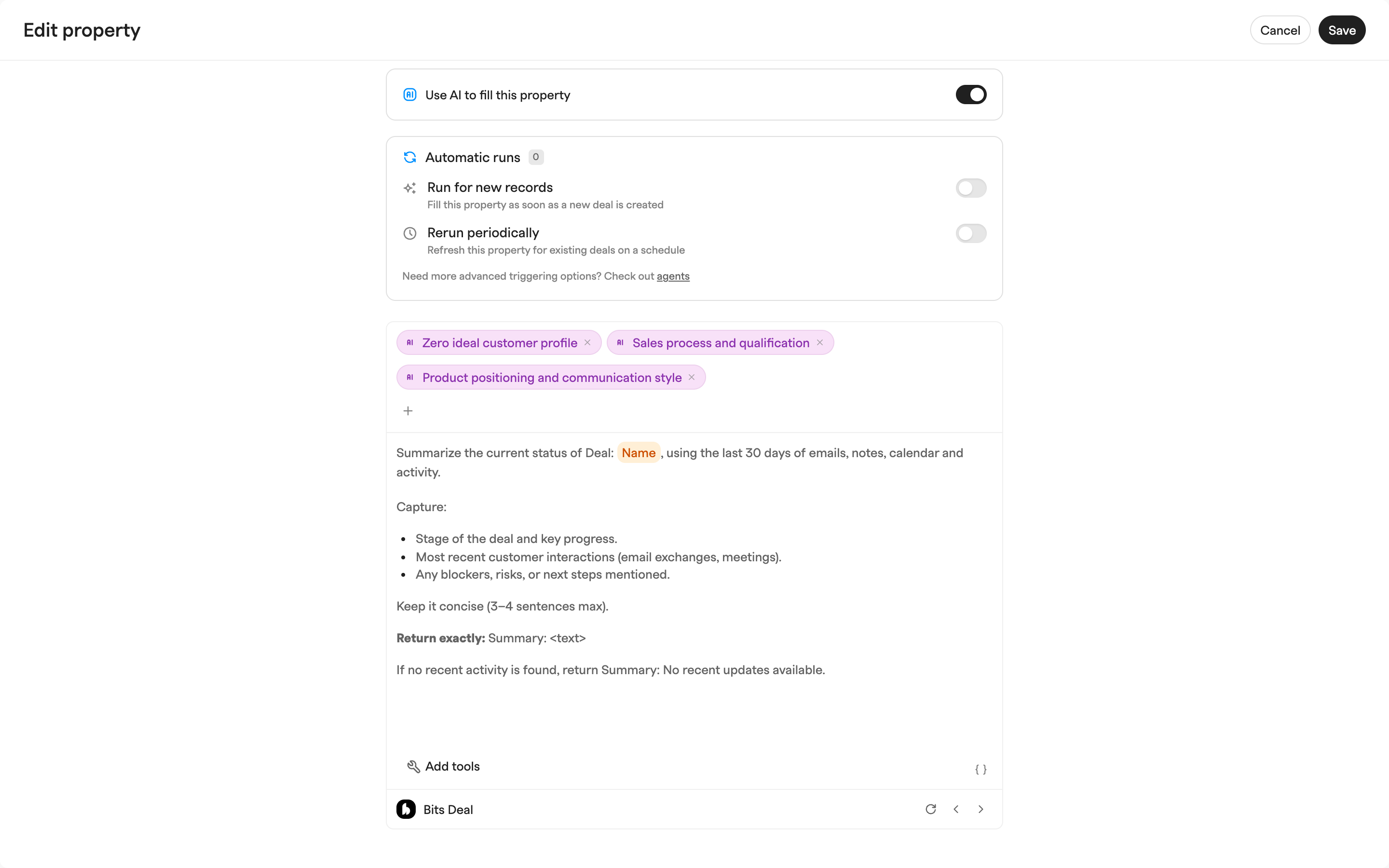
1. Go to **Settings → Workspace → Custom properties**.
2. Pick the entity (**Companies**, **Contacts**, or **Deals**) and click **New property**, or edit an existing property.
3. Give it a **Property name** and **Property type**, and an optional description. Most types work — text, number, date, select, multiselect. For select and multiselect the AI picks from the options you define.
4. Under **AI enrichment**, turn on the **Use AI to fill this property** toggle.
5. Choose when the property runs automatically, pick the tools the agent may use, and write the prompt (all described below).
The same panel opens from a column header menu in any list view, if that is where you happen to be.
## Tools the agent may use
Without tools, the agent sees only the record it is filling. The tools button at the bottom left of the prompt editor — **Allow agent to** — opens the list.
* **Read-only tools** — **Web Search**, plus read access to companies, contacts, deals, their activity timelines, notes, tasks, emails, calendar events and meeting notes, meeting preps, invoices, quotes, issues, analytics events, LinkedIn connections and messages, attached files, and AI contexts.
* **Suggested Tools** — when Zero can tell from your prompt what it will need, those are grouped at the top to switch on together.
* **MCP Connectors** — any connector set up for your workspace, whole or tool by tool.
Switch on only what the prompt needs: fewer tools means faster, more focused runs. And note an AI property can only read — nothing here creates or changes records. For that you want an [agent](/features/agents.md).
## Writing the prompt
The prompt runs once per record, so write it as an instruction about "this record".
* **Macros.** Type `{` to drop any property of the record into the prompt — `Categorize company {Company}` — replaced with the real value on each run.
* **AI Contexts.** The context selector attaches reusable background: your company description, your ICP, your scoring criteria. See [AI Contexts](/settings/ai-contexts.md); you can also write a new one without leaving this panel.
* **Templates.** Company properties come with working prompts to start from — **Hiring for engineers**, **Attended YC**, **Mutual investors**, **GTM Stack**.
* **Preview before you save.** A live sample below the editor runs the prompt against a real record; the arrows switch which record and the reload button re-runs it. Iterate here rather than on your whole workspace.
If you want help drafting a prompt, there is a custom GPT for it: [Zero prompt builder](https://chatgpt.com/g/g-67f4c4d325b48191b70b7a4c331ad249-zero-prompt-builder).
## When AI Properties run
The **Automatic runs** section decides:
* **Run for new records** — fills the property as soon as a record of that type is created, however it was created. On by default for companies and contacts, off for deals.
* **Rerun periodically** — refreshes existing records on a schedule. Off by default.
* **Only for … matching** — conditions that limit either trigger to the records you care about. Leave it empty to run for all of them.
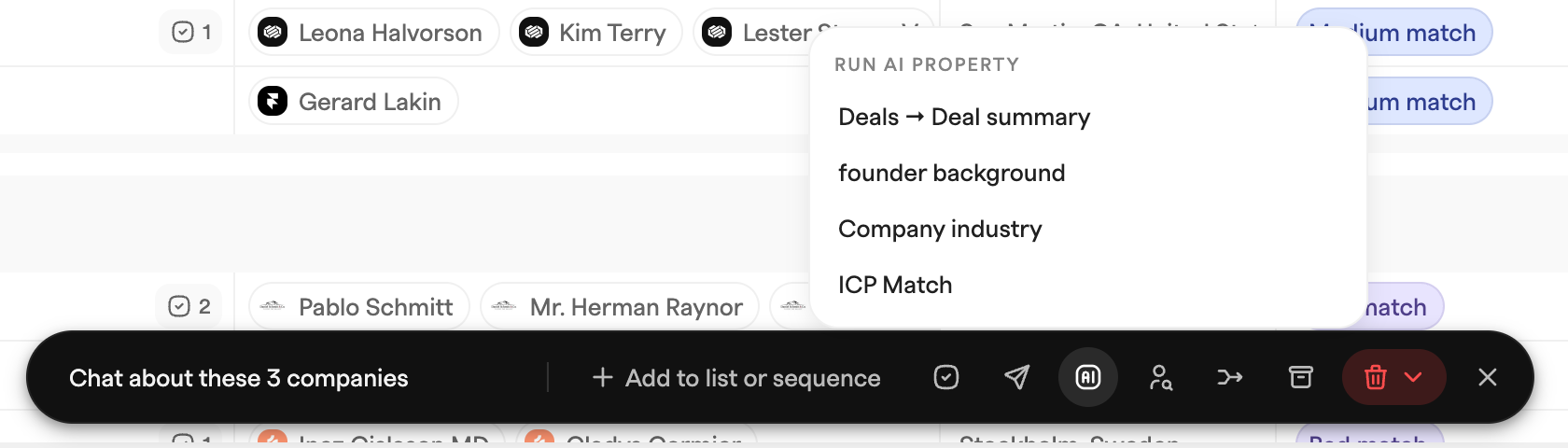
Two things these settings deliberately do not do: creating a property does not backfill what you already have, and editing a record does not re-run its AI properties. Those you trigger yourself — select rows in a list and pick the property under **Run AI property** in the floating toolbar's AI menu, open a single cell and click **Run AI column**, or ask Chat to run it over the records or list you name and approve the card.
If you need a trigger these settings do not cover, build an [agent](/features/agents.md).
## Run status and reasoning
A value you cannot check is a value you cannot trust, so every run is tracked per cell. In progress it shows **Queued** or **Working** with elapsed time; a failure shows **Error** with the reason.
Once it completes, opening the cell shows **AI Column Reasoning**: how the agent got to the value, the source behind it (linked, when the source is a URL), and the steps it took — searches run, pages read, emails summarized.
A column's menu in a list view shows its **AI prompt** with attached contexts, allowed tools and run conditions, so you can check how a column is set up without opening its config.
AI property runs use credits, and are skipped when a workspace has none left — automatic and queued runs are marked as errors, and bulk runs are refused up front.
---
# Agent Instructions
This documentation is published with GitBook. GitBook is the documentation platform designed so that both humans and AI agents can read, navigate, and reason over technical content effectively. Learn more at gitbook.com.
## Querying This Documentation
If you need additional information that is not directly available in this page, you can query the documentation dynamically by asking a question.
Perform an HTTP GET request on the current page URL with the `ask` query parameter, and the optional `goal` query parameter:
```
GET https://docs.zero.inc/features/ai-properties.md?ask=&goal=
```
`ask` is the immediate question: it should be specific, self-contained, and written in natural language.
`goal` is optional and describes the broader end goal you are ultimately trying to accomplish on behalf of the user. GitBook uses it to tailor the answer towards what is most useful for that goal.
The response will contain a direct answer to the question and relevant excerpts and sources from the documentation.
Use this mechanism when the answer is not explicitly present in the current page, you need clarification or additional context, or you want to retrieve related documentation sections.