> For the complete documentation index, see [llms.txt](https://docs.zero.inc/llms.txt). Markdown versions of documentation pages are available by appending `.md` to page URLs; this page is available as [Markdown](https://docs.zero.inc/features/home-view.md).
# Home
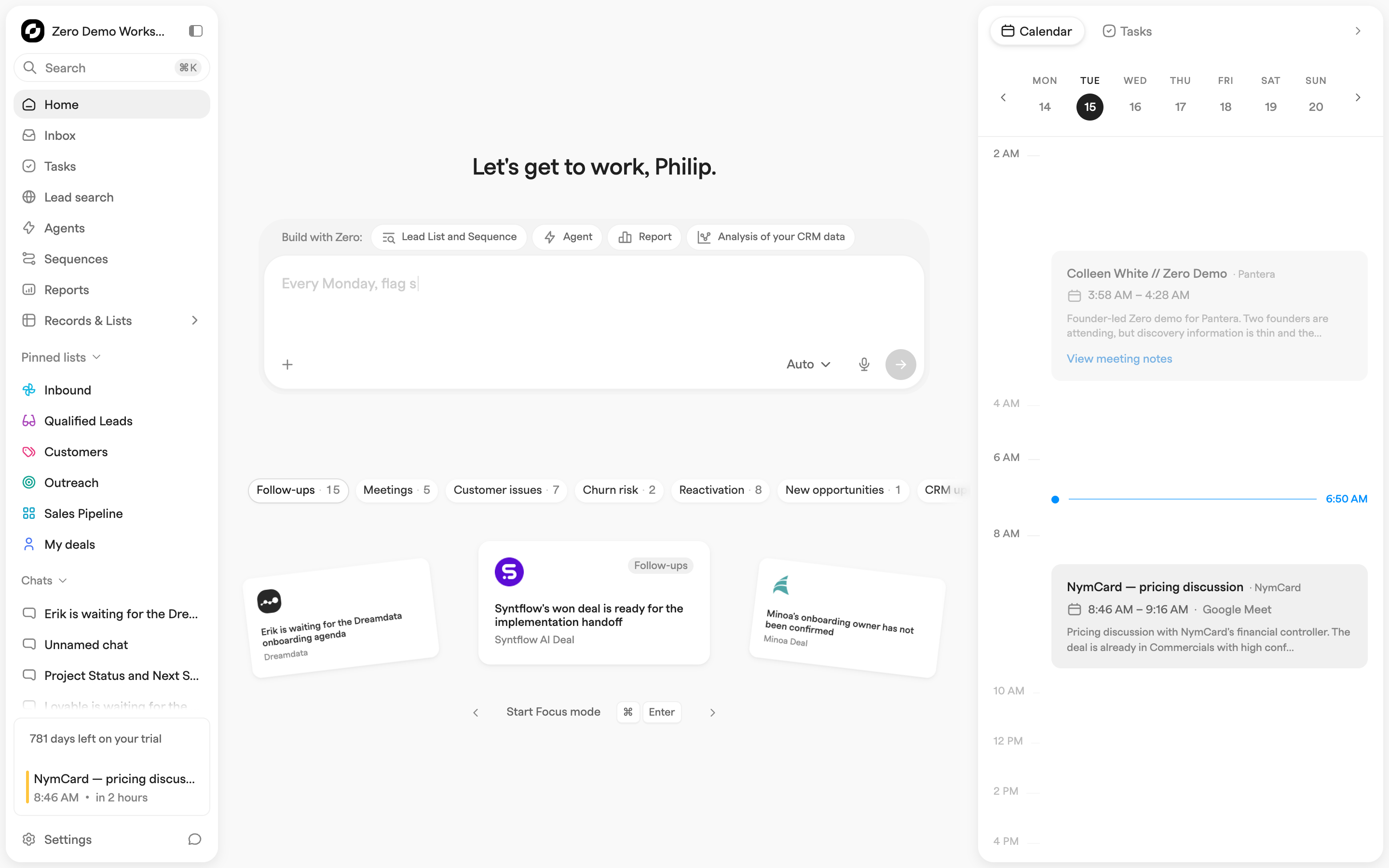
Home is where a workspace opens, and it is deliberately not a dashboard. The middle of the page is a chat composer, because asking is usually the shortest path to what you need. Below it, Zero shows the work it has already spotted for you. On the right, your meetings and tasks for the day stay in view while you work.
## Starting a chat
Type a question or instruction into the composer and send it — Zero opens the conversation and answers from your CRM data. See [Chat](/getting-started/chat.md) for what it can do from there.
A few things that make the composer faster than it looks:
* You don't have to click it first. Start typing anywhere on the page and the text lands there.
* **@** mentions users, companies, contacts, deals and lists, and passes them to the chat as context.
* You can **drag CRM records onto the composer** to attach them. They all have to be the same record type; mix them and Zero asks you to send the attached ones first.
* While empty, it types out example requests as its placeholder.
The four pills above it under **Build with Zero** — **Lead List and Sequence**, **Agent**, **Report**, **Analysis of your CRM data** — swap those examples to one category, so you can see concrete phrasings before writing your own. Pick the same pill again to go back to the mix.
## Recommendations
Below the composer is a carousel of work Zero has found in your CRM: a follow-up that is due, a meeting to prepare for, a record that has gone stale. You work through it in Focus mode without leaving the chat. See [Recommendations](/features/home-view/recommendations.md).
## The sidebar
Two tabs, **Calendar** and **Tasks**. Drag its left edge to resize it and use the chevron (**Hide sidebar**) to put it away; **Show meetings and tasks** brings it back, and your width and choice are remembered.
### Calendar
One day at a time. The **week strip** at the top picks a day (weeks start on Monday) and the arrows move a week at a time. Meetings sit on a timeline in two-hour blocks; on today's date a **now marker** shows the current time, the view scrolls to it, and an ongoing meeting is highlighted. Each entry shows the meeting name, linked company, time range and — when the link is recognizable — the platform (Zoom, Google Meet, Teams, Webex or Whereby).
This is also where prep and follow-up surface. An external meeting with a ready [meeting prep](/features/home-view/meeting-prep.md) shows a short brief underneath it, and a past meeting shows its [follow-up](/features/home-view/generate-follow-up.md) status — "Generating follow-up…", "Follow-up draft ready to review", "Follow-up sent" — with **Review follow-up** and **View meeting notes**.
Clicking a meeting opens its detail in place: **Open event** for the full meeting page, then **Meeting prep**, **Meeting notes**, **Follow-up** (with **Review & send** and **Edit** on a ready draft, or **Open thread** once sent), **Attendees**, the linked companies and the event description. **Back to meetings** returns to the day.
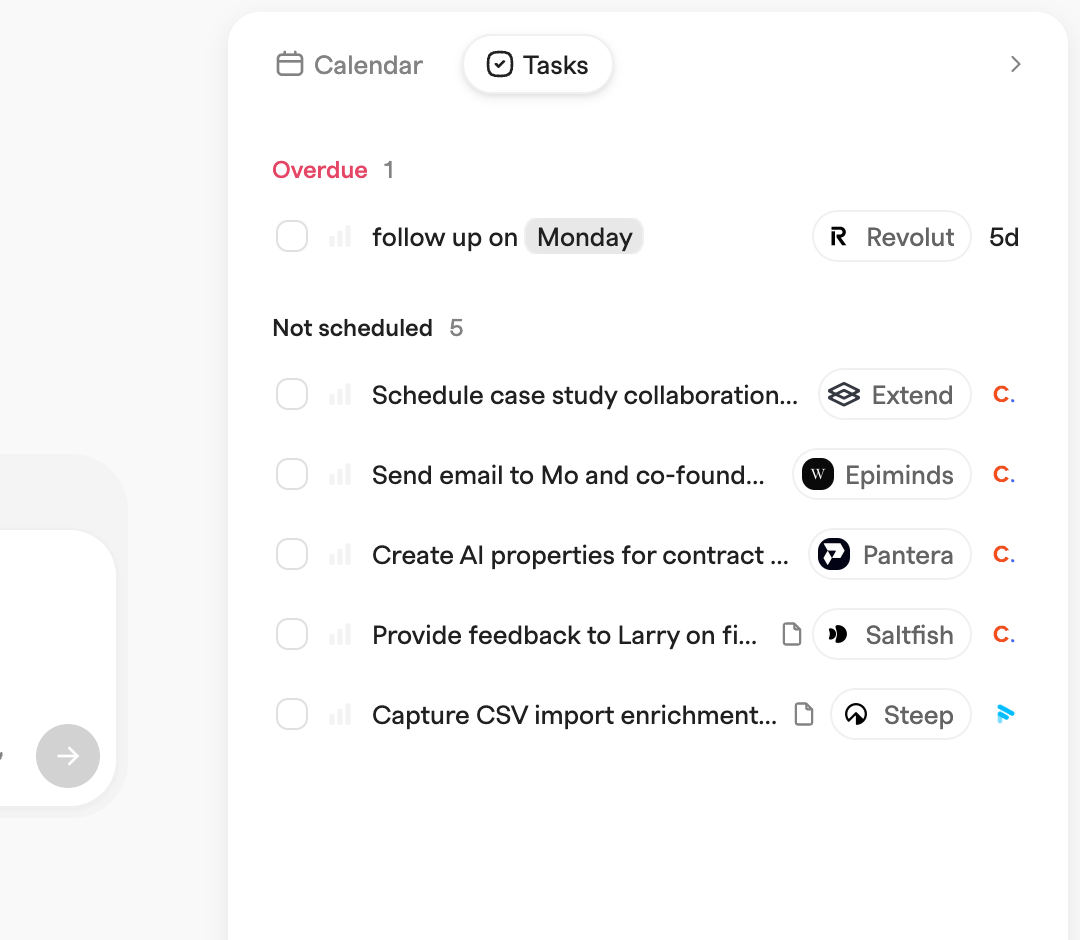
### Tasks
Your assigned tasks, in three groups: **Overdue**, **Today** (with a count like "2/5 done") and **Not scheduled**. Each shows up to 50, and you can complete, open and edit them from here.
---
# Agent Instructions
This documentation is published with GitBook. GitBook is the documentation platform designed so that both humans and AI agents can read, navigate, and reason over technical content effectively. Learn more at gitbook.com.
## Querying This Documentation
If you need additional information that is not directly available in this page, you can query the documentation dynamically by asking a question.
Perform an HTTP GET request on the current page URL with the `ask` query parameter, and the optional `goal` query parameter:
```
GET https://docs.zero.inc/features/home-view.md?ask=&goal=
```
`ask` is the immediate question: it should be specific, self-contained, and written in natural language.
`goal` is optional and describes the broader end goal you are ultimately trying to accomplish on behalf of the user. GitBook uses it to tailor the answer towards what is most useful for that goal.
The response will contain a direct answer to the question and relevant excerpts and sources from the documentation.
Use this mechanism when the answer is not explicitly present in the current page, you need clarification or additional context, or you want to retrieve related documentation sections.