> For the complete documentation index, see [llms.txt](https://docs.zero.inc/llms.txt). Markdown versions of documentation pages are available by appending `.md` to page URLs; this page is available as [Markdown](https://docs.zero.inc/features/inbox.md).
# Inbox
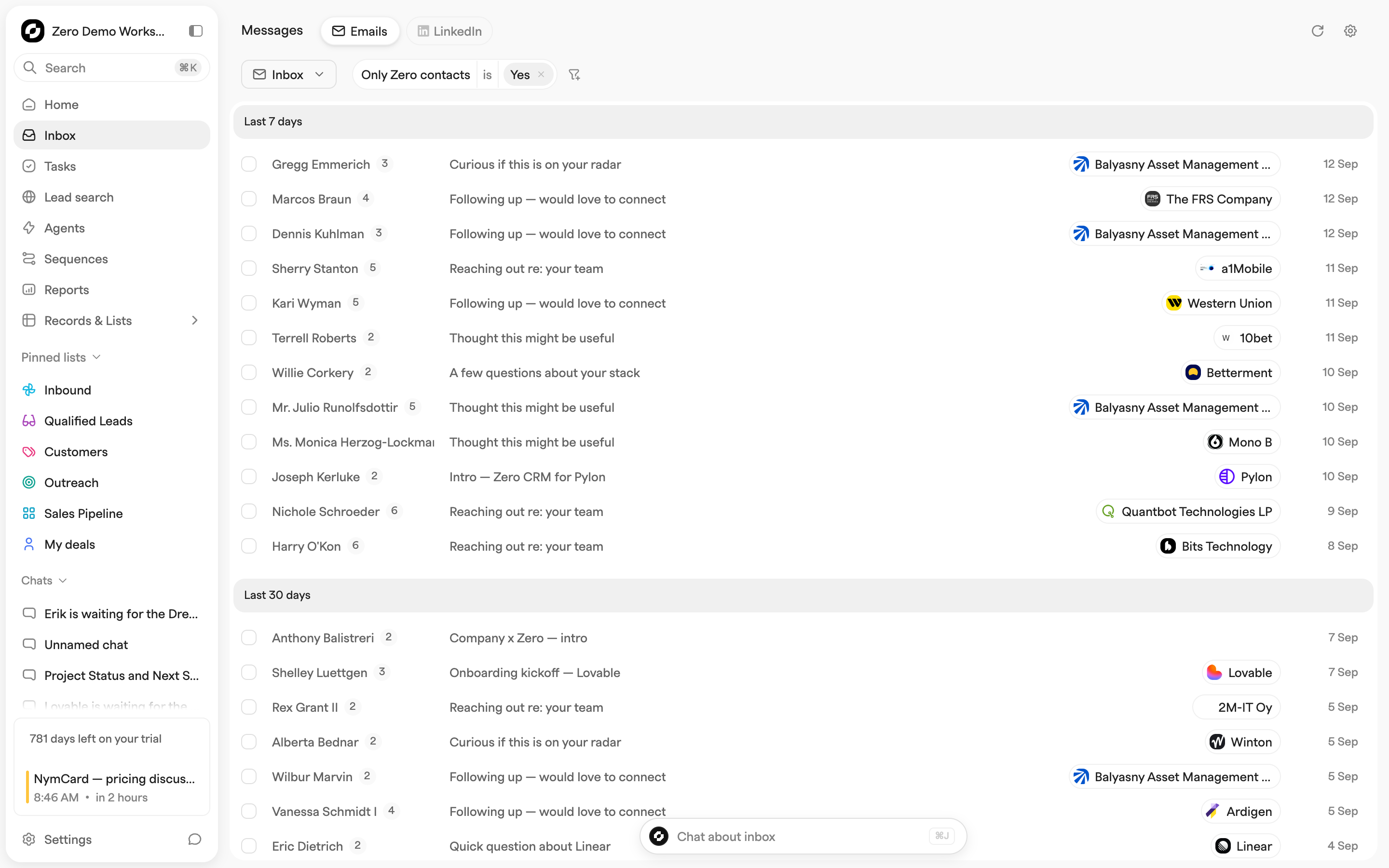
Email and LinkedIn conversations live in the same place as the records they are about, so replying and updating the CRM are the same motion. Click **Inbox** in the left sidebar (the page itself is titled *Messages*).
## Connecting your accounts
Nothing appears until you connect an account. **Connect Gmail** (or **Connect Outlook**, if you signed in with Microsoft) connects a mailbox — see [Email & Calendar](/settings/mailbox-settings.md). **Connect LinkedIn** installs the Zero Chrome extension, which syncs your LinkedIn messages in — see [LinkedIn](/settings/integrations/linkedin.md).
## Channels and folders
Two tabs switch channel: **Emails** and **LinkedIn**. On **Emails**, the selector to the left of the filter bar switches folder — **Inbox** (threads with at least one received message), **Sent**, **Draft** (including drafts written by agents, editable in place) and **Snoozed**, which only appears while you have something snoozed.
Threads are grouped by date, from **Today** down to **Older**; **Load more** at the bottom fetches further back.
## Filtering messages
The **Filter messages** bar narrows the list by **Email participant name**, **Email participant email** or **Subject** (email threads only), by **Labels** if your workspace has them (defined under **Settings → Workspace → Types & Labels** in **Email labels** and applied automatically by Zero's auto-labeling), or by **List**, which restricts the Inbox to threads linked to a contact, company or deal list — dynamic lists included.
**Only Zero contacts** is the one to know about: at its default of **Yes** you see only threads linked to a contact saved in Zero, which hides internal chatter with your own domain. Set it to **No** to see everything synced.
Conditions are remembered per workspace. You can also ask [Chat](/getting-started/chat.md) to filter the Inbox down to threads it found for you; that filter appears as a removable pill.
## Working with threads
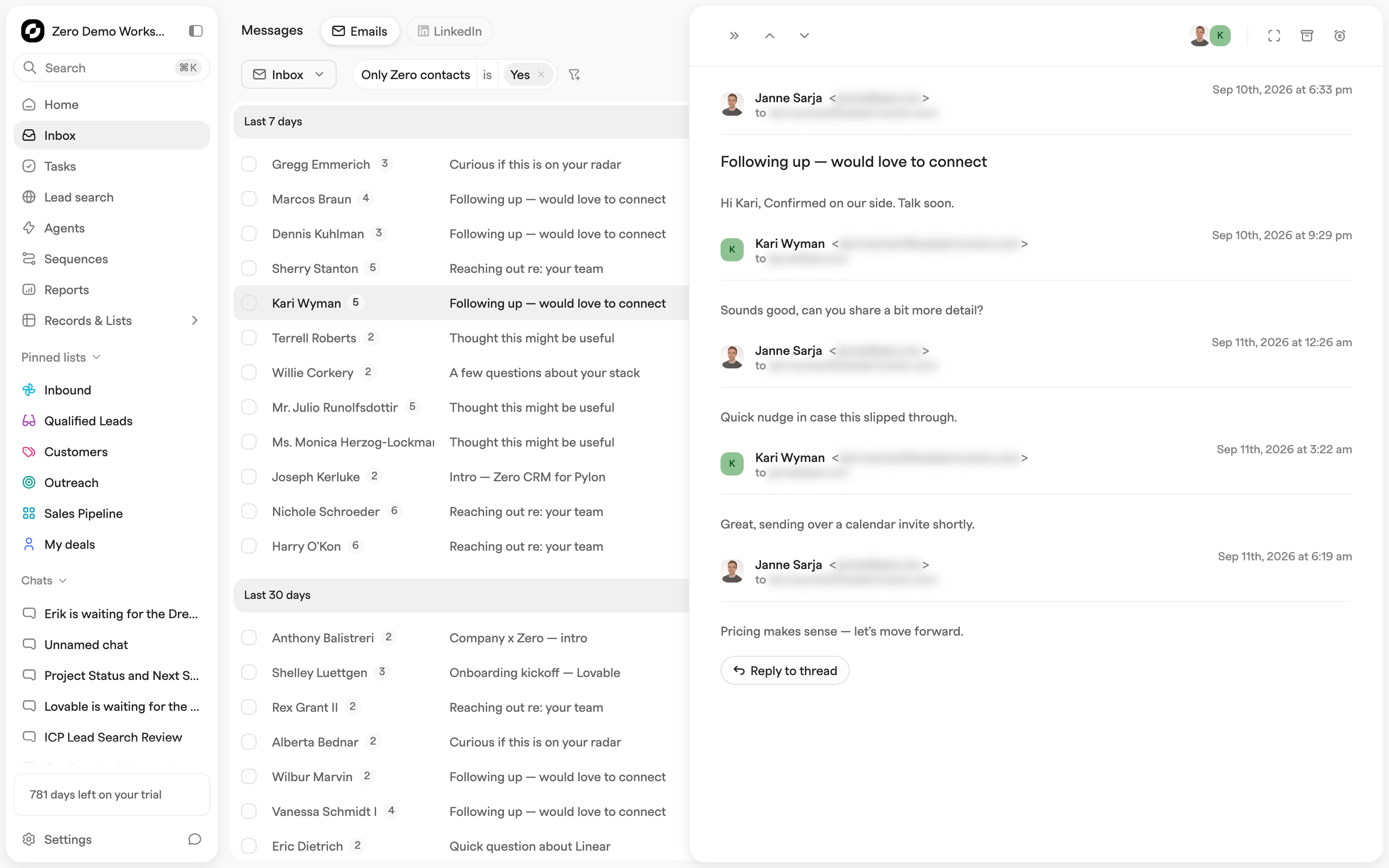
Click a thread to open it in a preview drawer, with **Previous / Next** (or the arrow keys), **Expand** to the full page, and — for email — **Archive** and **Snooze**. Hovering an email row offers the same in a **⋯** menu, plus **Delete** on drafts.
Snooze offers **In an hour**, **Tomorrow**, **In 2 days**, **In 3 days** and **Next week**; snoozed threads move to the **Snoozed** folder, where **⋯** offers **Remove snooze** and **Archive**.
Checkboxes on email rows select several threads at once, and the floating toolbar then offers **Archive items** and **Snooze items**. Archived threads leave the inbox but stay findable by filtering for archived records.
## Email thread view
Expanding a thread shows the full message history. Click a message header for its **To**, **Cc** and **Bcc**, and click attachments to download them. Replies link back to the message they answer.
The composer at the bottom lets you edit the subject, switch between **Reply** and **Reply all** (Reply all by default), pick which of your addresses to send from, write rich text with images and your workspace's email snippets, and **Send** — with a 5-second **Cancel** window afterwards.
Each thread also carries a **Public** / **Private** toggle in the top-right corner. A private thread is hidden from everyone but its participants, and only a participant can change that.
## LinkedIn thread view
The same shape: message history with attachments, a sidebar of participants, and the **Public** / **Private** toggle — which here only the owner of the connected LinkedIn account can change.
## Sending messages
**Compose message** writes to one or more contacts outside any existing thread. Open it from a list of contacts, companies or deals by ticking rows and clicking the send icon in the floating toolbar (on companies and deals, Zero collects the contacts on those records), or from a contact or deal record with **Send message** in the top-right corner — or just press **E**.
The switch at the top picks the channel: **Email**, **LinkedIn**, and **Integrations** if your workspace has Luma connected. For those two see [LinkedIn](/settings/integrations/linkedin.md) and [Luma](/settings/integrations/luma.md).
### Writing an email
**From** is the mailbox it is sent from — every mailbox you have connected here, plus its send-as addresses (marked **Alias**). **To** is who it goes to, or **Every recipient independently** when **Split recipients** is on.
Two characters do the personalization work in the body: **/** opens your workspace's email snippets and **AI Snippet**, a block where you **Write an AI prompt** and Zero writes that part per recipient; **{** inserts a macro that fills in a field from the contact or their company.
**Create draft** parks it in **Draft**; **Send** sends it.
### Recipients and previews
The left column lists everyone the message goes to. Click a contact to **Preview** the message exactly as they will receive it, macros filled in and AI prompts written out; the refresh button regenerates it and **×** returns you to editing.
Contacts Zero cannot send to are listed below the rest with the reason, and a banner counts them. A contact is skipped when it has no email address, an invalid one, the same address as another recipient, or is unsubscribed from all messaging.
### Split recipients
With more than one recipient, **Split recipients** decides whether everyone gets their own email (**On** — nobody sees the others, and personalization requires it) or one email addressed to the group (**Off**). It is on by default when you selected several contacts, and off when you opened the composer from a deal.
## Syncing and adding contacts
Mailboxes sync continuously. The reload button in the top-right corner forces a sync of the last 7 days for each mailbox and shows progress; its tooltip says when each last synced. The gear button (**Inbox settings**) goes to **Settings → Connections → Email & Calendar**.
When Zero spots people in your synced email who are not contacts yet, an **Add contacts from email** button appears in the top-right corner. It opens a modal where you search, filter by timeframe, select people, and **Add to Zero** into a list or **All contacts**.
---
# Agent Instructions
This documentation is published with GitBook. GitBook is the documentation platform designed so that both humans and AI agents can read, navigate, and reason over technical content effectively. Learn more at gitbook.com.
## Querying This Documentation
If you need additional information that is not directly available in this page, you can query the documentation by asking a question.
Perform an HTTP GET request on the following URL with the `ask` and `goal` query parameters:
```
GET https://docs.zero.inc/features/inbox.md?ask=&goal=
```
`ask` is the immediate question: it should be specific, self-contained, and written in natural language.
`goal` is what the user is ultimately trying to achieve, the reason they need the answer. Sharing it helps GitBook give you a better, more relevant answer. A goal is most helpful when it describes the outcome the user wants rather than restating the question. For example, with `ask=how do I create an API token`, a goal like `automate deployments from our CI pipeline` lets GitBook tailor the answer to that use case.
The response will contain a direct answer to the question and relevant excerpts and sources from the documentation.
Use this mechanism when the answer is not explicitly present in the current page, you need clarification or additional context, or you want to retrieve related documentation sections.