> For the complete documentation index, see [llms.txt](https://docs.zero.inc/llms.txt). Markdown versions of documentation pages are available by appending `.md` to page URLs; this page is available as [Markdown](https://docs.zero.inc/features/lead-search.md).
# Lead Search
Lead Search is the one place in Zero that looks outside your workspace: find the companies and people who fit, and a reason to reach out to them now. You search an indexed database of company and contact profiles, then import only the rows you pick — so prospecting and your CRM stay separate until you decide otherwise.
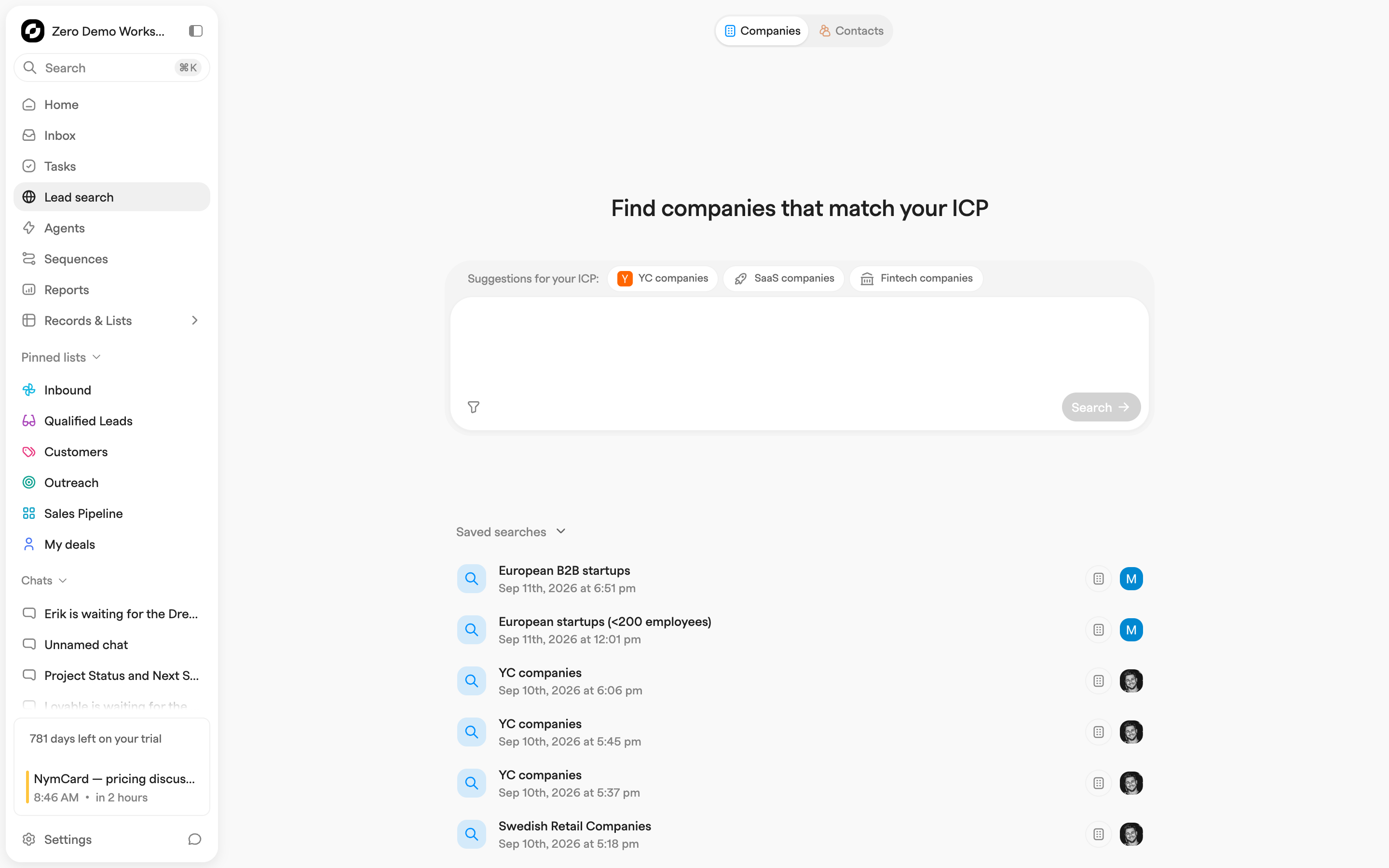
Open **Lead search** in the sidebar.
## Starting a search
The switch at the top decides what a row is: a **Company**, or a **Contact** with their current company.
Then describe what you are after in plain language and press **Search**. Zero turns the description into filters, runs it, and opens the results page where you can adjust them. If you would rather build the query by hand, the filter button next to the composer opens the same filter menu; each filter you add becomes a removable pill underneath.
Two shortcuts: **Suggestions for your ICP:** offers ready-made searches based on your workspace, and **Saved searches** at the bottom holds your own plus any a teammate made public.
## Filters
Filters live in sections, each with its own panel and a count of what is active in it. They all combine into one query and apply as you set them — there is no apply step — and every active filter shows as a removable pill.
Which mode you are in changes what the sections do. In **Companies** mode, **Hiring Signals** and **Contacts** narrow which companies match, by their job ads or their employees. In **Contacts** mode, the company-level sections narrow which companies the returned people work at.
* **About** — name, a free-text description of what a company does, founding year, or specific companies.
* **Location** and **Headcount** — where a company is based, how many locations it has, how big it is and how fast that is growing.
* **Industry** — Zero's industry categories, or your own keywords.
* **Funding** and **Acquisitions** — last funding type, when they last raised, total raised, and investors picked from a searchable list (match **Any** or **All**); acquisition date and amount.
* **Tech** — the technologies a company runs on its website and infrastructure.
* **Lookalikes** — instead of criteria, name companies you already like under **Similar to**, and tune how close the match has to be with **Similarity** (**Low**, **Medium**, **High**).
* **Your lists** — scope against your own CRM: **Net new companies** hides what you already have, and you can include or exclude specific company lists, or look for companies similar to a whole list.
* **Hiring Signals** — open roles, departments, locations, when the postings went up, how many.
* **Contacts** — title, keywords, languages, location, time in role or at the company, and background such as previous employers and schools. You can also restrict to people connected to one of your linked [LinkedIn accounts](/settings/integrations/linkedin.md), or include and exclude your CRM lists.
## Results
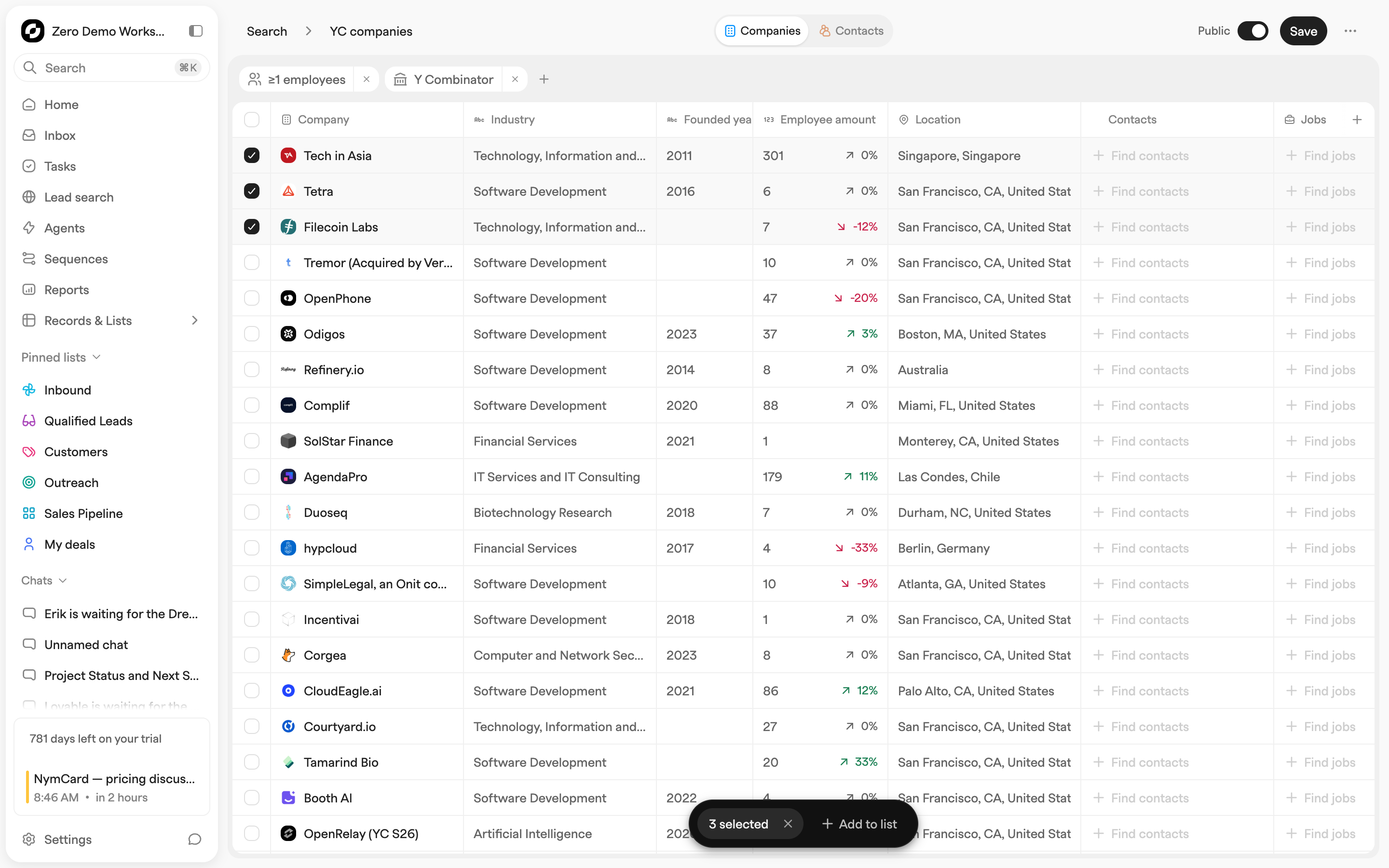
Results open in a configurable, sortable grid. Companies mode defaults to industry, founded year, employees, location, matching **Contacts** and **Jobs** (filled by your Contacts and Hiring Signals filters), website, description and last funding type, date and amount. Contacts mode defaults to company, title, location, positions, education and time in role and company.
A green check means that record is already in Zero. Click any row for a detail drawer without leaving the results.
The filter bar stays with you here, and changing a filter reruns the search. When a search comes back empty, Zero points at the filters that could be looser and offers to **Edit filter** or **Remove filter**.
## Adding results to your CRM
Select rows and the floating toolbar offers **Add to list** — plus **Add to sequence** in Contacts mode, which drops the people straight into a [sequence](/features/sequences.md).
This creates real CRM records. Anything you already have is reused rather than duplicated (companies matched by domain, contacts by LinkedIn profile), and imported contacts are linked to their company.
## Saving and sharing searches
Every search saves itself. From the results page you can **Name** it in the header, toggle it **Public** or **Private** (public ones show in everyone's saved searches), **Save** filter changes, and **Clone search** or **Remove search** from the ⋯ menu.
## Lead Search over MCP
Assistants connected through [Zero's MCP server](/developers/mcp.md) run Lead Search with the same filters:
* `lead_search_companies` — find company candidates using `companyFilters`, `contactFilters`, and `jobFilters`.
* `lead_search_contacts` — find people inside a previously returned company result set.
* `import_lead_search_results` — create (or reuse) CRM companies and contacts from a saved lead search or an MCP result set.
---
# Agent Instructions
This documentation is published with GitBook. GitBook is the documentation platform designed so that both humans and AI agents can read, navigate, and reason over technical content effectively. Learn more at gitbook.com.
## Querying This Documentation
If you need additional information that is not directly available in this page, you can query the documentation dynamically by asking a question.
Perform an HTTP GET request on the current page URL with the `ask` query parameter, and the optional `goal` query parameter:
```
GET https://docs.zero.inc/features/lead-search.md?ask=&goal=
```
`ask` is the immediate question: it should be specific, self-contained, and written in natural language.
`goal` is optional and describes the broader end goal you are ultimately trying to accomplish on behalf of the user. GitBook uses it to tailor the answer towards what is most useful for that goal.
The response will contain a direct answer to the question and relevant excerpts and sources from the documentation.
Use this mechanism when the answer is not explicitly present in the current page, you need clarification or additional context, or you want to retrieve related documentation sections.