> For the complete documentation index, see [llms.txt](https://docs.zero.inc/llms.txt). Markdown versions of documentation pages are available by appending `.md` to page URLs; this page is available as [Markdown](https://docs.zero.inc/features/sequences.md).
# Sequences
Outreach that works is a series of touches over weeks, not one email — which is exactly the kind of thing people stop doing by hand. A sequence is that series written once: a multi-channel flow of messages, tasks and agents, with Zero handling the scheduling, the sending and what happens when someone replies.
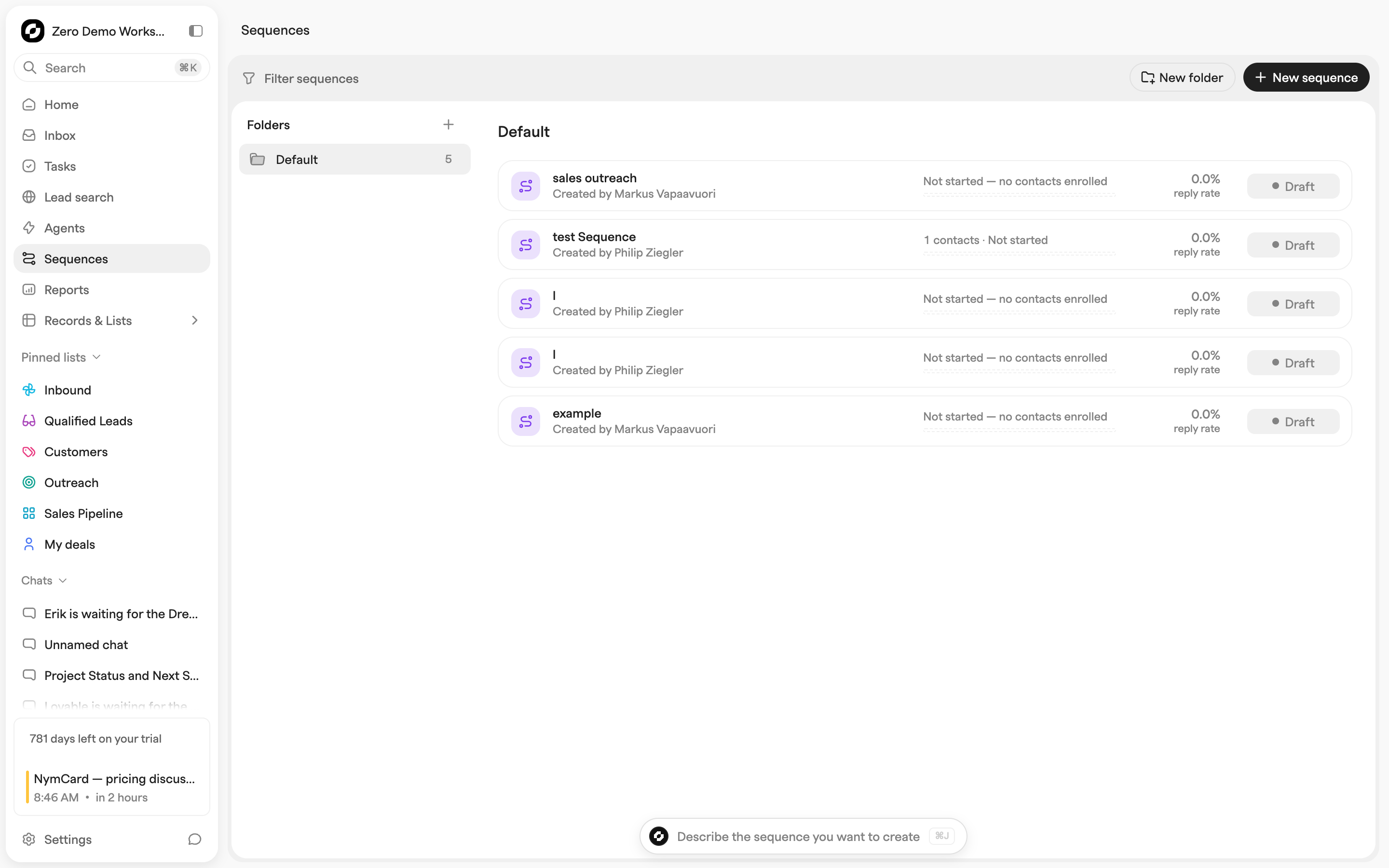
The Sequences page lists every sequence in the workspace. **New sequence** creates one, **New folder** groups them, and the filter bar narrows by name, status or who created or last touched it. Each row carries its progress, its reply rate, and badges for contacts with errors or waiting on approval.
## The four tabs
A sequence opens on four tabs: **Builder** (the flow of steps and waits, plus its metrics), **Drafts** — **Drafts & approvals** when something is waiting on you — **Contacts**, and **Inbox** for what was sent and what came back.
The header toggle activates or pauses the sequence, **Save** commits Builder changes, and the ⋯ menu holds **Clone sequence** and **Delete sequence**.
## Building a sequence
### Start step settings
Every sequence begins with a **Start** step, and its **Configure** panel is where the rules for the whole thing live — how fast people enter it, when messages may go out, and what stops it.
* **Contact enrollment** — **Start new contacts** **Automatic** (as daily capacity allows) or **Approve contacts** (they wait for you). **Daily starts** caps how many enter per day. When a step uses AI, **Approve AI-written messages** decides whether those drafts need reviewing first.
* **Shared schedule** — the active days, sending window, and timezone in which contacts enter and auto-sent emails go out.
* **Email sending** — the minimum number of minutes between automated email sends.
* **Step defaults** — what new message steps inherit: stop on a response (and which response types count), and skip a step when the contact cannot be reached on that channel. Steps you have already added keep their own settings.
* **Thread visibility** — whether the message threads this sequence creates are visible workspace-wide or only to the sender.
### Step types
The picker groups steps under **Outreach** and **Tools**:
* **Send email** — send an email from the chosen mailbox. Supports macros, spintax, and the AI composer (see [AI composer](#ai-composer) below). Follow-up emails can be sent in the same thread as a previous email step via the **Send to same thread** toggle.
* **Connection request** — ask to connect on a social channel before messaging. Under **If accepted** you choose whether the contact continues to the next step or the sequence ends; under **If not accepted** you set how long to wait after sending and what happens then. You can also skip the step for contacts you have no profile for. Setup for this channel is covered on its own [integration page](/settings/integrations/linkedin.md).
* **Send message** — a direct message on that same channel. Supports the AI composer. You can skip the step for contacts you have no profile for, or who are not yet connected — useful when a connection request earlier in the sequence has not been accepted.
* **Add task** — create a task (call, to-do, meeting, follow-up) with deadline, priority, assignees, and an optional calendar event. The sequence can pause until the task is done or its deadline passes.
* **Wait / Delay** — a wait between steps. Used to space out outreach.
* **Start agent** — trigger a manually triggered agent from inside the sequence. See [Starting agents from a sequence](#starting-agents-from-a-sequence) below.
### Starting agents from a sequence
Two ways in. **Start agent if responded**, on any message step, runs an agent when a contact replies — and you can route different response types to different agents. A standalone **Start agent** step runs one at a point you choose, typically at the end for the people who never answered.
To make an agent callable from a sequence:
1. Create an agent with trigger type **Manually triggered**.
2. Under **Expected data**, click **From preset**.
3. Select either **Sequence response received** or **Triggered from sequence step**.
The agent then receives the contact from the sequence, plus extra data such as the response. Link it from either of the two places above.
### Cloning a sequence
**Clone sequence** in the ⋯ menu copies the steps and email templates into a new sequence that starts as a draft with no contacts — the safe way to build a variant or an A/B test.
### Worth knowing
* **Mind your sending domain.** Keep high volume off your primary email domain; use a secondary sending domain for it.
* **Put a connection request before a direct message** unless you are sure everyone is already connected.
* **Wait before end-of-sequence agents.** Give late replies time to land — a five-day wait before that final step saves you chasing people who did answer.
## Lists and reports across sequences
Create a list with **Other → Sequences** to see one contact participation per row across one or more sequences. Add contact email, company or custom properties alongside status, progress and outcome. The same contact appears in two rows if they participate in two sequences. The list is dynamic and read-only; its filters do not change enrollment.
In [Reports](/features/reports.md), choose the top-level **Sequences** record type for participation, unique-contact and unique-sequence counts, grouped by sequence, status or outcome. Archiving a sequence preserves participation history.
You can ask [Chat](/getting-started/chat.md) to create either: “Build a list of paused contacts across these sequences” or “Compare their outcomes in a report.” Use the sequence's **Contacts** tab or audience tools to add or remove participants.
## Adding contacts to a sequence
**Add to sequence** appears wherever contacts do — a contact's record page, a selection in any list, or a selection in [Lead Search](/features/lead-search.md).
From the other direction, the sequence's **Contacts** tab has **Add manually** and **Add from list** for your CRM, and **Find leads** to go hunting.
## Writing messages
### AI composer
Every message step can draft with AI, in one of two modes. **Full message** writes the whole thing per contact from your instruction. **Message parts** writes named fragments you drop into a shared template — a personalized opening line or call-to-action inside otherwise fixed copy, which is usually the better trade.
Drafts are generated per contact from that contact's data plus whatever context your instruction supplies. With **Approve AI-written messages** on in the Start step, they wait in Drafts until you approve them.
### Spintax
Spintax randomizes phrasing inside one template: `{Hi|Hello|Hey there} {{contact.firstName}}`. Each contact gets one of the options at random. Macros resolve first, then spintax expands.
At scale it is worth using. Thousands of byte-identical emails are a deliverability problem as well as an obvious one to the reader.
### Macros
Macros like `{{contact.firstName}}`, `{{contact.email}}` or `{{contact.company.name}}` use current contact data when you preview a draft and when it is sent. Type `{` in the editor, or use **Add dynamic variable**. Saved wording is preserved; macros within it still use current values.
### Test send
**Send test email** on an email step sends the rendered message to your own inbox. Do this before activating — a template that looks right in the editor can still look wrong in a mail client.
## Drafts and approvals
The **Drafts** tab shows every message Zero has prepared, contact by contact. Pick a contact on the left and every message prepared for them appears on the right, in step order, with the exact content that will be sent.
Contacts are grouped by what they need from you: **Waiting for setup**, **Needs attention**, **Preparing**, **Needs review**, **Approved**, **Active** and **Completed**.
* **Edit message** changes a draft for that one contact. Your edit survives later Builder changes — Zero flags the difference and lets you keep your version or take the new one.
* **Approve contact's messages** approves everything for one person; **Approve all** on the review section clears everyone who is ready.
* Healthy drafts update their variables automatically; no refresh is needed. **Retry preparation** appears beside a failed contact or message preparation. Failed contact preparation can also be retried from **Needs attention**. A retry preserves written content and does not approve enrollment; use the generation action when AI writing itself failed.
* **Advance to next step**, **Restart from beginning** and **Remove from sequence** act on the selected contact.
## Monitoring sequences
The Sequences page compares sequences at a glance — progress, reply rate, and badges for errors or pending approvals — without opening any of them.
Inside one, the **Metrics** card at the top of the Builder counts **Queued** (or **Waiting approval**), **Active**, **Ended**, **Positive responses**, **Errors** and **Response rate**. Click any of them to open the matching contacts in the side panel, or open a step to see who is sitting on it.
The **Contacts** tab is the full picture: everyone in the sequence, where they are, any errors, when they move next, and when the finished ones ended.
### Per-contact actions
Select contacts in the Contacts tab to:
* **Advance to next step** — skip the current wait or step and move on immediately.
* **Restart sequence** — re-enroll the contacts from the beginning, clearing their previous progress.
* **Cancel from this sequence** — stop this sequence for the contacts. Useful when someone should no longer continue — for example, they replied via another channel and the auto-stop didn't catch it.
* **Unsubscribe from all messaging** — block all outgoing messages to the contacts from any sequence, agent, or bulk email send in Zero. Use this when they should be removed from all outreach, not just this sequence.
### Inbox tab
The **Inbox** tab holds everything the sequence sent and everything that came back, so you can read replies without leaving it. Filter by **Emails**, **Sent** or **LinkedIn**, and turn on **All messages with sequence contacts** to widen it to your whole history with these people.
---
# Agent Instructions
This documentation is published with GitBook. GitBook is the documentation platform designed so that both humans and AI agents can read, navigate, and reason over technical content effectively. Learn more at gitbook.com.
## Querying This Documentation
If you need additional information that is not directly available in this page, you can query the documentation by asking a question.
Perform an HTTP GET request on the following URL with the `ask` and `goal` query parameters:
```
GET https://docs.zero.inc/features/sequences.md?ask=&goal=
```
`ask` is the immediate question: it should be specific, self-contained, and written in natural language.
`goal` is what the user is ultimately trying to achieve, the reason they need the answer. Sharing it helps GitBook give you a better, more relevant answer. A goal is most helpful when it describes the outcome the user wants rather than restating the question. For example, with `ask=how do I create an API token`, a goal like `automate deployments from our CI pipeline` lets GitBook tailor the answer to that use case.
The response will contain a direct answer to the question and relevant excerpts and sources from the documentation.
Use this mechanism when the answer is not explicitly present in the current page, you need clarification or additional context, or you want to retrieve related documentation sections.