> For the complete documentation index, see [llms.txt](https://docs.zero.inc/llms.txt). Markdown versions of documentation pages are available by appending `.md` to page URLs; this page is available as [Markdown](https://docs.zero.inc/getting-started/command-menu.md).
# Command Menu & Shortcuts
**Cmd + K** is the fastest way to move around Zero: one field that searches every record, list, agent and settings page, and a set of quick actions you can trigger without touching the mouse. Most of those actions also have a single-letter shortcut that works anywhere in the workspace.
## Searching
Press **Cmd + K** to open the menu — again, or **Esc**, to close it. The search field is focused straight away. Results are grouped by type and update as you type:
| Group | What matches |
| ------------- | ------------------------------------------------------------------------------------------------------------------------------------------------------------------ |
| **Companies** | Company name (substring) or an exact domain, e.g. `acme.com` |
| **Contacts** | Name — every word you type must appear in the name, in any order, ignoring accents; an exact email address; or a phone-number fragment once you type 4+ characters |
| **Deals** | Deal name |
| **Lists** | List name (the result shows which entity the list contains) |
| **Agents** | Agent name (archived agents are excluded; inactive ones are labeled **Inactive**) |
| **Meetings** | Calendar events, once you type 3+ characters — only when **Show calendar events** is enabled |
| **Settings** | Settings pages, matched on their name and related terms (admin-only pages appear only for admins) |
The **Show calendar events** toggle in the footer decides whether meetings appear; your choice sticks until you flip it back.
Move through results with **↑ / ↓** and open one with **Enter**. **→** peeks at the selected result without leaving the menu — for companies and contacts the peek also loads their deals and list memberships — and **←** closes the peek.
## Quick actions
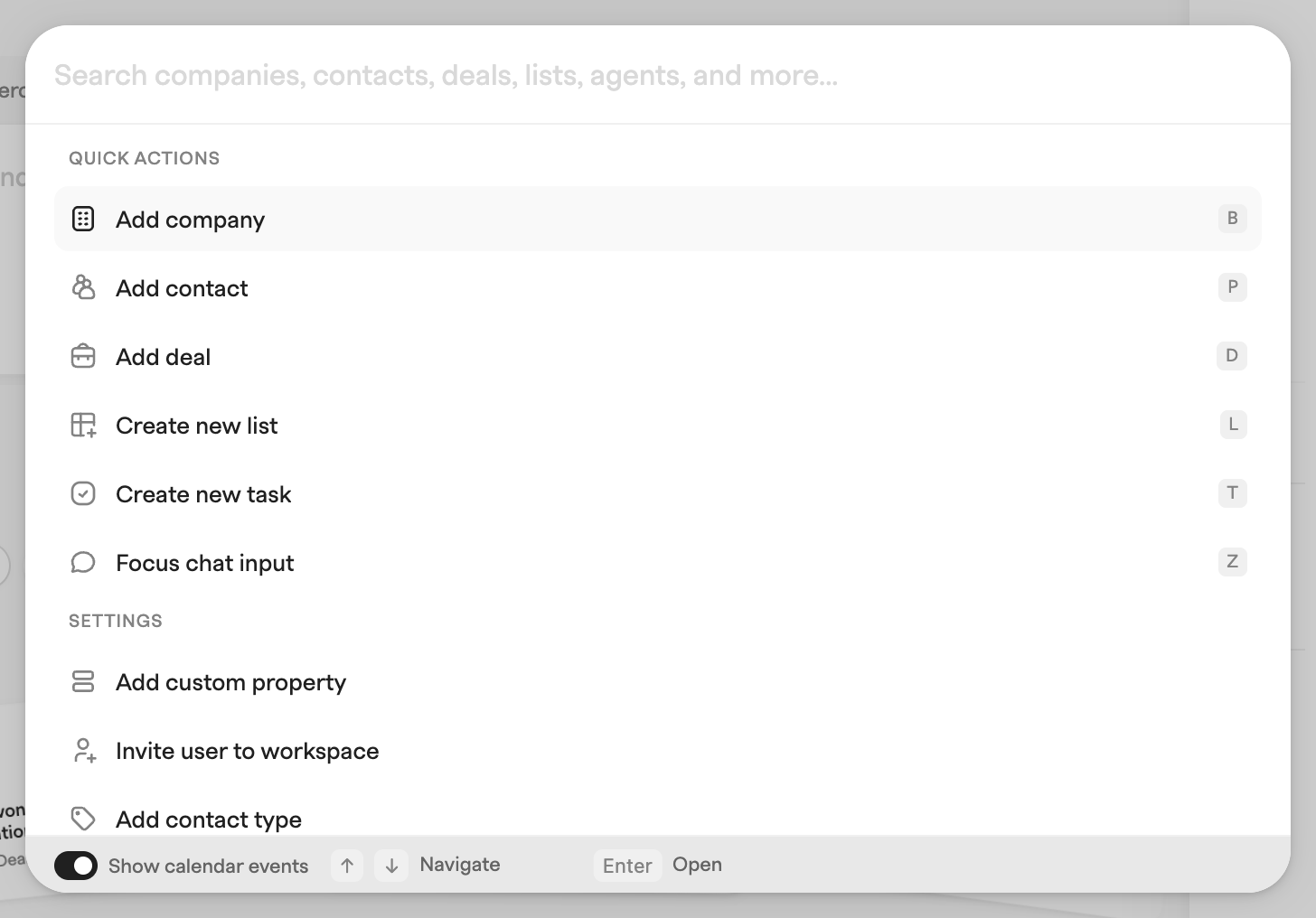
With the search field empty, the menu shows **Quick actions** instead of results. Each one lists its shortcut, which also works on its own without opening the menu:
* **Add company** (`B`), **Add contact** (`P`), **Add deal** (`D`) — open the record creation flow, pre-filled from the record you are currently viewing where that makes sense.
* **Create new list** (`L`) — opens the new-list dialog.
* **Create new task** (`T`) — switches the command menu into the task composer.
* **Focus chat input** (`Z`) — jumps your cursor to the chat input; shown only on pages that have one.
* **Log \** — one entry per custom activity type, with the type's configured shortcut letter. Shown when you are on a record page or have a record open in a list's peek panel. See [Custom Activities](/tracking-context/custom-activities.md).
* **Log comment** (`C`) — opens the comment composer for the record you are viewing or peeking.
Admins also get a **Settings** section — **Add custom property**, **Invite user to workspace**, **Add contact type** — and everyone gets **Open docs** under **Help**.
## Global keyboard shortcuts
| Shortcut | Action |
| ----------- | ------------------------------------------------------------------------------------------------------------------------------------------------------------------------------------------------------------------ |
| **Cmd + K** | Open or close the command menu |
| **Cmd + J** | Open or close the chat panel |
| **B** | Add a company |
| **P** | Add a contact |
| **D** | Add a deal |
| **T** | Create a task. On a meeting page the task links to that meeting; with a record open in a peek panel it links to that record. See [Tasks](/features/tasks.md) |
| **C** | Log a comment on the current record — works on a record page or with a record open in a peek panel |
| **E** | **Send message.** On a contact's record page, opens the message composer addressed to that contact. On a deal's record page, opens one message addressed to all of the deal's contacts with a usable email address |
| **Z** | Focus the chat input |
| **L** | Create a new list |
| **A–Z** | Log a custom activity — each activity type can define its own single-letter shortcut, which works on a record page or with a record open in a peek panel |
The single-letter shortcuts are plain key presses, no modifier. They are ignored while you are typing in a field or editor and while a modal or popover is open, so they won't fire mid-sentence.
---
# Agent Instructions
This documentation is published with GitBook. GitBook is the documentation platform designed so that both humans and AI agents can read, navigate, and reason over technical content effectively. Learn more at gitbook.com.
## Querying This Documentation
If you need additional information that is not directly available in this page, you can query the documentation by asking a question.
Perform an HTTP GET request on the following URL with the `ask` and `goal` query parameters:
```
GET https://docs.zero.inc/getting-started/command-menu.md?ask=&goal=
```
`ask` is the immediate question: it should be specific, self-contained, and written in natural language.
`goal` is what the user is ultimately trying to achieve, the reason they need the answer. Sharing it helps GitBook give you a better, more relevant answer. A goal is most helpful when it describes the outcome the user wants rather than restating the question. For example, with `ask=how do I create an API token`, a goal like `automate deployments from our CI pipeline` lets GitBook tailor the answer to that use case.
The response will contain a direct answer to the question and relevant excerpts and sources from the documentation.
Use this mechanism when the answer is not explicitly present in the current page, you need clarification or additional context, or you want to retrieve related documentation sections.