> For the complete documentation index, see [llms.txt](https://docs.zero.inc/llms.txt). Markdown versions of documentation pages are available by appending `.md` to page URLs; this page is available as [Markdown](https://docs.zero.inc/getting-started/data-import/affinity-import.md).
# Affinity Import
Import Affinity in the sign-up wizard, or at any time from **Settings → Data → Import**. To open it directly, replace YOURWORKSPACE with your workspace name:
[https://app.zero.inc/YOURWORKSPACE/settings/workspace/import](https://app.zero.inc/zero/settings/workspace/import)
Click **Import** on the Affinity card to open the flow.
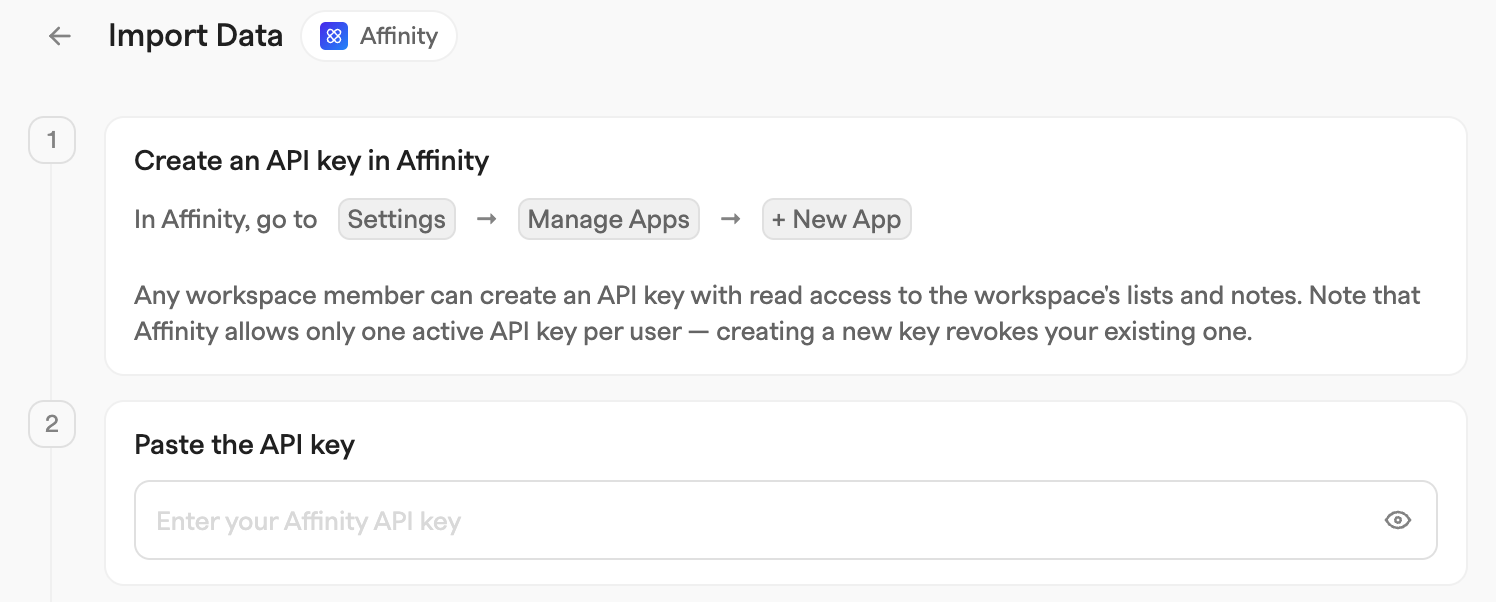
### Step 1: Create an API key in Affinity
In Affinity, go to **Settings** → **Manage Apps** → **+ New App**. Any workspace member can create a key with read access to lists and notes. Affinity allows one active key per user, so creating a new one revokes your existing key.
### Step 2: Paste the API key
Paste it into the **Paste the API key** field. Zero validates it and fetches your lists — the field shows **Connected**, or **Invalid key** if something is off.
### Step 3: Choose records and lists to import
Under **Workspace records** you can tick **All companies**, **All contacts**, and **All deals** to bring over your whole Affinity workspace, including records that do not belong to any list. These are off by default.
Under **Lists**, every compatible list is shown with its record count and entity, selected by default; use the checkboxes (or **Select all lists** / **Unselect all lists**) to narrow the import. Affinity lists are recreated as Zero lists. Person lists become contacts, company lists become companies and opportunity lists become deals, including their custom properties.
For each selected list you can configure:
* **Import as deals** (company and person lists only) — turn a list you used as a pipeline in Affinity into Zero deals instead of companies or contacts.
* **Pipeline stage field** (opportunity lists, and any list set to import as deals) — pick a select field (an Affinity dropdown or ranked-dropdown) to act as the deal's pipeline stage. Every such list becomes its own pipeline in Zero, and the field's option values become the pipeline stages (previewed under the picker). A field named "Status" is pre-selected on opportunity lists, and "Stage" or "Status" on company and person lists. Choose **Don't create a pipeline** to skip this.
* **Owner field** (any list with person fields) — pick a person field to act as the record's owner. A field named "Owners" (or "Owner") is pre-selected when one exists. Choose **Use entry creator** to make the creator of the Affinity list entry the owner instead.
### Step 4: Choose what else to import
**Notes** and **Files** are both on by default; files attached to Affinity records are copied into Zero's storage. **Skip contact enrichments** and **Skip company enrichments** stop Zero enriching the imported records.
### Step 5: Start import
Click **Start import**. You go back to your workspace while pipelines, companies, contacts, deals, notes and files process in the background.
### What gets imported
| Affinity | Zero |
| ------------------------------------------------------ | -------------------------------------------------------------------------------- |
| Organizations, persons, opportunities (workspace-wide) | Companies, contacts, deals — including records outside any list |
| Person lists | Contacts (list recreated as a Zero list) |
| Company lists | Companies (list recreated as a Zero list) |
| Opportunity lists | Deals (list recreated as a Zero list; own pipeline when a stage field is chosen) |
| List custom properties | Custom properties, named with an "(Affinity)" suffix |
| Notes | Notes attached to the imported records |
| Files | Files stored in Zero (Google Cloud Storage) |
Affinity field types map to Zero property types as follows; `interaction` fields are skipped:
| Affinity field type | Zero property type |
| ------------------------- | ------------------- |
| text | Text |
| number | Number |
| datetime | Timestamp |
| dropdown, ranked-dropdown | Select |
| dropdown-multi | Multi-select |
| person-multi | Contacts reference |
| company-multi | Companies reference |
Contacts keep every address Affinity holds for them in **All Emails**, and companies every domain in **All Domains**; the first one stays the primary.
Affinity users are matched to Zero users by email address. Matched users become the creator/owner of their records. Records owned by an Affinity user without a matching Zero user keep the original identity, and ownership is filled in automatically if that user later joins your Zero workspace.
### Running the import again
Records are matched by their Affinity id, so a repeat run updates them rather than duplicating them. Affinity is treated as the source of truth, which means changes made in Zero are overwritten — Zero asks you to confirm before it starts.
---
# Agent Instructions
This documentation is published with GitBook. GitBook is the documentation platform designed so that both humans and AI agents can read, navigate, and reason over technical content effectively. Learn more at gitbook.com.
## Querying This Documentation
If you need additional information that is not directly available in this page, you can query the documentation by asking a question.
Perform an HTTP GET request on the following URL with the `ask` and `goal` query parameters:
```
GET https://docs.zero.inc/getting-started/data-import/affinity-import.md?ask=&goal=
```
`ask` is the immediate question: it should be specific, self-contained, and written in natural language.
`goal` is what the user is ultimately trying to achieve, the reason they need the answer. Sharing it helps GitBook give you a better, more relevant answer. A goal is most helpful when it describes the outcome the user wants rather than restating the question. For example, with `ask=how do I create an API token`, a goal like `automate deployments from our CI pipeline` lets GitBook tailor the answer to that use case.
The response will contain a direct answer to the question and relevant excerpts and sources from the documentation.
Use this mechanism when the answer is not explicitly present in the current page, you need clarification or additional context, or you want to retrieve related documentation sections.