> For the complete documentation index, see [llms.txt](https://docs.zero.inc/llms.txt). Markdown versions of documentation pages are available by appending `.md` to page URLs; this page is available as [Markdown](https://docs.zero.inc/getting-started/data-import/pipedrive-import.md).
# Pipedrive Import
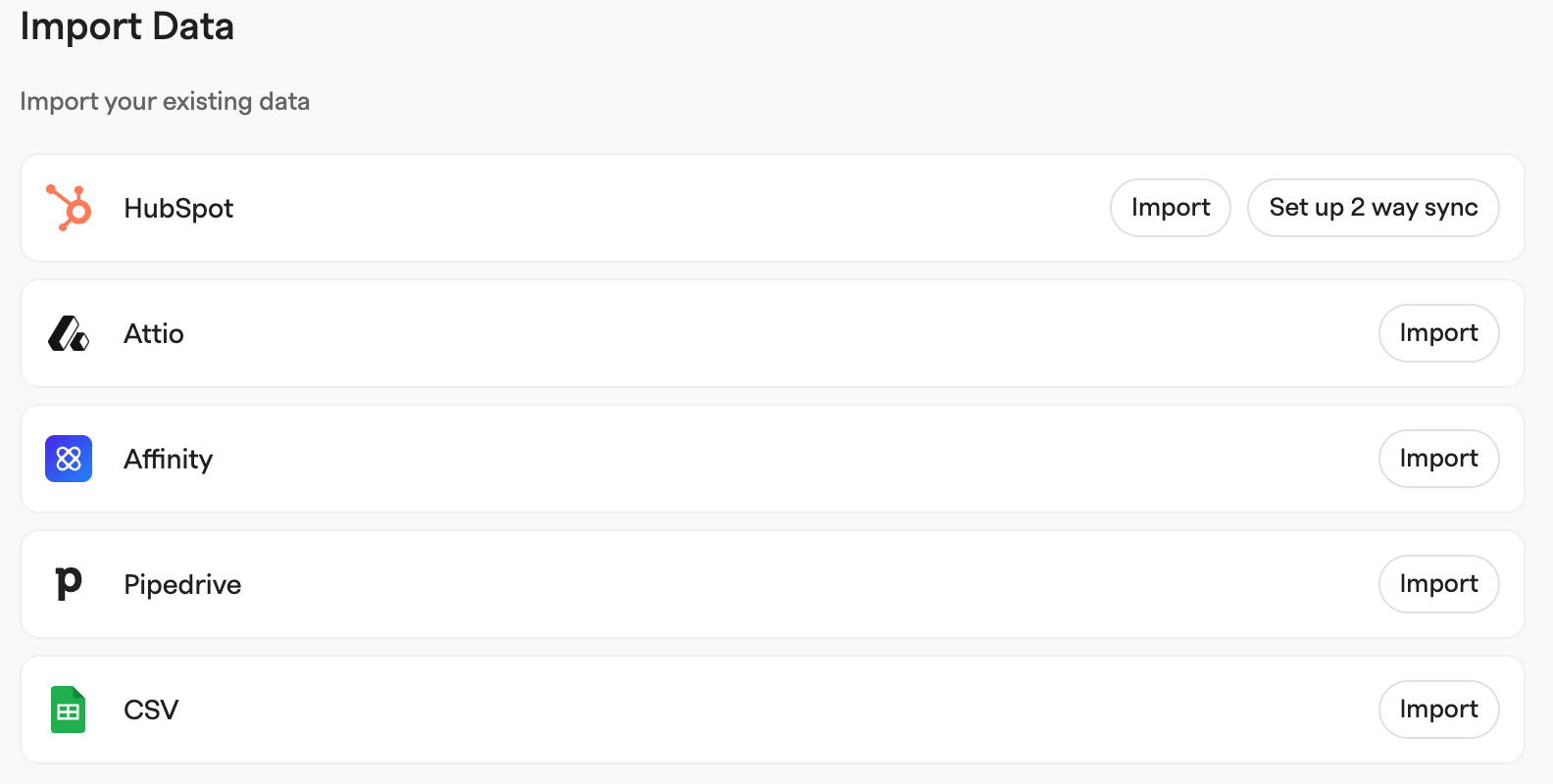
Import Pipedrive in the sign-up wizard, or at any time from **Settings → Data → Import**. To open it directly, replace YOURWORKSPACE with your workspace name:
[https://app.zero.inc/YOURWORKSPACE/settings/workspace/import](https://app.zero.inc/zero/settings/workspace/import)
### Before you start
No API key needed — Zero connects over OAuth. All you need is a Pipedrive login allowed to authorize apps for your Pipedrive company account.
### Starting the import
1. Open **Settings → Data → Import** (URL above) and click **Import** on the **Pipedrive** card.
2. You are redirected to Pipedrive's authorization page (oauth.pipedrive.com). Approve the connection there.
3. Approving sends you back to Zero and the import starts on its own in the background.
Progress appears under **Past imports** on the import page, broken down per object type (Pipelines, Companies, Contacts, Deals, Notes) with added and updated counts. The refresh button updates the status.
### What gets imported
| Pipedrive | Zero |
| ------------------ | --------------------------------------------------------------------------------------------------------------------------------------------------------------------------------------------- |
| Pipelines & stages | Pipelines with all stages, in the same order. Zero adds a **Lead**, **Won**, and **Lost** stage to each pipeline. Stage deal probabilities become stage confidence when enabled in Pipedrive. |
| Organizations | Companies — name, domain (from the website, or inferred from a contact's work email), LinkedIn, location, created date, and owner. |
| Persons | Contacts — name, email (primary, or the one labeled Work), phone, job title, LinkedIn, location, linked company, and owner. |
| Deals | Deals — name, value, probability (as confidence), close date, pipeline and stage, linked company and contact, and owner. Won/lost deals land in the Won/Lost stage. |
| Leads | Deals placed in the **Lead** stage of your first pipeline (Pipedrive leads have no pipeline of their own). |
| Notes | Notes attached to the matching company, contact, or deal, named `[PD] ⋅ `. Notes not linked to any imported record are skipped. |
| Custom fields | Custom properties — see below. |
Pipedrive activities and tasks are currently not imported.
### Custom fields
Custom fields on organizations, persons, deals, and leads become custom properties in Zero, named ` (Pipedrive)`. Lead fields get an extra `(Leads)` postfix because Pipedrive allows lead fields to share a name with deal fields while having different options. Fields that are empty on every record are not created.
Field types map as follows:
* Text, autocomplete, phone, time, time range, date range → **Text**
* Numerical → **Number**
* Monetary → **Currency**
* Single option → **Select** (options and colors are carried over)
* Multiple options → **Multi-select** (options and colors are carried over)
* User → **User** (falls back to the Pipedrive user's name as text if they are not a workspace member)
* Address → **Location**
* Person → **Contact** reference
* Organization → **Company** reference
* Yes/No → **Boolean**
### Currency conversion
If a deal's currency differs from your workspace currency, Zero converts the value using the exchange rate at the deal's close date (or, if not closed, its last stage change or creation date). The original amount is preserved in a `Value in Original Currency (Pipedrive)` property, e.g. `USD 5000`.
### Owners
Record owners are matched to Zero workspace members by email address. Owners without a matching member are kept as external owners on the record, so no ownership information is lost.
### Lists and views
The import creates a folder named `Import from Pipedrive ()` containing three lists — **Contacts**, **Companies**, and **Deals** — with every imported record. Each list gets a **Main view** that includes the standard fields plus all custom properties created by the import.
### Re-running the import
Every imported record keeps its Pipedrive ID, so a second run adds only what is new — existing records are skipped, not duplicated or overwritten. Organizations and persons deleted in Pipedrive are never imported.
---
# Agent Instructions
This documentation is published with GitBook. GitBook is the documentation platform designed so that both humans and AI agents can read, navigate, and reason over technical content effectively. Learn more at gitbook.com.
## Querying This Documentation
If you need additional information that is not directly available in this page, you can query the documentation by asking a question.
Perform an HTTP GET request on the following URL with the `ask` and `goal` query parameters:
```
GET https://docs.zero.inc/getting-started/data-import/pipedrive-import.md?ask=&goal=
```
`ask` is the immediate question: it should be specific, self-contained, and written in natural language.
`goal` is what the user is ultimately trying to achieve, the reason they need the answer. Sharing it helps GitBook give you a better, more relevant answer. A goal is most helpful when it describes the outcome the user wants rather than restating the question. For example, with `ask=how do I create an API token`, a goal like `automate deployments from our CI pipeline` lets GitBook tailor the answer to that use case.
The response will contain a direct answer to the question and relevant excerpts and sources from the documentation.
Use this mechanism when the answer is not explicitly present in the current page, you need clarification or additional context, or you want to retrieve related documentation sections.