> For the complete documentation index, see [llms.txt](https://docs.zero.inc/llms.txt). Markdown versions of documentation pages are available by appending `.md` to page URLs; this page is available as [Markdown](https://docs.zero.inc/getting-started/key-concepts/lists.md).
# Lists
A list is a named collection of records of one type — companies, contacts or deals. Lists are how you carve the workspace up for a team, a campaign, an agent or a report. A record can sit in any number of them, and adding or removing it never changes the record itself.
## Regular and Dynamic lists
The choice you make when creating a list is who decides membership.
* A **Regular list** holds what was explicitly put in it — by you, an import, an agent or an API call.
* A **Dynamic list** holds whatever currently matches its filters. It runs against every record of its type in the workspace: records appear when they start matching and disappear when they stop.
Because a dynamic list has no stored membership, there is nothing to add to or remove from. The bulk toolbar hides **Remove from the list**, and the MCP `add_*_to_list` / `remove_*_from_list` tools return an error. To change what it shows, edit the view filters and click **Save for team**.
You can switch a list between the two from its **⋯** menu with the **Dynamic list** toggle: turning it on ignores the stored membership in favour of the filters, turning it off brings the membership back. Dynamic lists carry a **Dynamic list** badge next to their name.
## Companies, Contacts and Deals
The **Records & Lists** panel in the sidebar opens with a **Records** group holding three fixed entries — **Companies**, **Contacts** and **Deals** — which show every record of that type.
They are not lists. You cannot rename, pin, duplicate or delete them, there is no membership, and **they have no views**: each has a single layout, and it is yours alone, saved with **Save for me** rather than for the team. Everything else works as on a list — **Order by**, the **Options** menu, **Properties**, the add-record button, the selection toolbar, **Import & Export**. Treat them as the "everything" starting point and make lists for the subsets you actually work in.
## Creating a list
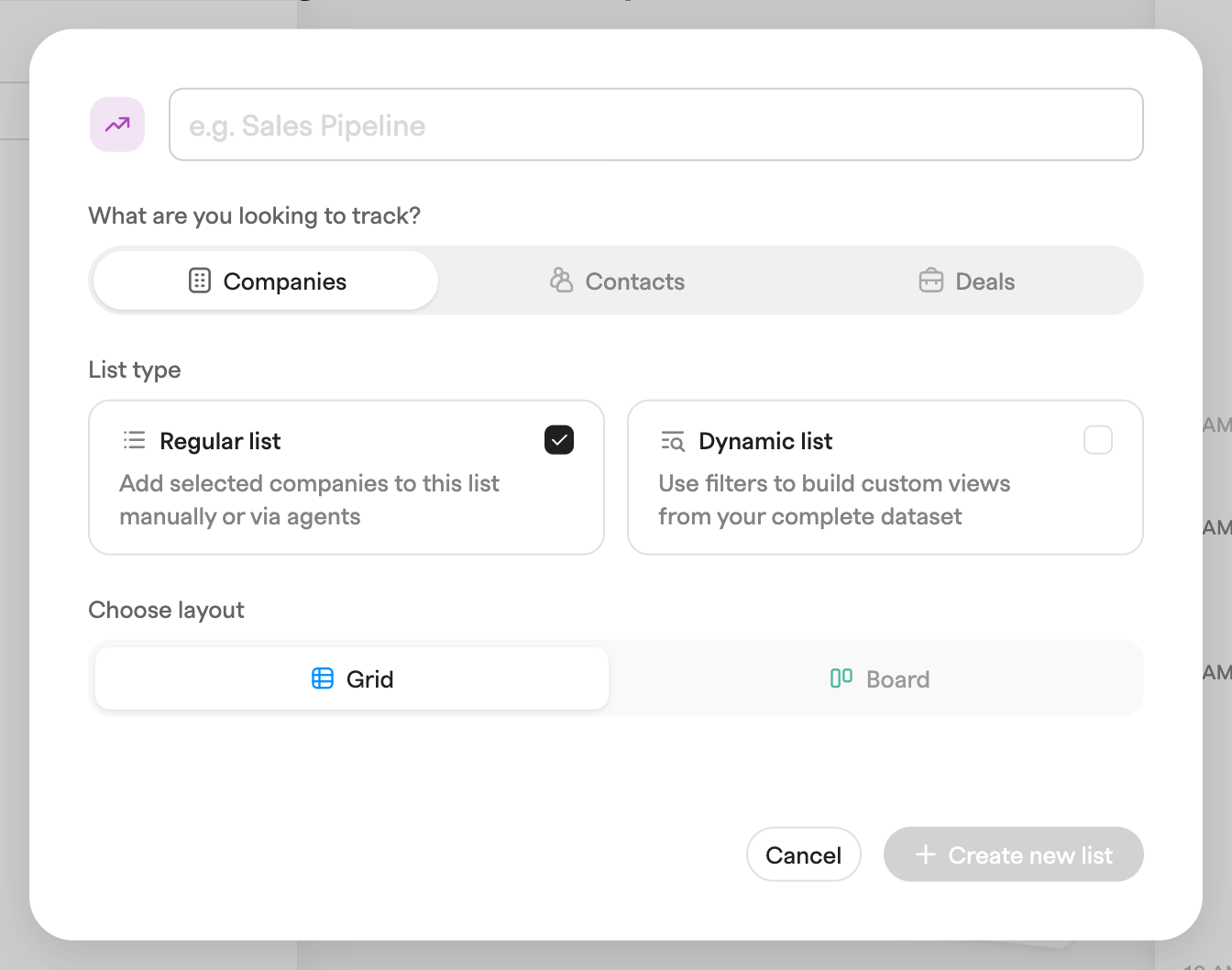
Open **Records & Lists** in the sidebar, click the **+** next to the **Lists** heading and choose **New list**. In the dialog:
1. Enter a name (for example "Sales Pipeline") and optionally pick an icon and color.
2. Under **What are you looking to track?** choose **Companies**, **Contacts** or **Deals**. This cannot be changed later.
3. Under **List type** choose **Regular list** or **Dynamic list**.
4. Under **Choose layout** pick the layout of the list's first view. A **Board** layout also needs **Group items by**; for deals grouped by stage you pick the **Pipeline** as well.
5. Click **Create new list**.
The list opens with a single view named **Main view**. Agents and MCP clients create lists with `add_list`, passing `addRecordIds` for a regular list or `filters` for a dynamic one.
## Adding and removing records
Regular lists only.
* **From a record page** — the **Lists** section shows which lists a record is in. Click its **+**, or **⋯ → Add to list** in the header, to pick more; removing a list there takes the record out of it.
* **In bulk** — select rows anywhere and use **Add to list or sequence** in the floating toolbar. Inside a regular list the trash button offers **Remove from the list** alongside **Delete records**.
* **Import** — **⋯ → Import from CSV** inside a list creates or matches the records and adds them to it.
* **Agents** — an agent can add records to a list as an action, and the trigger **Record is added to a list** fires when one joins. See [Agents](/features/agents.md).
* **MCP and API** — `add_companies_to_list`, `add_contacts_to_list`, `add_deals_to_list` and their `remove_*` counterparts, with a `listId` from `list_lists`. See [MCP](/developers/mcp.md). Through REST, membership is the record's `listIds` array.
Deleting a record removes it from every list; removing it from a list leaves the record alone.
## Working with selected records
Tick one or more rows and a toolbar appears at the bottom with the count, a **Clear selection** button, and the actions that apply:
* **Add to list or sequence** — an existing list, or type a name to create one. For contacts the menu also lists your sequences.
* **Add task** — opens the task composer with the records attached.
* **Send messages** — composes an email to the selection. On companies and deals it goes to their related contacts, and the tooltip says how many.
* **Trigger agent manually** — runs an agent over the selection. Shown only if an agent with a manual trigger exists for that record type.
* **Run AI property** — computes one of the view's AI properties for the selected rows.
* **Run enrichment** — companies and contacts only, with the cost shown before you confirm.
* **Merge records** — needs at least two selected. See [Merging Duplicates](/settings/merging-duplicates.md).
* **Remove…** — inside a regular list this splits into **Remove from the list** and **Delete records**. Everywhere else it is just **Delete records**. Deleting always asks first.
## Organising the sidebar
The **Records & Lists** panel shows every list, searchable by name.
* **Folders** — **+ → New folder**, then drag lists in. A folder's **⋯** menu offers **Add list**, **Rename** and **Delete**. Deleting a folder also deletes the unpinned lists inside it (the confirmation names them), so move anything you want to keep out first.
* **Pinning** — hover a list and click the pin, or use **Pin to sidebar** on the list page. **For everyone** pins it for the workspace; **Only for me** is personal. Pinned lists sit at the top under **Pinned lists** and can be dragged into your own order. **Unpin only for me** hides a workspace-pinned list from your sidebar without touching anyone else's.
* **Rename / Delete** — in each list's **⋯** menu.
## The list ⋯ menu
On a list page, the **⋯** next to the add-record button holds:
* **Import & Export** — **Import from CSV**, **Export as CSV** and **Import/Export history**. See [Exporting data](/settings/exporting-data.md).
* **Dynamic list** toggle — see above.
* **Duplicate list** — creates " (copy)" with the same type, filters and views; a regular copy starts empty.
* **Delete list** — deletes the list and its views. The records stay in the workspace.
Next to it, **Pin to sidebar** pins or unpins, and **Properties** controls the current view's columns.
## Lists, views and pipelines
A list decides *which* records are included; its [views](/getting-started/key-concepts/views.md) decide *how* you look at them, and a list can have several. For deals, a **Board** view grouped by **Stage** is a pipeline board — its columns come from the pipeline you pick, and the stages themselves from **Settings → Workspace → Pipelines** (see [Pipelines](/settings/pipeline-stages.md)).
New workspaces start with a **Sales** folder and a few starter lists, such as **Sales Pipeline**. They are ordinary lists: rename, reconfigure or delete them.
---
# Agent Instructions
This documentation is published with GitBook. GitBook is the documentation platform designed so that both humans and AI agents can read, navigate, and reason over technical content effectively. Learn more at gitbook.com.
## Querying This Documentation
If you need additional information that is not directly available in this page, you can query the documentation dynamically by asking a question.
Perform an HTTP GET request on the current page URL with the `ask` query parameter, and the optional `goal` query parameter:
```
GET https://docs.zero.inc/getting-started/key-concepts/lists.md?ask=&goal=
```
`ask` is the immediate question: it should be specific, self-contained, and written in natural language.
`goal` is optional and describes the broader end goal you are ultimately trying to accomplish on behalf of the user. GitBook uses it to tailor the answer towards what is most useful for that goal.
The response will contain a direct answer to the question and relevant excerpts and sources from the documentation.
Use this mechanism when the answer is not explicitly present in the current page, you need clarification or additional context, or you want to retrieve related documentation sections.