> For the complete documentation index, see [llms.txt](https://docs.zero.inc/llms.txt). Markdown versions of documentation pages are available by appending `.md` to page URLs; this page is available as [Markdown](https://docs.zero.inc/settings/call-recorders/granola.md).
# Granola
Connecting Granola brings your meeting notes and transcripts into Zero, matched to the right calendar events, with action items becoming Zero tasks. It connects with an API key you create in the Granola desktop app.
## Set up the integration
{% stepper %}
{% step %}
### Open the Granola setup in Zero
Go to **Settings → Connections → Notetakers** (the **Meeting notetakers** page). Under **Available notetakers**, click the Granola tile.
{% endstep %}
{% step %}
### Create an API key in the Granola desktop app
1. Open the Granola desktop app.
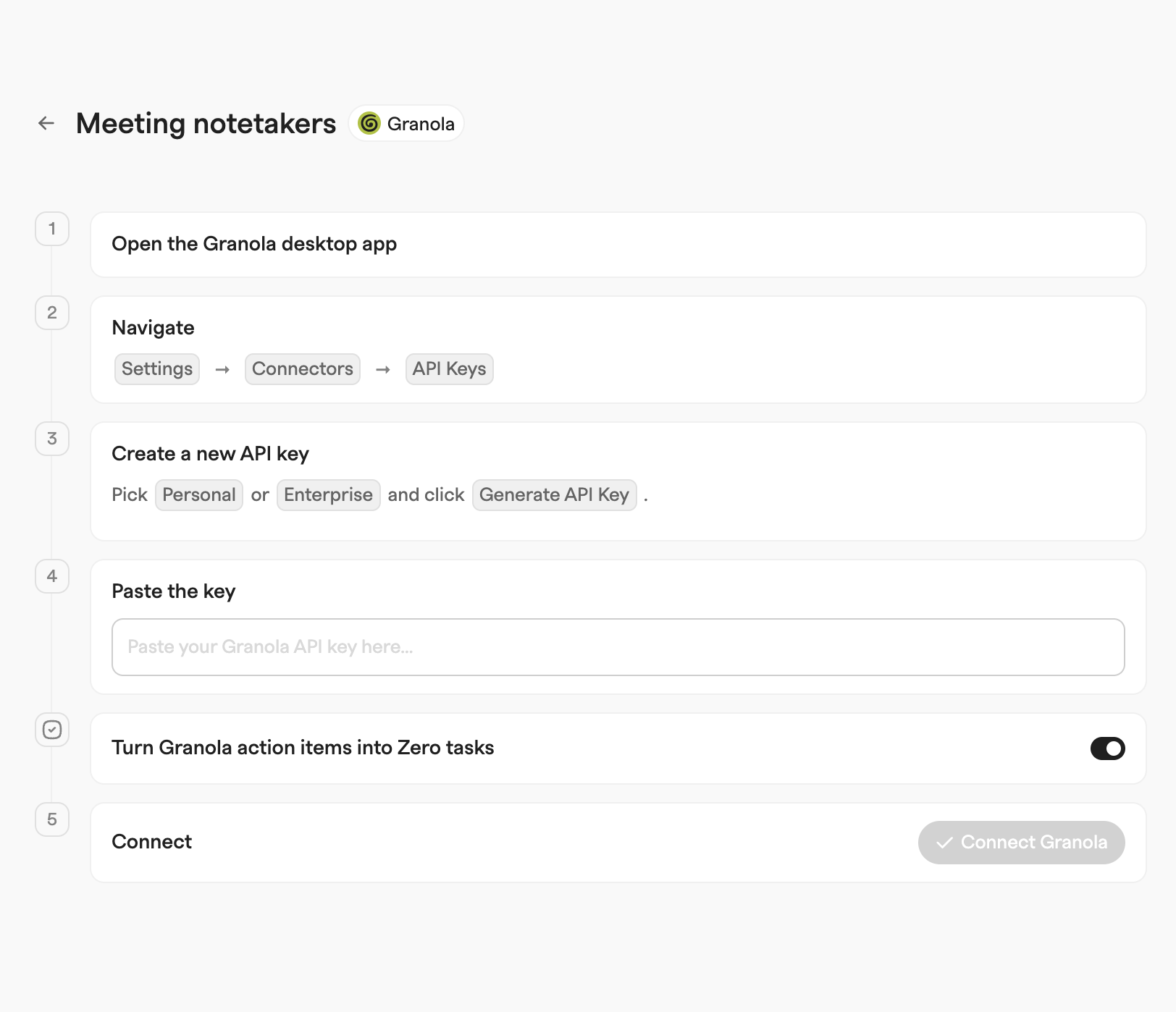
2. Navigate to `Settings` → `Connectors` → `API Keys`.
3. Pick `Personal` or `Enterprise` and click `Generate API Key`.
{% endstep %}
{% step %}
### Paste the key into Zero
Copy the generated key and paste it into the "Paste your Granola API key here..." field in the Zero setup wizard.
{% endstep %}
{% step %}
### Choose whether action items become tasks
The wizard includes a "Turn Granola action items into Zero tasks" toggle. It is on by default; turn it off if you only want notes and transcripts.
{% endstep %}
{% step %}
### Connect
Click "Connect Granola". The first sync starts immediately, and Granola appears under "Connected" on the Meeting notetakers page.
{% endstep %}
{% endstepper %}
## What syncs
* **Meeting notes** are attached to the matching calendar event in Zero as the event summary. If the event already has a summary from another source, the existing summary is kept.
* **Transcripts** are stored on the calendar event, segmented by speaker. Speakers appear as "Me" (your microphone) and "Them" (the other side of the call).
* **Action items** are extracted from the meeting summary and converted into Zero tasks when the "Turn Granola action items into Zero tasks" toggle is on.
* **Follow-ups**: after a transcript is imported, Zero generates a meeting follow-up draft for the attendees on your team, same as with other notetakers.
Zero matches each Granola note to a calendar event by the calendar invite ID, and falls back to matching by meeting title and scheduled start time within 30 minutes. Notes that cannot be matched are still stored and listed on the integration, and are linked to the event later when a match is found.
## Sync schedule
Zero checks every five minutes for calendar meetings of yours that ended at least five but less than ten minutes before the check. It queues the resulting syncs immediately, fetching your Granola notes from the last day. For example, a meeting ending at 12:00 is picked up and queued to sync at 12:05, with no added delay; actual start time depends on worker availability. Each check excludes the older boundary and includes the newer one, so adjacent checks do not overlap. You can also sync manually from the integration's `...` menu on the Meeting notetakers page:
* **Sync last 7 days** — re-imports notes created in the last 7 days.
* **Sync previous meetings** — imports your full Granola note history.
## Managing the integration
Click the connected Granola integration on the Meeting notetakers page to expand it. You can see how many meetings were found and matched, when the last sync ran, replace the API key, and change the "Turn action items into tasks" toggle. Use `...` > "Disconnect" to remove the integration; already-synced transcripts and summaries stay in Zero but no new meetings sync.
## Legacy OAuth connections
Older Granola integrations were connected through Granola OAuth instead of an API key. These still sync, but API key connections are more reliable and use Granola's official API, so legacy integrations show a **Reconnect with API** button on the Meeting notetakers page. Reconnecting replaces the OAuth connection with your API key and re-syncs your meetings through the official API.
---
# Agent Instructions
This documentation is published with GitBook. GitBook is the documentation platform designed so that both humans and AI agents can read, navigate, and reason over technical content effectively. Learn more at gitbook.com.
## Querying This Documentation
If you need additional information that is not directly available in this page, you can query the documentation by asking a question.
Perform an HTTP GET request on the following URL with the `ask` and `goal` query parameters:
```
GET https://docs.zero.inc/settings/call-recorders/granola.md?ask=&goal=
```
`ask` is the immediate question: it should be specific, self-contained, and written in natural language.
`goal` is what the user is ultimately trying to achieve, the reason they need the answer. Sharing it helps GitBook give you a better, more relevant answer. A goal is most helpful when it describes the outcome the user wants rather than restating the question. For example, with `ask=how do I create an API token`, a goal like `automate deployments from our CI pipeline` lets GitBook tailor the answer to that use case.
The response will contain a direct answer to the question and relevant excerpts and sources from the documentation.
Use this mechanism when the answer is not explicitly present in the current page, you need clarification or additional context, or you want to retrieve related documentation sections.