> For the complete documentation index, see [llms.txt](https://docs.zero.inc/llms.txt). Markdown versions of documentation pages are available by appending `.md` to page URLs; this page is available as [Markdown](https://docs.zero.inc/settings/custom-properties.md).
# Custom Properties
No two companies track the same things. Custom properties are how your process gets represented in Zero — renewal date, account tier, lead source, whatever you actually manage on. Define one per entity and it behaves like a standard property everywhere after that: list columns, filters, peeks, reports, agents, the API.
This page covers properties you fill in. For the ones an agent fills in, see [AI Properties](/features/ai-properties.md).
## Manage custom properties
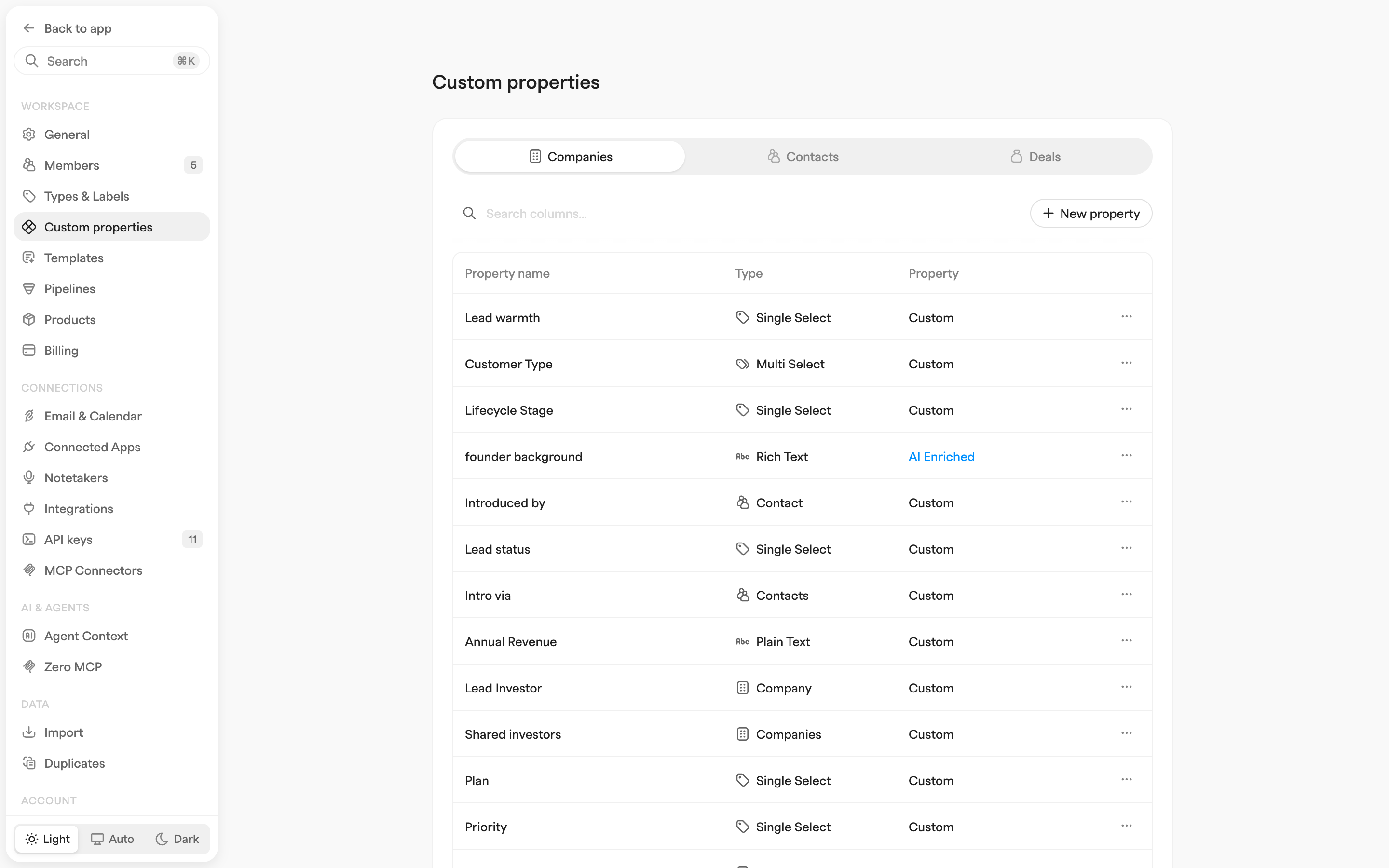
**Settings → Workspace → Custom properties** (admin only). The switch at the top moves between **Companies**, **Contacts** and **Deals**, each with its own set.
The table shows each property's name, type, and whether it is **Custom** (filled by hand) or **AI Enriched**. **Search columns...** filters by name; click a row to edit it.
## Create a property
1. Click **New property** to open the **Create new property** modal.
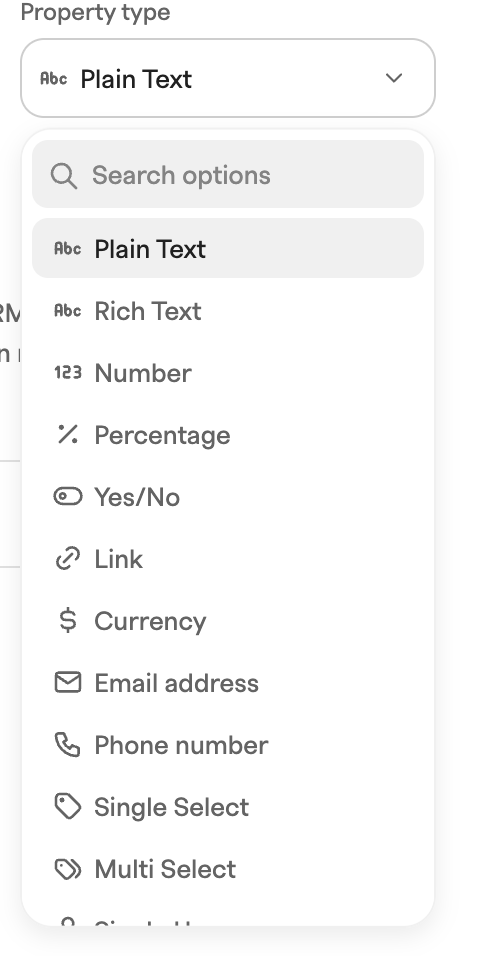
2. Enter a **Property name** and pick a **Property type**.
3. Add a description. Worth doing: teammates read it, and so do agents — they match against the name, description and option names when searching your properties.
4. For **Single Select** and **Multi Select** properties, configure the option list (see below).
5. To have AI fill the property automatically, turn on **Use AI to fill this property** and write a prompt — see [AI Properties](/features/ai-properties.md).
6. Click **Save**.
You can also create one without leaving what you are doing: from a list view's **Properties** menu, **Add a property** → **Create a new custom property** (it becomes a visible column right there), or during a CSV import, when Chat proposes properties for columns that have no match.
## Property types
| Type | API key | Notes |
| -------------- | ------------- | ------------------------------------------------ |
| Plain Text | `text` | Single-line text. |
| Rich Text | `richtext` | Formatted text. |
| Number | `number` | Numeric value. |
| Percentage | `percentage` | Numeric value shown as a percentage. |
| Yes/No | `boolean` | True/false toggle. |
| Link | `link` | URL. |
| Currency | `currency` | Monetary amount. |
| Email address | `email` | Email address. |
| Phone number | `phone` | Phone number. |
| Single Select | `select` | One value from a configurable option list. |
| Multi Select | `multiselect` | Multiple values from a configurable option list. |
| Single User | `user` | One workspace member. |
| Multiple Users | `users` | Multiple workspace members. |
| Date | `date` | Calendar date. |
| Time | `timestamp` | Date and time. |
| Location | `location` | Geographic location (city, state, country). |
| Rating | `rating` | 1–5 star rating. |
| Company | `company` | Relation: links one company record. |
| Companies | `companies` | Relation: links multiple company records. |
| Contact | `contact` | Relation: links one contact record. |
| Contacts | `contacts` | Relation: links multiple contact records. |
| Deal | `deal` | Relation: links one deal record. |
| Deals | `deals` | Relation: links multiple deal records. |
## Select options
Select and Multi Select properties carry their own option list. **Add option** adds one, with a name and a color Zero picks for you (changeable via the palette button), and the grip handle reorders them.
The **x** button does not destroy an option: it moves to a **Removed options** section where you can restore it, or delete it permanently.
## Change a property's type
The edit modal lets you change an existing property's type. Zero confirms first — "Your existing data will be migrated to the new type" — then migrates values in the background for these conversions:
* **Plain field → Single/Multi Select** (from Plain Text, Number, Percentage, Yes/No, Link, Currency, Email address, or Phone number): every distinct existing value becomes a select option, and records are re-pointed at the matching option.
* **Single/Multi Select → plain field**: option names become the stored values. Converting to Number, Currency, or Percentage keeps only values that parse as numbers; converting to Yes/No maps `true`/`false`/`yes`/`no`. A Multi Select converted to Plain Text joins the selected options with commas; converted to a single-value type it keeps the first selected option.
* **Single ↔ multi pairs** (Single Select ↔ Multi Select, Single User ↔ Multiple Users, Company ↔ Companies, Contact ↔ Contacts, Deal ↔ Deals): single values are wrapped into a list, and lists are reduced to their first value.
Other type changes update the property definition without converting stored values.
## Delete a property
**Delete** in a property row's **⋯** menu, after a confirmation. This is permanent.
## Custom properties in the API and for AI agents
In the API the *definitions* are called **columns**: `GET /api/columns` gives each property's `id`, `type` and `options`. The *values* live on the records, in each record's `custom` object keyed by column id — read, filter and update them as `custom.`. Always write individual keys with dot notation (`{"custom.": "value"}`); replacing the whole `custom` object wipes the keys you left out. See the [API docs](/developers/api/introduction.md).
Over [MCP](/developers/mcp.md), assistants discover properties via `get_workspace_metadata` and `find_custom_properties`, and extend select properties with `add_column_options`.
---
# Agent Instructions
This documentation is published with GitBook. GitBook is the documentation platform designed so that both humans and AI agents can read, navigate, and reason over technical content effectively. Learn more at gitbook.com.
## Querying This Documentation
If you need additional information that is not directly available in this page, you can query the documentation by asking a question.
Perform an HTTP GET request on the following URL with the `ask` and `goal` query parameters:
```
GET https://docs.zero.inc/settings/custom-properties.md?ask=&goal=
```
`ask` is the immediate question: it should be specific, self-contained, and written in natural language.
`goal` is what the user is ultimately trying to achieve, the reason they need the answer. Sharing it helps GitBook give you a better, more relevant answer. A goal is most helpful when it describes the outcome the user wants rather than restating the question. For example, with `ask=how do I create an API token`, a goal like `automate deployments from our CI pipeline` lets GitBook tailor the answer to that use case.
The response will contain a direct answer to the question and relevant excerpts and sources from the documentation.
Use this mechanism when the answer is not explicitly present in the current page, you need clarification or additional context, or you want to retrieve related documentation sections.