> For the complete documentation index, see [llms.txt](https://docs.zero.inc/llms.txt). Markdown versions of documentation pages are available by appending `.md` to page URLs; this page is available as [Markdown](https://docs.zero.inc/settings/integrations/linkedin.md).
# LinkedIn
A lot of early relationship-building happens on LinkedIn and then never makes it into the CRM. Zero's Chrome extension closes that gap: your LinkedIn conversations sync in automatically, appearing on the contact's **Activity** tab and under the **LinkedIn** tab in **Messages**.
## How does it work
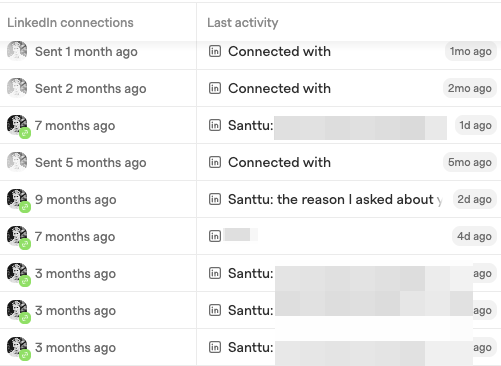
**The "LinkedIn connections" and "Last activity" properties show connection status and the latest message:**
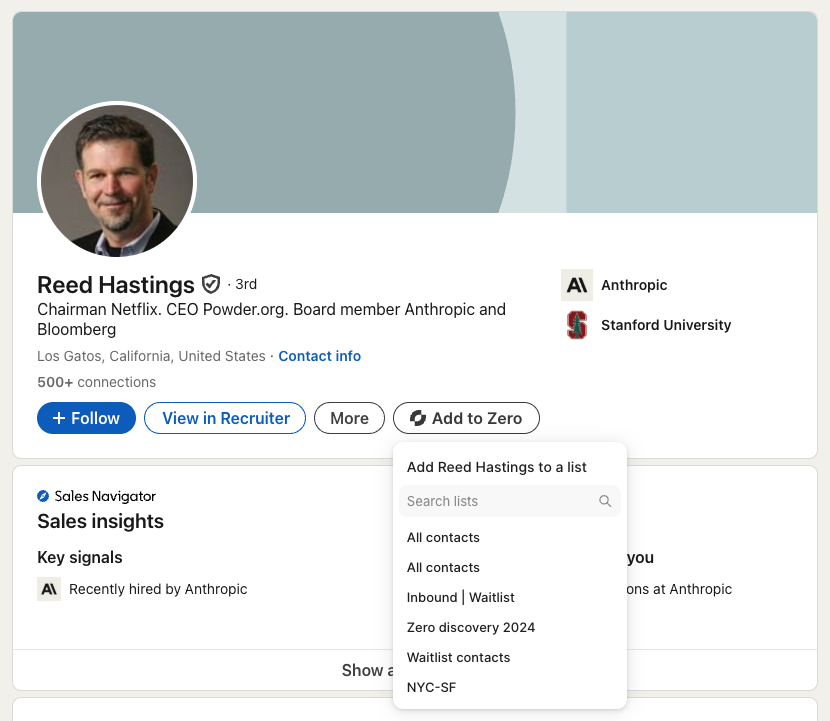
**And you can save contacts and companies to Zero without leaving LinkedIn:**
## How to install
The extension is set up in **Settings → Connections → Connected Apps → LinkedIn**.
{% stepper %}
{% step %}
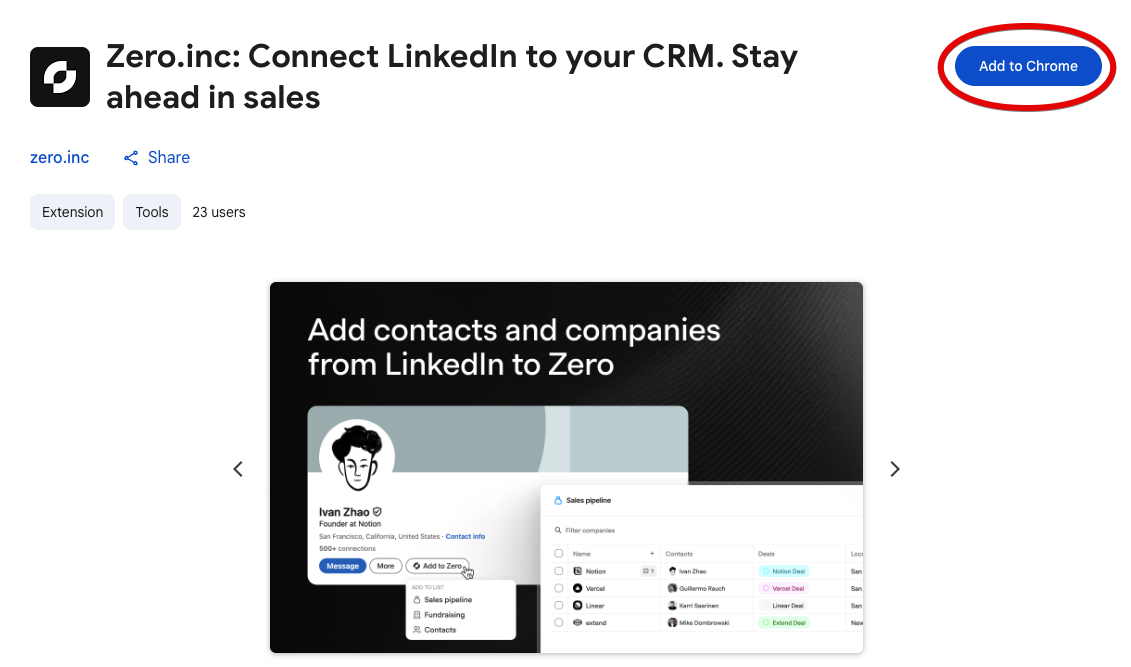
### Add the [Zero Chrome Extension](https://chromewebstore.google.com/detail/zeroinc-connect-linkedin/hnkgdhehofgpjcobgckaofmlgimichim) to your Chrome or Chromium-based browser, like Arc or Brave
{% endstep %}
{% step %}
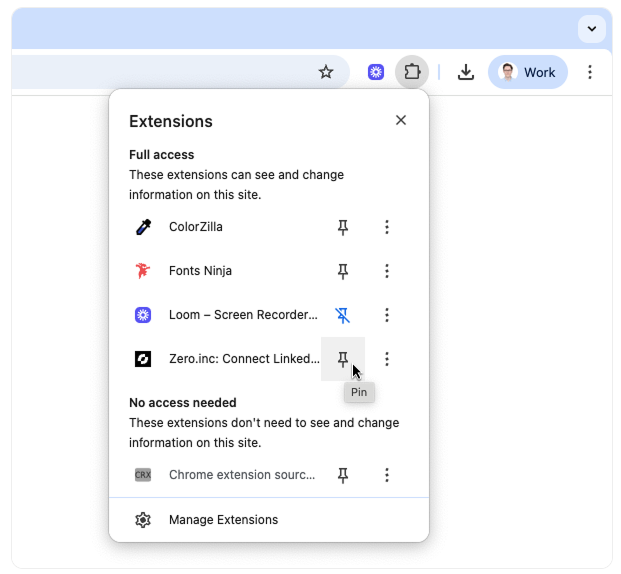
### Pin the extension
{% endstep %}
{% step %}
### Connect to Zero
In **Settings → Connections → Connected Apps → LinkedIn**, select **Connect Extension** and approve the connection.
{% endstep %}
{% endstepper %}
## LinkedIn account settings
With the extension connected, the **LinkedIn** tab holds three settings:
* **Auto-contact creation** — **Add everyone** turns your connections into contacts (without duplicating the ones already there), or **Disabled**.
* **Message syncing** — **Enabled** or **Disabled** for this account.
* **Message visibility** — whether newly synced threads are **Public** to the workspace or **Private** to you. Existing threads keep what they have.
The same tab can delete all synced messages, all synced connections, or the LinkedIn account itself.
## LinkedIn Bulk Messaging
You can draft LinkedIn messages in bulk in Zero, but they are sent from LinkedIn itself by the extension. Four things follow from that:
* **Only 1st-degree connections can be messaged**, and the contact needs valid LinkedIn data in Zero.
* **Drafts are created in Zero, sent from LinkedIn.**
* **You start the send yourself**, from the LinkedIn tab.
* **Keep that tab open while they go out.**
### Creating draft LinkedIn messages
{% stepper %}
{% step %}
Open a contacts list.
{% endstep %}
{% step %}
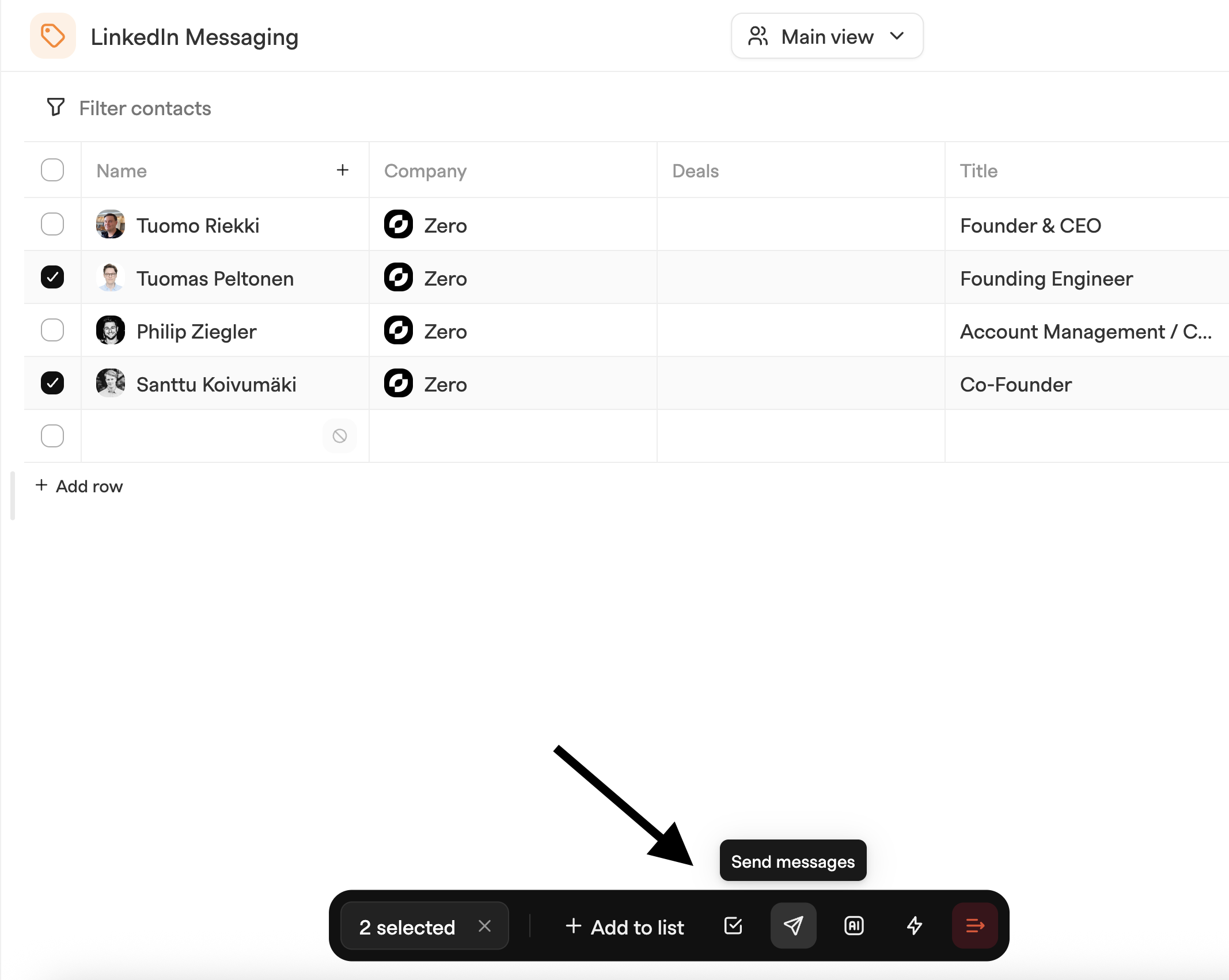
Select contacts and click the **Send messages** icon on the bottom bar.
{% endstep %}
{% step %}
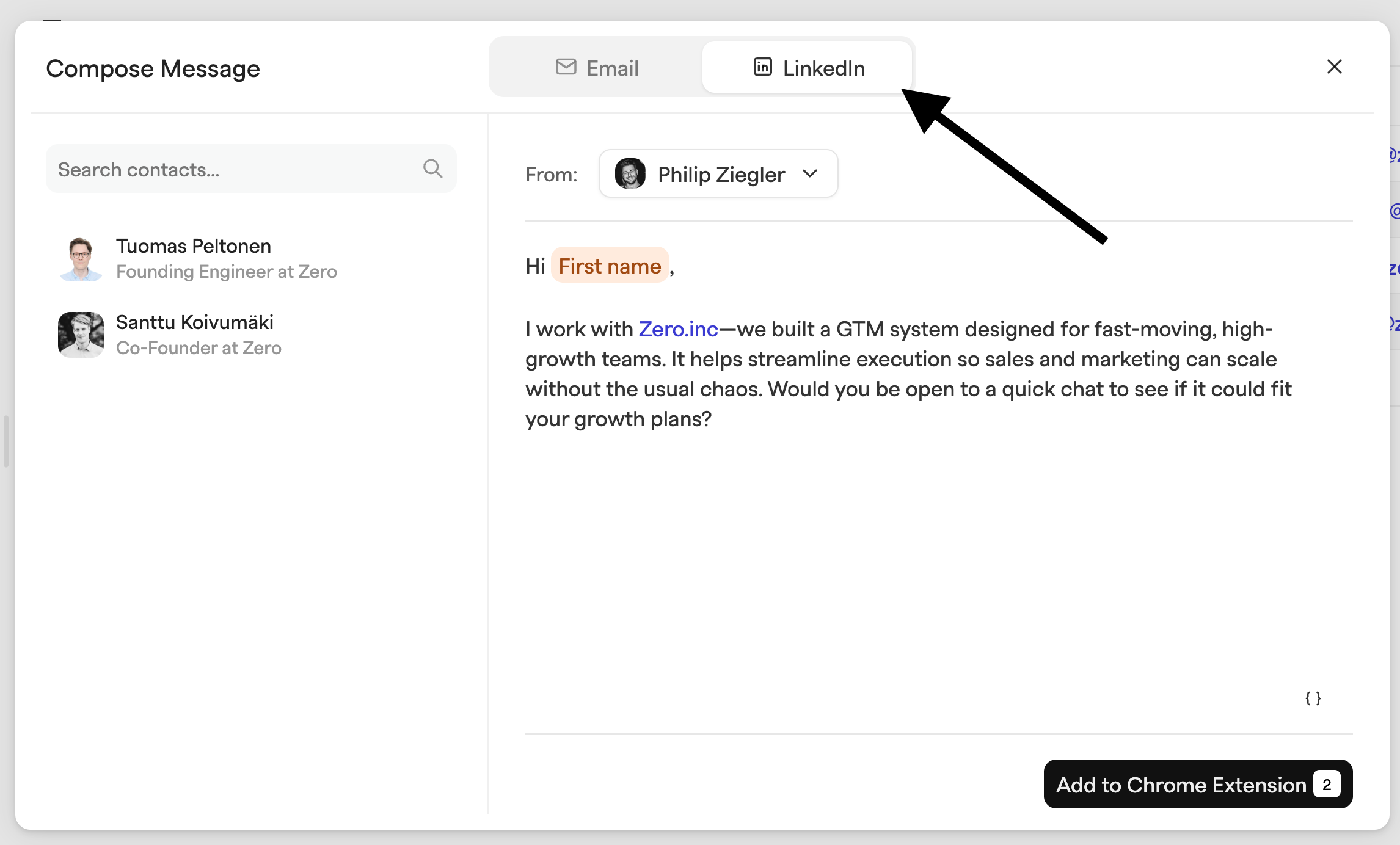
In **Compose message**, choose **LinkedIn** at the top. Pick a Zero account under **From** and write your message template.
{% endstep %}
{% step %}
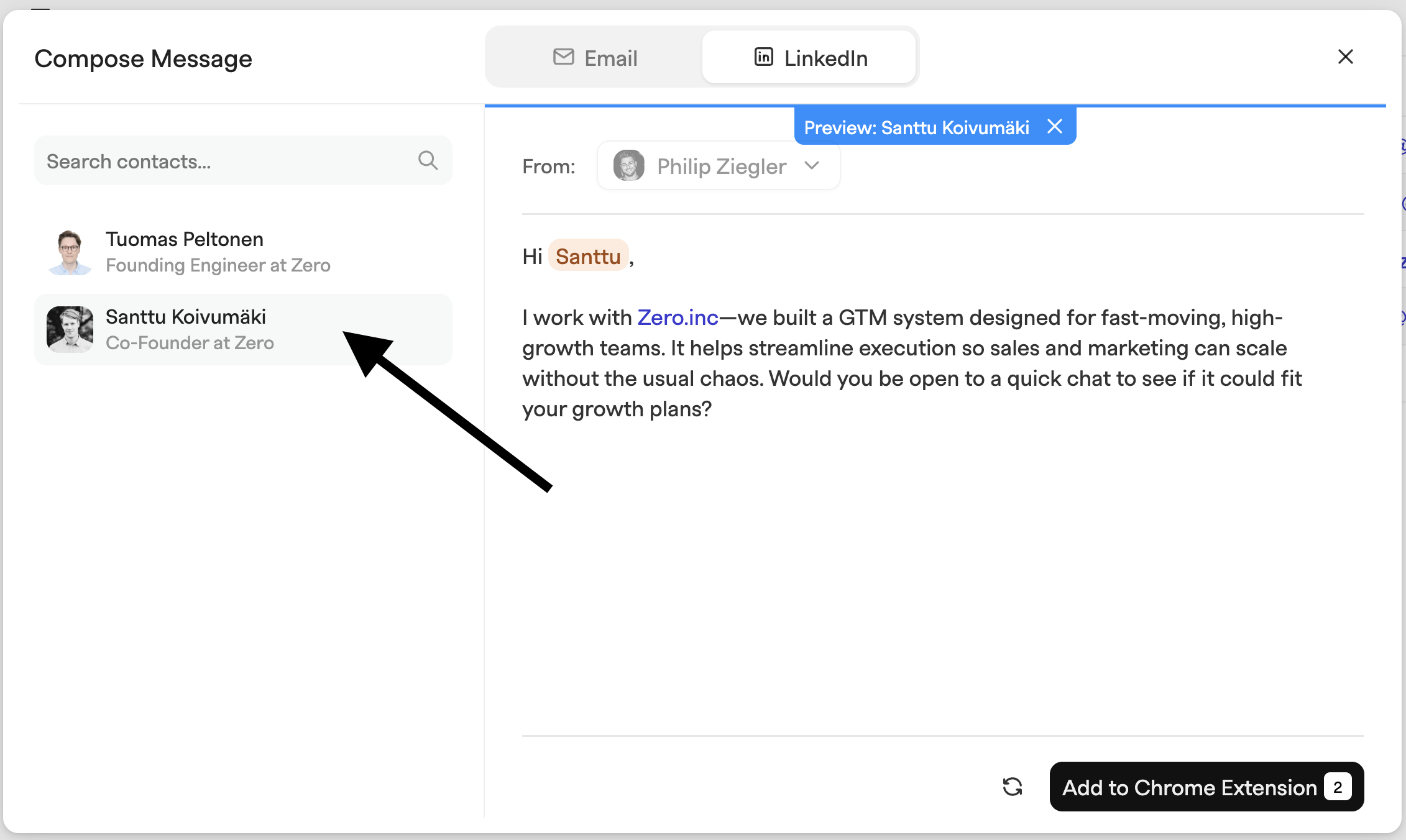
Click contacts on the left to preview personalization.
{% endstep %}
{% step %}
Click **Add to Chrome Extension**.
* ⚠️ Contacts must be 1st-degree connections of the sender
* The Chrome Extension must be installed with fully synced connections.
{% endstep %}
{% endstepper %}
### Sending the drafts
{% stepper %}
{% step %}
Open LinkedIn and click the Zero logo (bottom-left).
The panel shows how many **messages ready to be sent** you have.
{% endstep %}
{% step %}
Click the drafts card to open the list. Review or edit each draft, then **Send** it on its own or **Send all**.
{% endstep %}
{% step %}
**Keep the tab open** — do not refresh, navigate away, or click links while a run is going.
{% endstep %}
{% step %}
**Pause** stops a run, taking a few seconds if a message is mid-send.
Closing the tab or browser abruptly is safe from duplicates — nothing is re-sent on restart — but the message in flight at that moment may not have been delivered, and there is no way to confirm either way.
{% endstep %}
{% step %}
Drafts that fail are marked with an error in the list, and you can retry them from there.
{% endstep %}
{% endstepper %}
---
# Agent Instructions
This documentation is published with GitBook. GitBook is the documentation platform designed so that both humans and AI agents can read, navigate, and reason over technical content effectively. Learn more at gitbook.com.
## Querying This Documentation
If you need additional information that is not directly available in this page, you can query the documentation by asking a question.
Perform an HTTP GET request on the following URL with the `ask` and `goal` query parameters:
```
GET https://docs.zero.inc/settings/integrations/linkedin.md?ask=&goal=
```
`ask` is the immediate question: it should be specific, self-contained, and written in natural language.
`goal` is what the user is ultimately trying to achieve, the reason they need the answer. Sharing it helps GitBook give you a better, more relevant answer. A goal is most helpful when it describes the outcome the user wants rather than restating the question. For example, with `ask=how do I create an API token`, a goal like `automate deployments from our CI pipeline` lets GitBook tailor the answer to that use case.
The response will contain a direct answer to the question and relevant excerpts and sources from the documentation.
Use this mechanism when the answer is not explicitly present in the current page, you need clarification or additional context, or you want to retrieve related documentation sections.