> For the complete documentation index, see [llms.txt](https://docs.zero.inc/llms.txt). Markdown versions of documentation pages are available by appending `.md` to page URLs; this page is available as [Markdown](https://docs.zero.inc/settings/integrations/luma.md).
# Luma
Events are lead generation you already paid for, and the follow-up usually dies in a spreadsheet. Connecting Luma syncs events and their RSVPs into Zero against the right contacts and companies — and lets you invite CRM contacts to an event without leaving Zero.
## How to connect Luma to Zero
Only workspace admins can connect or disconnect event integrations.
{% stepper %}
{% step %}
Create a calendar-scoped API key in [Luma calendar settings](https://luma.com/calendar/manage/api-keys).
Each key grants access to the calendar it was created on and requires a **Luma Plus** subscription. Zero syncs the events of that one calendar.
{% endstep %}
{% step %}
In Zero, go to **Settings → Connections → Integrations**. Scroll to **Event integrations** and click **Connect Event Platform**.
{% endstep %}
{% step %}
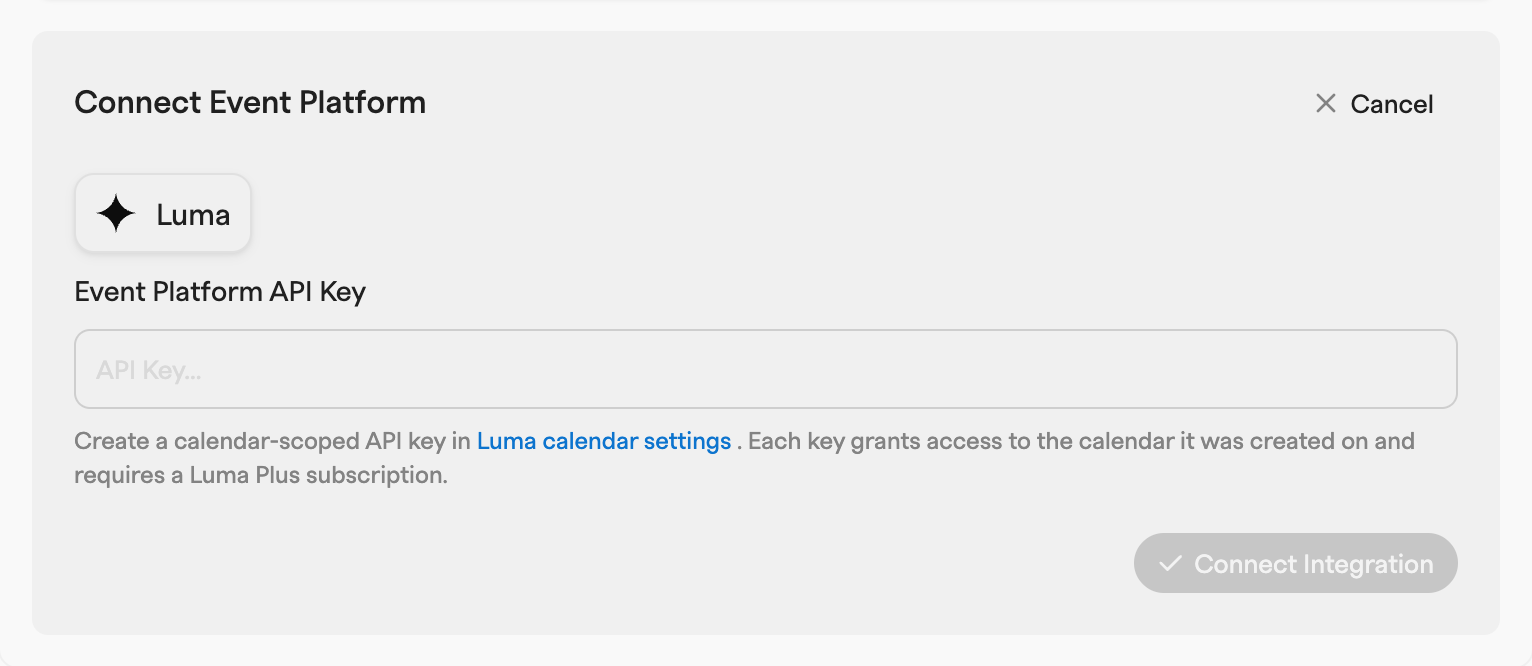
Select **Luma**, paste the key into the **Event Platform API Key** field, and click **Connect Integration**.
{% endstep %}
{% endstepper %}
The first sync starts immediately after connecting. After that, the integration updates **hourly**; the connected card shows the sync status (**Connected**, **Syncing**, or **Error**) and the last update time. You can also trigger a sync manually from the card's **⋯ menu → Sync data**.
### Automatic contact creation
The connected card has a dropdown that controls what happens to event guests who don't exist as contacts yet:
* **Disabled** (default) — add contacts manually. RSVPs from unknown guests are still synced and linked automatically once a contact with that email is created.
* **Add everyone** — automatically add event guests as contacts. Guests whose email is on one of your workspace domains are skipped, the same exclusion rule used by email and calendar auto-contact creation.
## What gets synced
Zero pulls all events from the connected calendar going back **2 years**, plus upcoming events, and then every guest (RSVP) per event.
Each event stores its name, description, event page URL, start and end time, timezone, and location — the venue address for physical events, or the meeting link for online events.
Each RSVP becomes an activity on the guest's contact, with:
* **Status** — one of **Going**, **Pending approval**, **Invited**, **Declined**, **Waitlisted**, or **Registered**. Guests who checked in at the event surface as **Attended**.
* **Timestamps** — when the guest was invited, registered, joined, and checked in.
* **Guest details** — name, email, phone number, and UTM source, when Luma has them.
* **Registration answers** — responses to the event's custom registration form questions.
Statuses and check-ins are refreshed on every sync, so attendance updates after an event without any manual work. Events with very large guest lists can take a while to sync because Zero pages through guests while respecting Luma's API rate limits.
## How RSVPs are matched to contacts and companies
Each guest's **email** is matched case-insensitively against contact emails in your workspace. Matched RSVPs are linked to the contact and the contact's company. The guest email is stored on the RSVP, so activities are linked retroactively when a matching contact is created later — associations are re-checked on every sync.
## Where the data appears in Zero
* **Record feeds** — RSVPs show up in the activity feed of the linked contact and company ("RSVP'd", "attended", "declined", …) together with the event name, description, status, and location. You can filter the feed by the **Luma** activity type.
* **Lists** — in contact, company, and deal lists, add the **Luma attendance** property to see each record's RSVPs. Its columns include **Luma → Status** (filterable by **Attended**, **Going**, **Pending approval**, **Invited**, **Declined**, **Waitlisted**, **Registered**), **Luma → Event name**, and **Luma → Event location**.
## Sending Luma invites from Zero
With Luma connected, you can invite CRM contacts to an upcoming Luma event:
1. Select contacts in a contact list and click **Send messages** in the floating toolbar.
2. In the composer, switch to the **Integrations** tab and pick **Luma** as the integration.
3. Select an upcoming Luma event, optionally add an invite message (up to **200 characters**), and click **Send invites**.
Invites are delivered by Luma, not through your connected mailbox. You can invite up to **100 contacts** at a time; contacts without an email address and contacts unsubscribed from all messaging are skipped automatically. After sending, a sync is scheduled so the invited guests appear as **Invited** RSVPs.
## Disconnecting
Open the connected card's **⋯ menu → Disconnect**. Disconnecting stops the sync and removes the synced event and RSVP data from Zero.
---
# Agent Instructions
This documentation is published with GitBook. GitBook is the documentation platform designed so that both humans and AI agents can read, navigate, and reason over technical content effectively. Learn more at gitbook.com.
## Querying This Documentation
If you need additional information that is not directly available in this page, you can query the documentation by asking a question.
Perform an HTTP GET request on the following URL with the `ask` and `goal` query parameters:
```
GET https://docs.zero.inc/settings/integrations/luma.md?ask=&goal=
```
`ask` is the immediate question: it should be specific, self-contained, and written in natural language.
`goal` is what the user is ultimately trying to achieve, the reason they need the answer. Sharing it helps GitBook give you a better, more relevant answer. A goal is most helpful when it describes the outcome the user wants rather than restating the question. For example, with `ask=how do I create an API token`, a goal like `automate deployments from our CI pipeline` lets GitBook tailor the answer to that use case.
The response will contain a direct answer to the question and relevant excerpts and sources from the documentation.
Use this mechanism when the answer is not explicitly present in the current page, you need clarification or additional context, or you want to retrieve related documentation sections.