> For the complete documentation index, see [llms.txt](https://docs.zero.inc/llms.txt). Markdown versions of documentation pages are available by appending `.md` to page URLs; this page is available as [Markdown](https://docs.zero.inc/settings/integrations/plain.md).
# Plain
Support tickets tell you which accounts are struggling before anyone on the revenue side hears about it. Connecting Plain syncs its Slack conversations and support tickets onto the matching CRM records, along with each thread's SLA status, tier, assignee and customer rating.
{% stepper %}
{% step %}
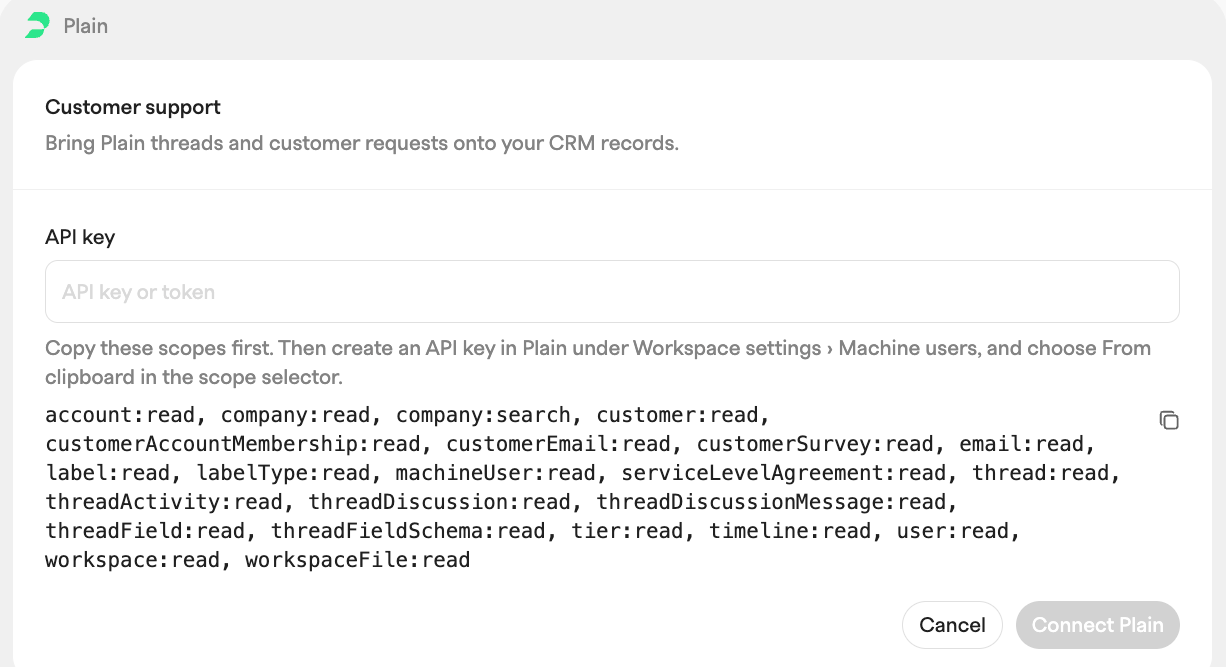
### Copy the required scopes from Zero
In Zero, go to **Settings → Connections → Integrations**, find the **Plain** section and click **Connect Plain**. The form shows the full list of API key scopes as a copyable snippet — click the copy button next to it. You will use this snippet in Plain's scope selector via **From Clipboard**.
{% endstep %}
{% step %}
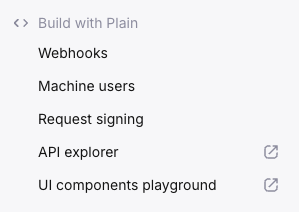
### Go to Plain settings, scroll to the bottom and click Machine users
{% endstep %}
{% step %}
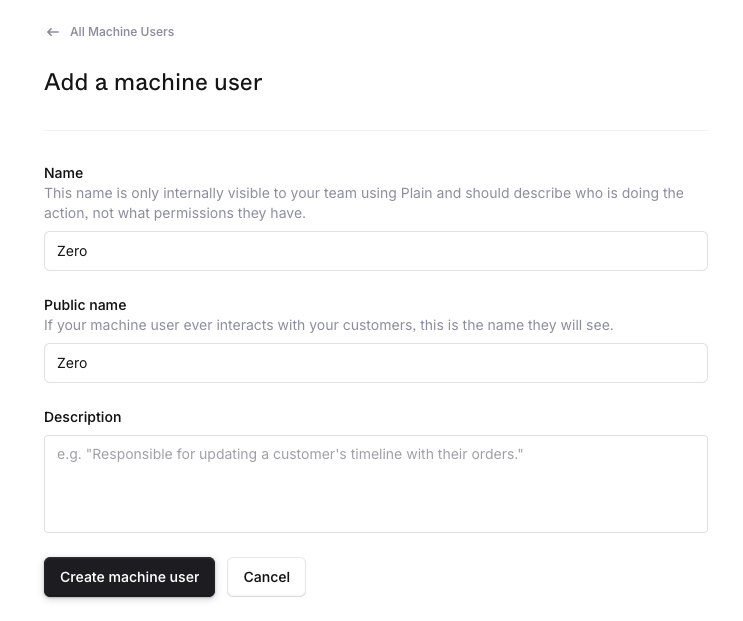
### Add a new machine user
{% endstep %}
{% step %}
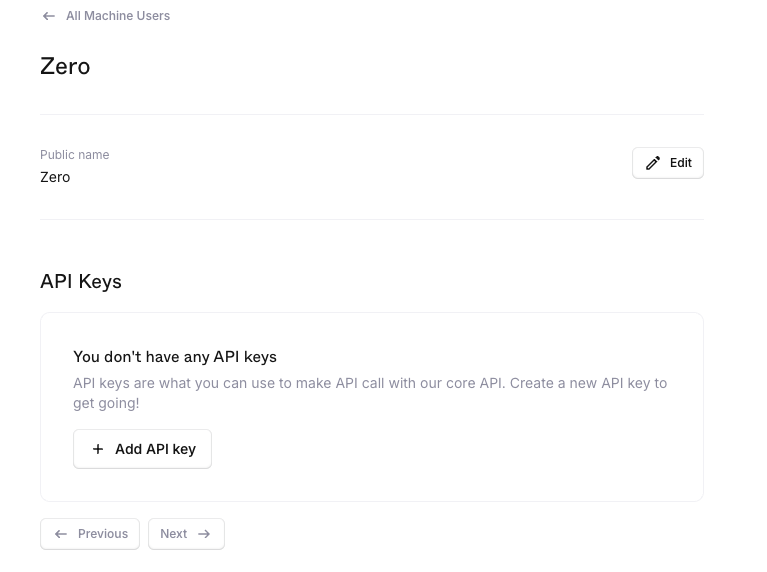
### Add API key
{% endstep %}
{% step %}
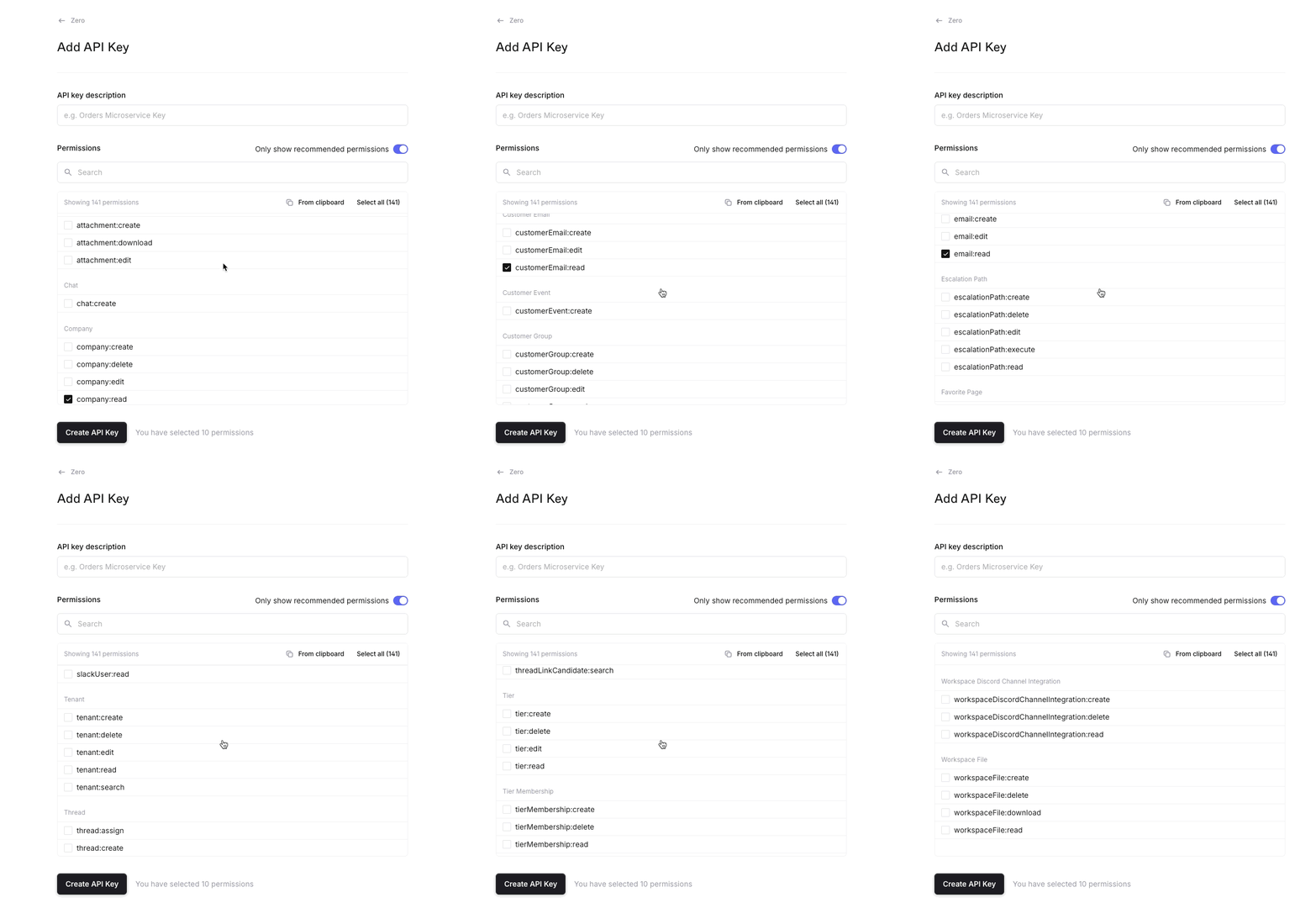
### Give API key permissions
In Plain's scope selector, choose **From Clipboard** to apply the scopes you copied from Zero. Alternatively, grant read permissions to the following objects manually:
* account:read
* company:read
* company:search
* customer:read
* customerAccountMembership:read
* customerEmail:read
* customerSurvey:read
* email:read
* label:read
* labelType:read
* machineUser:read
* serviceLevelAgreement:read
* thread:read
* threadActivity:read
* threadDiscussion:read
* threadDiscussionMessage:read
* threadField:read
* threadFieldSchema:read
* tier:read
* timeline:read
* user:read
* workspace:read
* workspaceFile:read
{% endstep %}
{% step %}
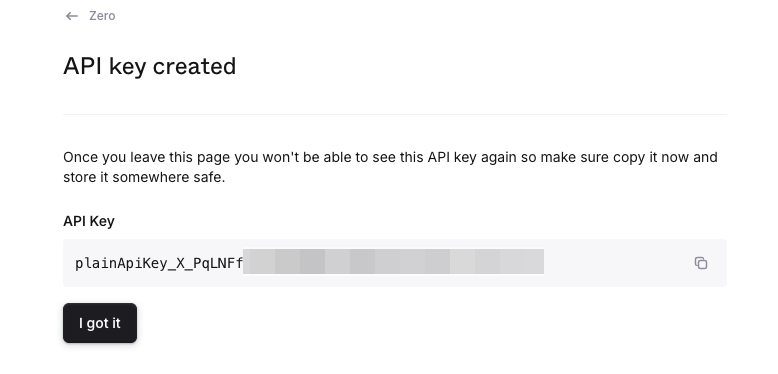
### Save and copy the API key
{% endstep %}
{% step %}
### Paste the API key to Zero
Back in the Zero connect form, paste the key into **API key** and click **Connect Plain**. The first sync starts right away.
If the integration shows `plain getThreads http error: 403`, the key is missing one of the scopes above. Create a new key with all of them applied, then replace the old one: open the connection's `⋯` menu, click **Replace API key** and paste the new key. A `401` means the key is invalid or has been revoked; replace it the same way.
A key that is missing only some scopes still connects and syncs, with less data. The Plain connection then shows a warning under its last update that names the missing scopes and what is skipped, for example: *Plain API key is missing tier:read. SLA, tier and assignee are skipped until the API key is replaced with one that has the scopes from the connect form.* Create a new key with every scope above, then click **Replace API key** right after the warning, or in the connection's `⋯` menu, and paste it. Only workspace admins can replace the key; other members see *Ask a workspace admin to replace the API key.* The connection keeps its synced threads. Until a sync with the new key completes it shows *New API key saved. The next sync checks it.*, and that sync goes over every thread again to fill in what the old key skipped. Don't disconnect to change the key: disconnecting deletes every thread the connection synced.
If messages appear without who wrote them, the key is missing `user:read`, `machineUser:read` or `workspaceFile:read`. Plain refuses a thread's history when a teammate or bot has replied in it and the key can't read who they are, so Zero syncs the messages without author names. Keys created before November 2026 may lack `workspaceFile:read`. After you replace the key, Zero fetches those messages again with the new key, up to 500 threads per hourly sync.
{% endstep %}
{% step %}
### Add issue properties to your lists
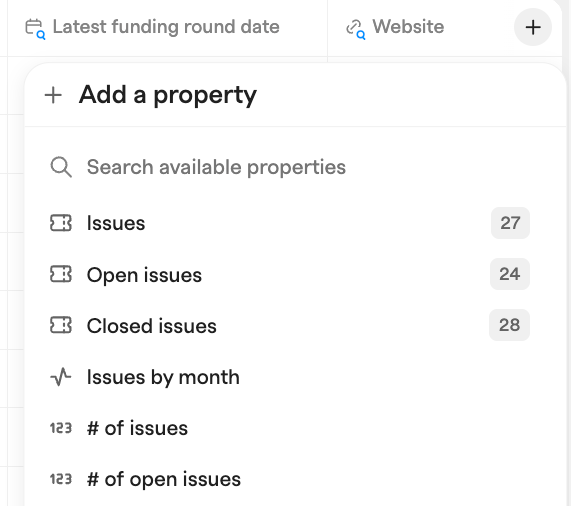
In any company or contact list, click **Properties → Add a property** and look for the issue groups. Each group holds a set of issues and opens into their fields, such as **Open issues → First response SLA** or **Issues → Status**.
* **Issues** — every issue, newest activity first.
* **Open issues** — issues that are still open. Snoozed and canceled issues count as neither open nor closed.
* **Closed issues** — issues that are closed or done. Companies only.
Contacts get **Issues** and **Open issues**. The company properties **# of issues**, **# of open issues** and **Issues by month** are unchanged, and lists and reports that use **Issues → Status** or **Issues → Type** keep working.
{% endstep %}
{% endstepper %}
## What gets synced
The first sync, which starts as soon as you connect, brings in every thread. After that the integration updates hourly: threads that changed in the past week, plus every thread that is still open, so SLA status keeps up with threads nobody has touched. Pull data on demand with **Sync data** in the connection's `⋯` menu. The integration is read-only — Zero never writes back to Plain.
Each Plain thread becomes an issue in Zero, with:
* **Conversation** — the title and every message, including replies from teammates and bots.
* **Status** — Todo, Snoozed or Done, plus **Status detail**, what the thread is waiting on: "Needs first response", "Waiting for customer" or "Snoozed until a set time", for example.
* **Labels**, **Priority level** (Urgent, High, Normal or Low), **Channel** (Email, Slack, Chat, API, Microsoft Teams, Discord, Import or Internal) and **Ticket number**, plus a **Link** that opens the thread in Plain.
* **First response SLA** — Plain's verdict (Pending, About to breach, Breaching, Breached, Met or Cancelled) and when it was breached.
* **Next response SLA** — the same, for the reply the customer is waiting on. It shows the SLA as Plain has it right now. Once your team replies, an earlier breach is gone. Use it to find what is breaching now, not to report breach rates over time.
* **Tier**, as set in Plain.
* **Assignee** and when the thread was assigned. If the assignee's email belongs to a member of your workspace, the thread is linked to that person. Otherwise, for a contractor or a machine user, only the name is kept.
* **CSAT rating** — the score the customer gave in Plain's satisfaction survey.
* **Response time**, **Resolution time**, **First response at**, **Last customer message at** and **Last team message at**. A customer message newer than your team's last one means the customer is waiting on you.
A thread whose tier has no SLA targets, or that has no tier, has no SLA status at all. Its SLA fields stay empty. SLA status is as of the last hourly sync.
## How threads are matched to companies and contacts
* **Company** — by domain. Zero uses the thread's Plain **account** first (its primary domain, then its alternate domains). If the thread has no account, or none of its domains matches a company, Zero links every company that matches the accounts its customer belongs to, and also the company set on the Plain customer, which Plain is retiring on 26 April 2027. The domain must match the company's domain in Zero.
* **Contact** — the customer's email is matched against your contacts' emails, ignoring case. The matched contact's company is linked too, so a thread follows the person even when it has no account.
* The customer's email is kept on the issue, so a contact you add later is linked to their earlier threads. Links are re-checked each time a thread syncs.
## Which properties work for every issue tracker
The issue groups are shared with Linear, Pylon, Intercom and Front. A company or contact with issues from several issue trackers sees them all in the same group.
* **For every issue tracker**: Name, Type, Status, Labels, Link, Created at, Last message at and **# of issues**. Response time and resolution time are filled wherever the tracker reports them, which excludes Front.
* **Also for Linear and Pylon**: Ticket number.
* **Also for Linear**: Priority level, once an issue next syncs after a change in Linear. Only Linear issues can have No priority.
* **Plain only**: First response SLA, Next response SLA (and when each was breached), Tier, Assignee, Assignee name, Assigned at, Channel, CSAT rating, Status detail, First response at, Last customer message at and Last team message at. They appear once Plain is connected, carry a **PLAIN** badge in the property and filter pickers and come after the shared fields. On issues from other issue trackers these stay empty. If you disconnect Plain, they leave the pickers again.
Plain, Front and Intercom issues are matched to contacts by email. Linear and Pylon issues appear on companies only.
To act on this, filter a companies list by **Open issues → First response SLA** is **Breaching**, or by **Open issues → Created at** in the last 30 days. The filter offers every field of **Open issues**, and **Status** and **Type** of **Issues**.
## Report on support
Choose **Issues** as the record type in a [chart](/features/reports.md) to report on support threads. See [Reporting examples](/features/reports/reporting-examples.md) for how charts are built. Two to start with:
**How quickly do we first answer Plain customers?**
* **Chart type**: Bar chart
* **Record Type**: Issues
* **Metrics**: `Median response time`
* **Dimensions**: `Created at`, bucketed by **Month**
* **Filters**: `Type` **Equals** `Plain`
The median is the middle response time, so a few very slow threads do not pull it up. Threads where your team wrote first have no response time and are not counted. Charts you built earlier keep **Average response time**. To change a metric's aggregate, use the dropdown next to it. `Median resolution time` works the same way for how long threads take to close.
**Are we meeting the first response SLA?**
* **Chart type**: Bar chart
* **Record Type**: Issues
* **Metrics**: `# of issues`
* **Dimensions**: `Created at`, bucketed by **Week**, then `First response SLA` to split each bar
* **Filters**: `Type` **Equals** `Plain`
* **Date range**: Last 90 days
Threads with no SLA show as **N/A**.
---
# Agent Instructions
This documentation is published with GitBook. GitBook is the documentation platform designed so that both humans and AI agents can read, navigate, and reason over technical content effectively. Learn more at gitbook.com.
## Querying This Documentation
If you need additional information that is not directly available in this page, you can query the documentation by asking a question.
Perform an HTTP GET request on the following URL with the `ask` and `goal` query parameters:
```
GET https://docs.zero.inc/settings/integrations/plain.md?ask=&goal=
```
`ask` is the immediate question: it should be specific, self-contained, and written in natural language.
`goal` is what the user is ultimately trying to achieve, the reason they need the answer. Sharing it helps GitBook give you a better, more relevant answer. A goal is most helpful when it describes the outcome the user wants rather than restating the question. For example, with `ask=how do I create an API token`, a goal like `automate deployments from our CI pipeline` lets GitBook tailor the answer to that use case.
The response will contain a direct answer to the question and relevant excerpts and sources from the documentation.
Use this mechanism when the answer is not explicitly present in the current page, you need clarification or additional context, or you want to retrieve related documentation sections.