> For the complete documentation index, see [llms.txt](https://docs.zero.inc/llms.txt). Markdown versions of documentation pages are available by appending `.md` to page URLs; this page is available as [Markdown](https://docs.zero.inc/settings/integrations/posthog.md).
# PostHog
Usage is the earliest signal you get, in both directions: a trial account going quiet, or one suddenly using the product every day. Connecting PostHog maps your analytics events onto companies and contacts, so adoption and churn risk are visible next to the deal rather than in a separate tool, down to which people at an account are actually using the product.
## How to connect PostHog to Zero
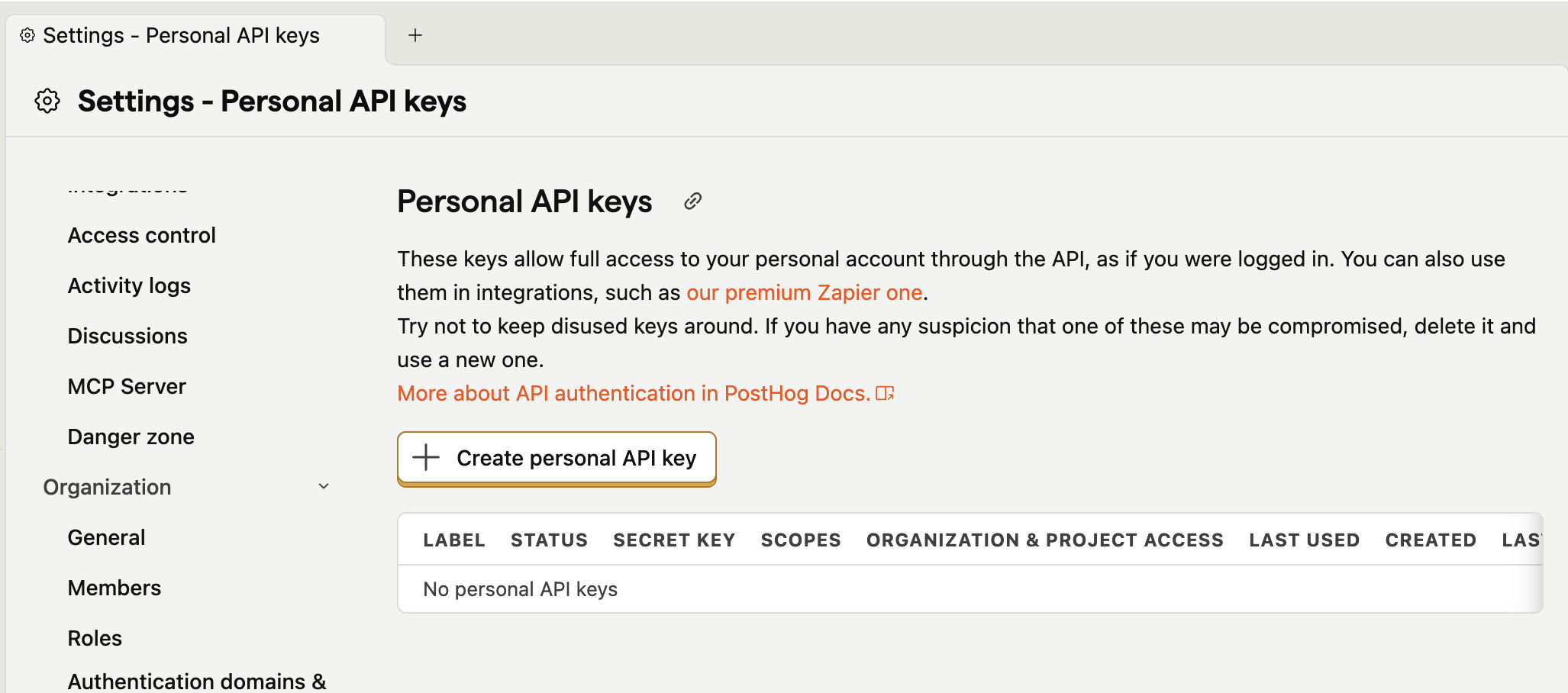
You need an API key with read permissions. Project-level keys are write-only and will not work — use a personal API key.
{% stepper %}
{% step %}
In PostHog, open your **Settings**. Under **Account → Personal API keys**, create a new key. Create the key with all "Read" permissions enabled.
Alternatively, use this link and replace `{PROJECTID}` with your actual PostHog project ID:\
[`https://eu.posthog.com/project`](https://eu.posthog.com/project/35629/settings/user-api-keys#personal-api-keys)`{PROJECTID}`[`/settings/user-api-keys#personal-api-keys`](https://eu.posthog.com/project/35629/settings/user-api-keys#personal-api-keys)
{% endstep %}
{% step %}
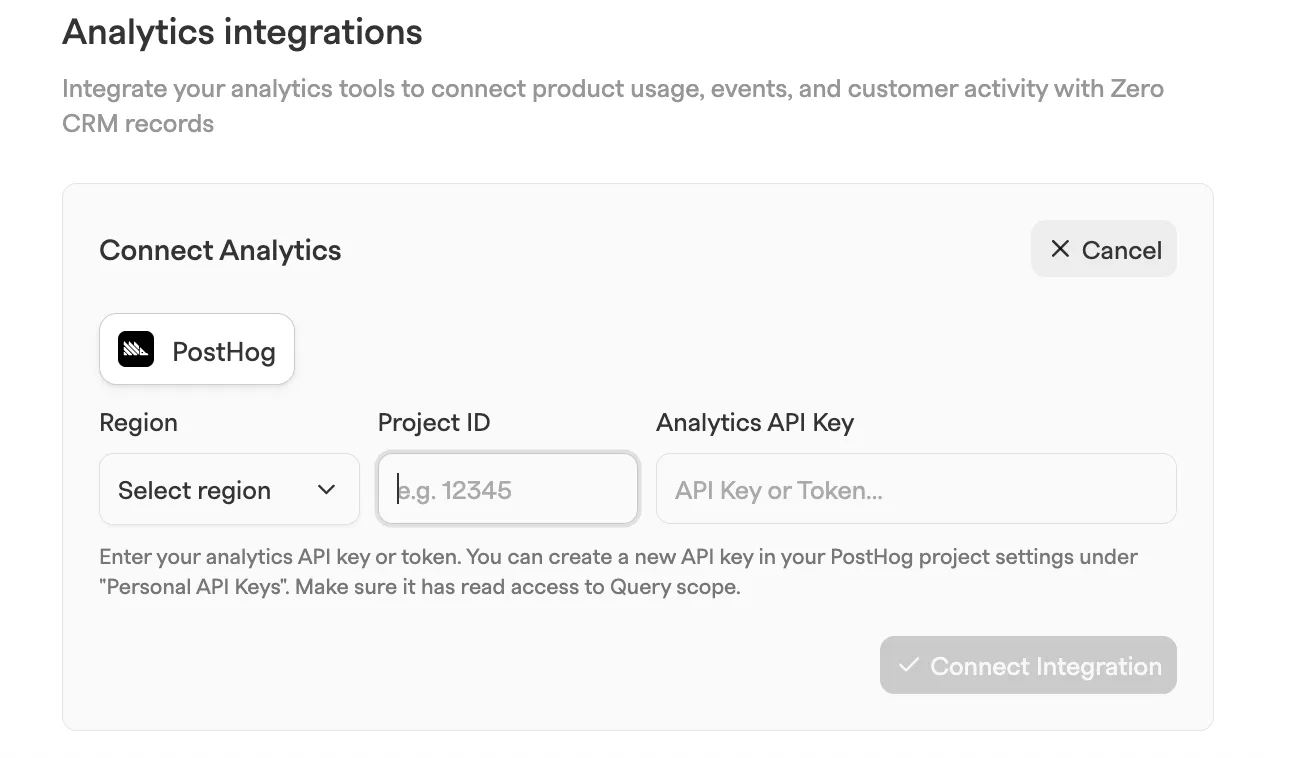
In Zero, go to **Settings → Connections → Integrations**. Scroll to **Analytics integrations** and select **Connect Analytics**.
{% endstep %}
{% step %}
Select **PostHog**, choose your **Region**, enter your **Project ID** and **Analytics API Key**, and click **Connect Integration**.
{% endstep %}
{% step %}
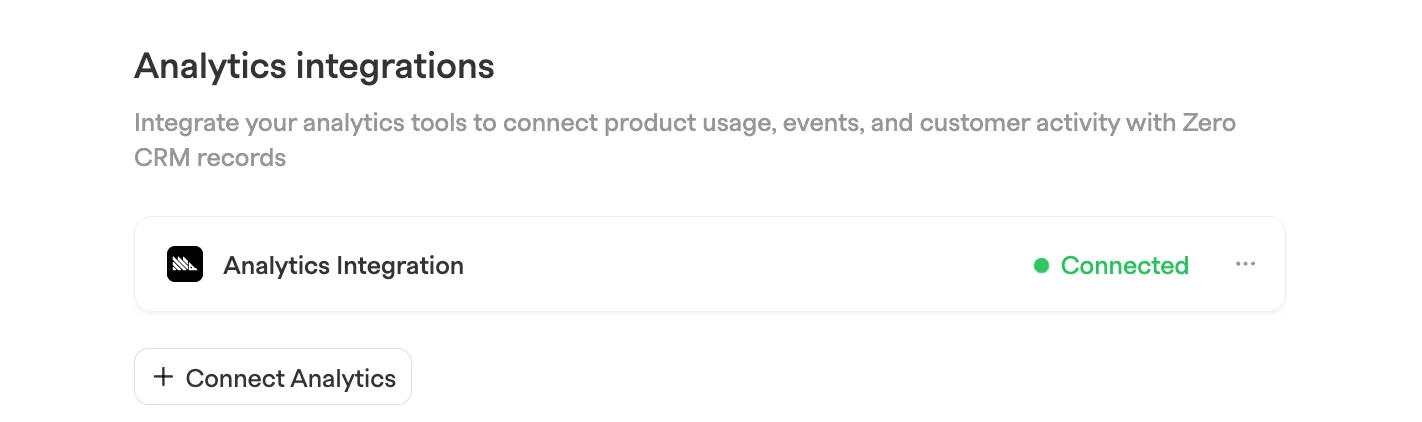
If you followed all the steps correctly, you should see the following view.
{% endstep %}
{% endstepper %}
## How the integration works
* Zero pulls daily event counts and sessions from PostHog and links them to **companies** and **contacts** in your workspace.
* **Contacts** are matched using the `email` person property in PostHog and the contact's email addresses in Zero, including additional emails. Matching ignores letter case.
* **Companies** are matched by domain: the `domain` property of the person's PostHog group if you use group analytics, otherwise the domain of the person's email. It is compared with the company's domains in Zero.
* Zero only links to records that already exist. It does not create contacts or companies from PostHog data.
* On first connect, Zero pulls the last **30 days** of data.
* After that, data refreshes automatically **every 4 hours**; each automatic refresh covers the last 24 hours.
* To pull a longer window, open the integration's **⋯** menu in **Settings → Connections → Integrations** and pick a **Force sync** range: **Last 24 hours**, **Last 7 days**, **Last 30 days**, **Last 90 days**, or **Last 180 days**.
### Set up PostHog for contact-level data
Company-level data works as soon as events carry an email or a group domain. To see usage per person, PostHog needs to know each user's email address:
1. Identify users when they sign up or log in, and set their email as a person property:
```javascript
posthog.identify(user.id, { email: user.email });
```
The property must be named `email`. Set it even if you already use the email address as the distinct ID.
2. Keep person profiles enabled. If your PostHog setup uses `person_profiles: 'never'`, change it to `'identified_only'`, which is PostHog's default.
3. If you also capture events from your backend, use the same distinct ID you pass to `identify`, so those events belong to the same person.
{% hint style="info" %}
Events captured before a user was identified with an email may not be linked to a contact. Contacts you add to Zero after their events were synced are linked the next time those dates sync. Automatic refreshes only cover the last 24 hours, so run a **Force sync** after importing contacts.
{% endhint %}
**If you don’t see data yet, check:**
* The initial sync may still be running—new connections can take a bit to complete.
* The events you’re looking for might be **outside** the synced date range.
* The company’s domain in Zero doesn’t match the email/domain on the PostHog event.
* The person in PostHog has no `email` property, or it doesn't match any of the contact's email addresses in Zero.
* The contact was added to Zero after the events were synced. Run a **Force sync** covering those dates.
## Where the data appears in Zero
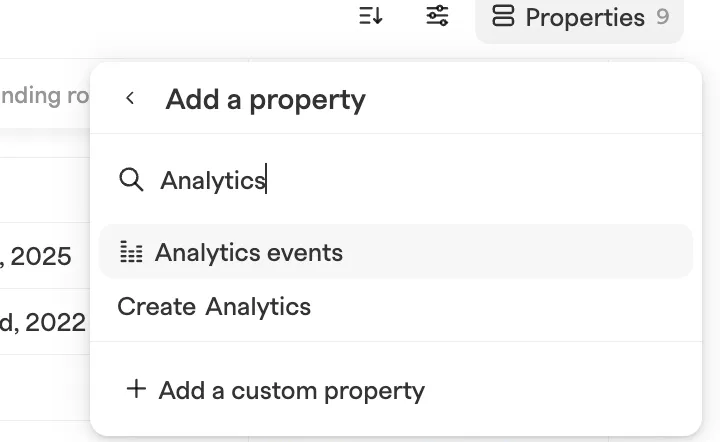
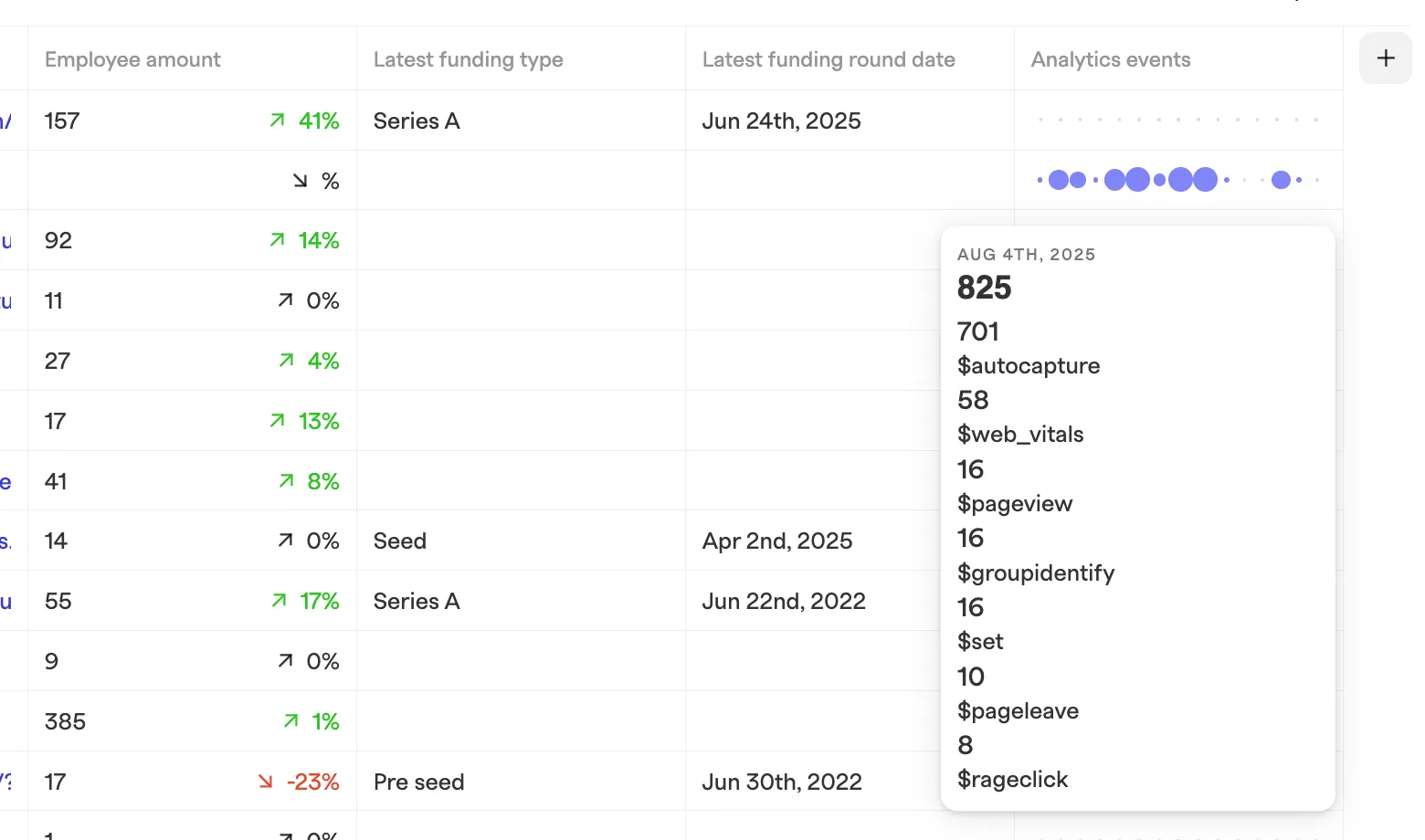
* In any company or contact list, add the **Analytics events** column. On a contact, it shows that person's activity; on a company, all activity matched to the company.
* Hover over the bubbles to see a breakdown of events.
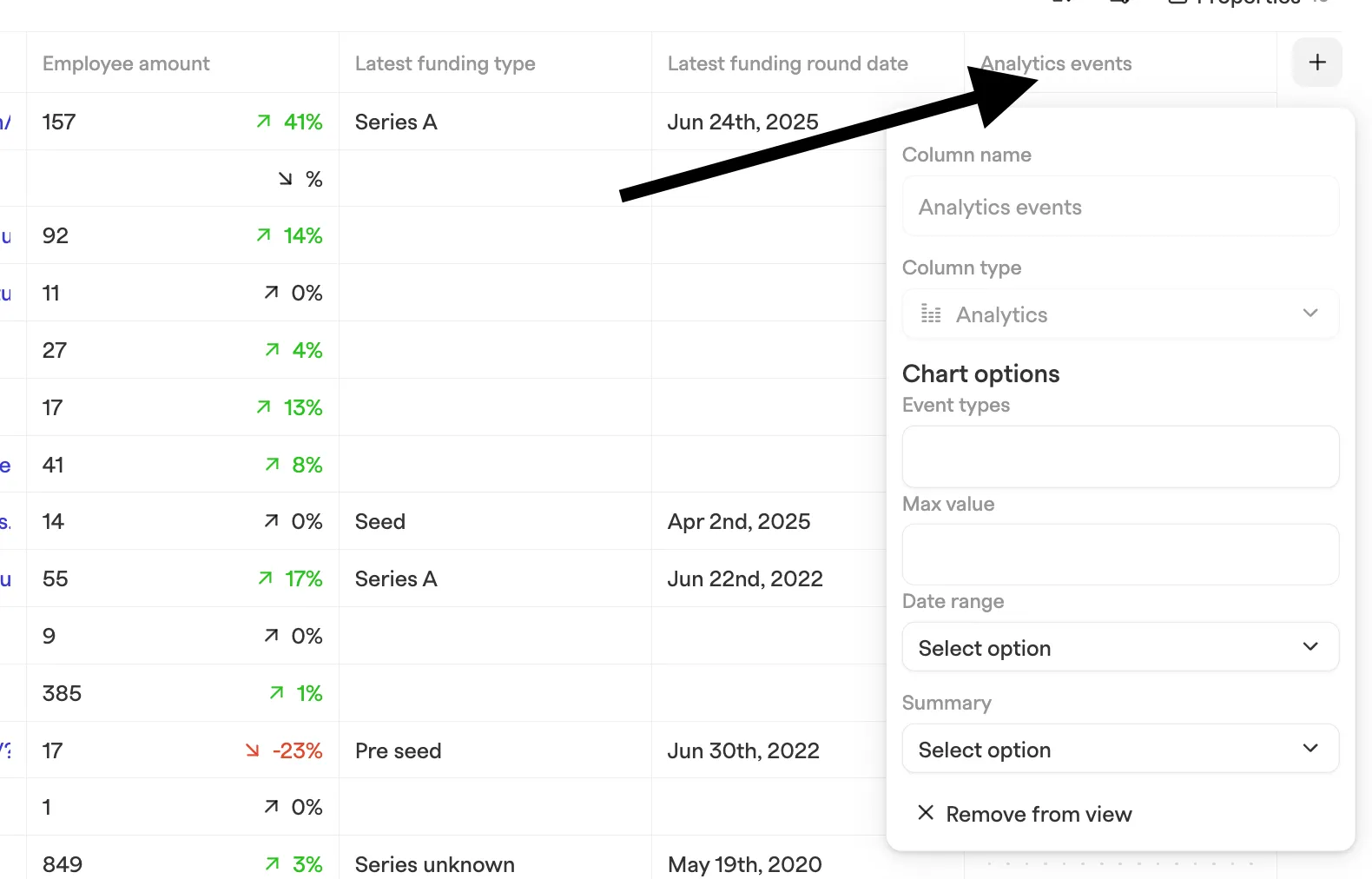
* Configure the column from its header:
* **Event types**: choose which events to include.
* **Max value**: set the bubble scale; counts above this show at the maximum size.
* **Date range**: choose how many days to include.
* **Summary**: pick how events are aggregated.
* Add the **Analytics sessions** column to see sessions per day, or **Last analytics event** and **Last analytics session** to sort and filter by recent activity.
* Analytics sessions also appear in the activity feed of contact, company, and deal records.
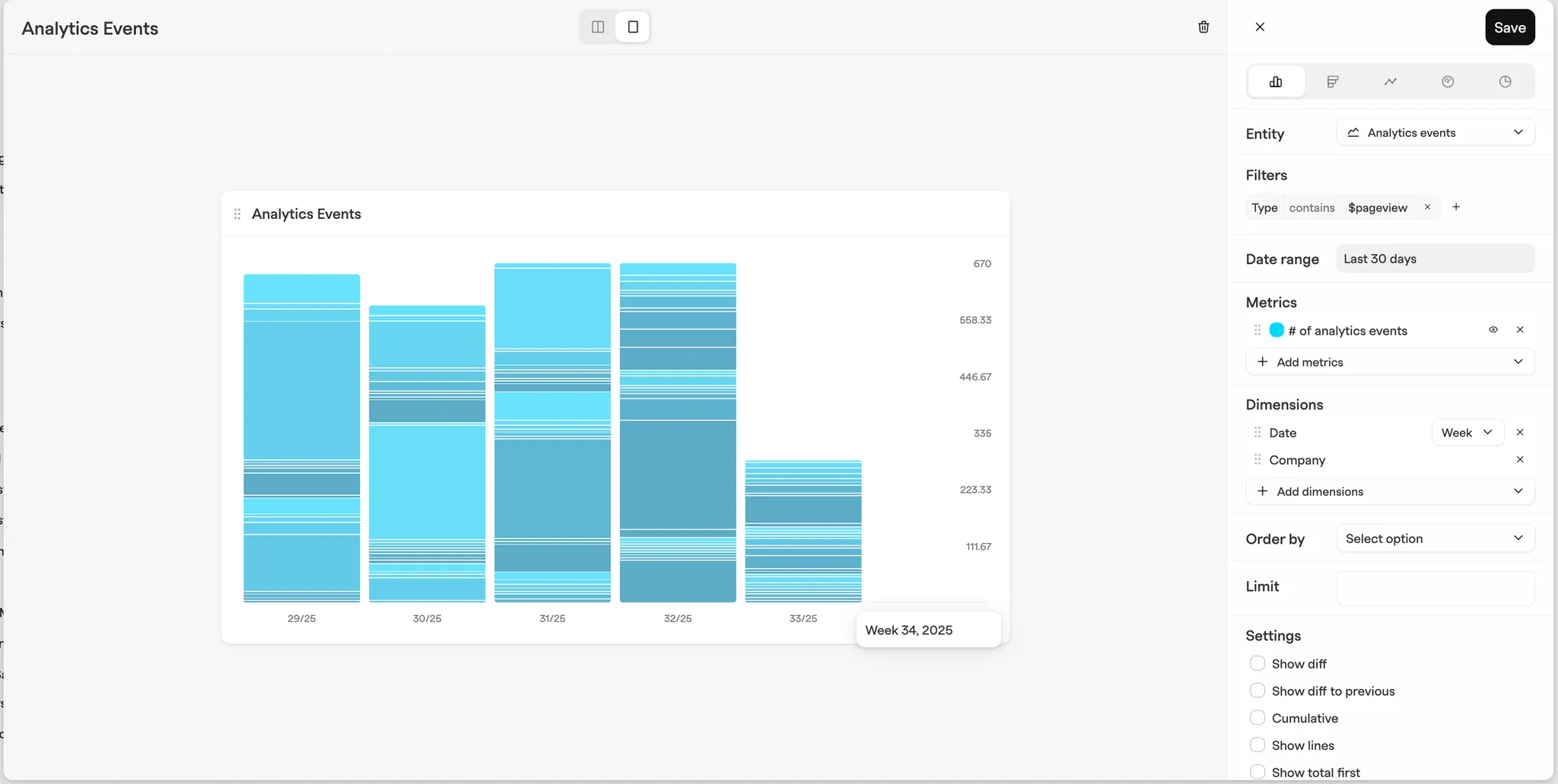
* You can also use **“Analytics Events”** as an entity in the [**“Reports”**](/features/reports.md) section to add the data as a chart to your dashboards.
---
# Agent Instructions
This documentation is published with GitBook. GitBook is the documentation platform designed so that both humans and AI agents can read, navigate, and reason over technical content effectively. Learn more at gitbook.com.
## Querying This Documentation
If you need additional information that is not directly available in this page, you can query the documentation by asking a question.
Perform an HTTP GET request on the following URL with the `ask` and `goal` query parameters:
```
GET https://docs.zero.inc/settings/integrations/posthog.md?ask=&goal=
```
`ask` is the immediate question: it should be specific, self-contained, and written in natural language.
`goal` is what the user is ultimately trying to achieve, the reason they need the answer. Sharing it helps GitBook give you a better, more relevant answer. A goal is most helpful when it describes the outcome the user wants rather than restating the question. For example, with `ask=how do I create an API token`, a goal like `automate deployments from our CI pipeline` lets GitBook tailor the answer to that use case.
The response will contain a direct answer to the question and relevant excerpts and sources from the documentation.
Use this mechanism when the answer is not explicitly present in the current page, you need clarification or additional context, or you want to retrieve related documentation sections.