> For the complete documentation index, see [llms.txt](https://docs.zero.inc/llms.txt). Markdown versions of documentation pages are available by appending `.md` to page URLs; this page is available as [Markdown](https://docs.zero.inc/settings/integrations/slack.md).
# Slack
Most customer conversation happens in Slack, and most of it never reaches the CRM. The Slack integration works in both directions: Zero pushes notifications into the channels where your team already works, answers questions there as a bot, and pulls shared customer channels back onto the company and deal they belong to.
To set it up you need permission to manage integrations in Zero and permission to install or approve apps in Slack.
## Connect your Slack workspace
{% stepper %}
{% step %}
### Go to Settings → Connections → Integrations
{% endstep %}
{% step %}
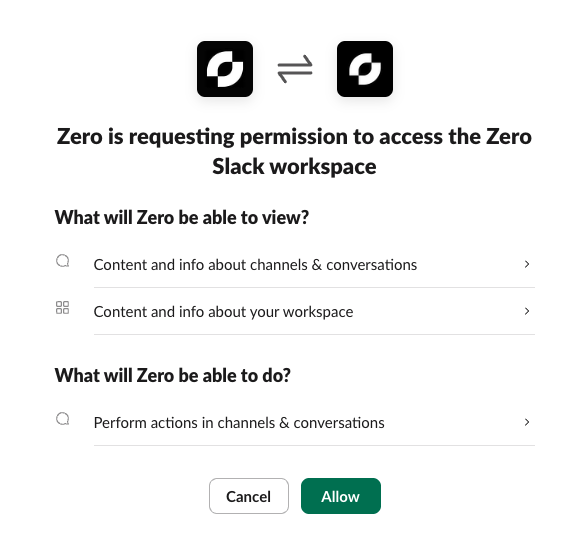
### Connect Slack Workspace
{% endstep %}
{% step %}
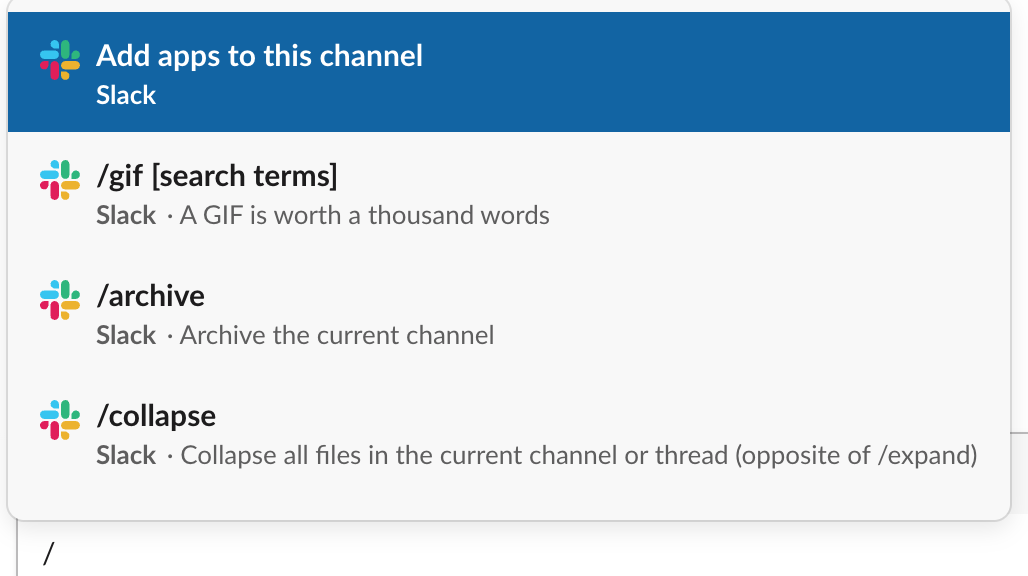
### Add the Zero bot to channels where you want to use notifications, chat, agents, or CRM sync
Start typing "/"
{% endstep %}
{% endstepper %}
## Sync customer-channel messages to Zero
A shared customer channel often holds more context than the entire email thread. Syncing one stores its conversation in Zero against a company, a deal or both — your own team's messages included — so it sits alongside email and meetings on the record.
### Enable Slack message sync
An admin turns it on once: **Settings → Connections → Integrations**, find the connected Slack workspace, and turn on **Allow Slack channel message syncing** under **Slack message sync**.
### Connect a Slack channel
1. Add the Zero bot to the channel. Private and Slack Connect channels need an explicit invite.
2. Zero asks the person who added it, privately, whether to sync. **Sync channel messages** continues; **Do not sync messages** uses the bot without storing anything.
3. Pick a company, a deal, or both — picking a deal picks its company too. Zero often suggests these from participant emails that match a contact or user on those records; you can change the suggestion before starting.
4. Pick a mode: **Sync future messages only**, or **Sync future + history**, which starts future sync immediately and queues a recent-history import.
### How messages are connected and displayed
Every new message and thread reply syncs, your own team's included, attached to the chosen company and deal. When a sender's Slack email matches a Zero contact or user, the message is attributed to them.
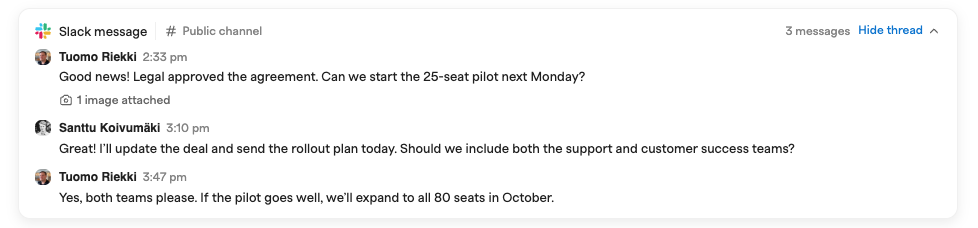
Threads then appear in the record's activity timeline, filterable with the **Slack** activity filter. Open one to read its replies inline, or **Open in Slack** to carry on there.
Slack conversations appear alongside the record's other CRM activity.
One thing to be deliberate about: synced messages are visible to everyone in the Zero workspace, even when they came from a private Slack channel. Only connect channels whose contents belong in the CRM.
### What history sync brings
History is bounded by what Slack's API will give us, so treat it as a recent backfill rather than a complete archive: Zero imports the channel's recent conversations and the thread replies it can reach, and very large or very active channels may come across partially. Future messages keep syncing while history runs in the background, several channels queued at once take proportionally longer, and the timeline fills in as it goes — you do not need to keep the setup screen open.
### Manage or stop channel sync
**Settings → Connections → Integrations → Slack message sync → Channels** lists connected channels and lets you change their company or deal.
Turning off **Allow Slack channel message syncing** stops new ingestion and cancels queued history imports. Messages already in Zero stay there.
## Enable Zero chat in Slack
Chat takes two steps, and a workspace that installed the Zero Slack app before chat existed needs both.
**An admin re-authorizes the integration**, once for the workspace: **Settings → Connections → Integrations**, the three-dot menu next to Slack, **Re-authorize**, then approve the new permissions.
**Each person connects their own Slack account**: **Settings → Connections → Connected Apps → Slack**, then **Connect Slack** under **Personal Slack account**. This is what lets Zero tie a Slack message to the right Zero user and answer with that user's permissions.
After that, DM the bot or mention `@Zero` in a channel. Mention it before connecting and Zero sends you a private link to do so — visible only to you, even in a channel. Admins can see who has connected under **Users** on the Slack integration.
### Troubleshooting
If the bot won't accept direct messages after you connect, quit and restart the Slack desktop app. Slack caches an app's capabilities, and a restart is usually what it takes to pick up new permissions.
If the **Slack** tab tells you to connect Slack from workspace settings, the workspace-level integration has not been connected or re-authorized yet — that is the admin step above.
## Chat with the Slack bot
Direct-message the bot when you want to ask about your CRM without putting the question in a channel.
Mentioning it in a channel or thread is the more interesting case: in a thread, Zero reads the earlier messages as context, so it can answer about the customer question or deal discussion already sitting there rather than making you restate it. Mention it with no question at all and it will try to work out the request from the conversation, or ask what you need.
Outside a synced channel, that thread context is all the bot sees — it does not read the channel's full history. Once an admin enables CRM message sync for a channel, [the behaviour above](#sync-customer-channel-messages-to-zero) applies instead.
## Privacy and data use
Zero uses Slack data only to run the Slack integration and bot for your workspace. Depending on how you use it, that may include:
* Slack workspace and channel information needed to connect the integration
* Slack user information needed to map Slack users to Zero users
* Messages sent directly to the Zero bot
* Thread messages where the Zero bot is mentioned
* Messages and thread replies from channels explicitly connected to CRM message sync
* Notification delivery information for messages Zero sends to Slack
Adding the bot to a channel does not start message storage on its own — someone has to choose message sync and finish the company or deal setup, and **Do not sync messages** keeps storage off for that channel.
The bot answers with your Zero workspace permissions, so you only ever get answers from data you could see in Zero yourself.
Zero does not sell Slack data; it is used to operate the integration, support customers, and keep the service secure and reliable. See Zero's [privacy policy](https://zero.inc/privacy) for more.
Stuck on any of this? .
---
# Agent Instructions
This documentation is published with GitBook. GitBook is the documentation platform designed so that both humans and AI agents can read, navigate, and reason over technical content effectively. Learn more at gitbook.com.
## Querying This Documentation
If you need additional information that is not directly available in this page, you can query the documentation by asking a question.
Perform an HTTP GET request on the following URL with the `ask` and `goal` query parameters:
```
GET https://docs.zero.inc/settings/integrations/slack.md?ask=&goal=
```
`ask` is the immediate question: it should be specific, self-contained, and written in natural language.
`goal` is what the user is ultimately trying to achieve, the reason they need the answer. Sharing it helps GitBook give you a better, more relevant answer. A goal is most helpful when it describes the outcome the user wants rather than restating the question. For example, with `ask=how do I create an API token`, a goal like `automate deployments from our CI pipeline` lets GitBook tailor the answer to that use case.
The response will contain a direct answer to the question and relevant excerpts and sources from the documentation.
Use this mechanism when the answer is not explicitly present in the current page, you need clarification or additional context, or you want to retrieve related documentation sections.