> For the complete documentation index, see [llms.txt](https://docs.zero.inc/llms.txt). Markdown versions of documentation pages are available by appending `.md` to page URLs; this page is available as [Markdown](https://docs.zero.inc/settings/mailbox-settings.md).
# Email & Calendar
Connecting your Gmail or Outlook mailbox is what turns Zero from a database you maintain into one that maintains itself: every thread attaches to the right contact, you can send from inside Zero, and the people you email can become contacts without anyone typing them in.
## Connecting a mailbox
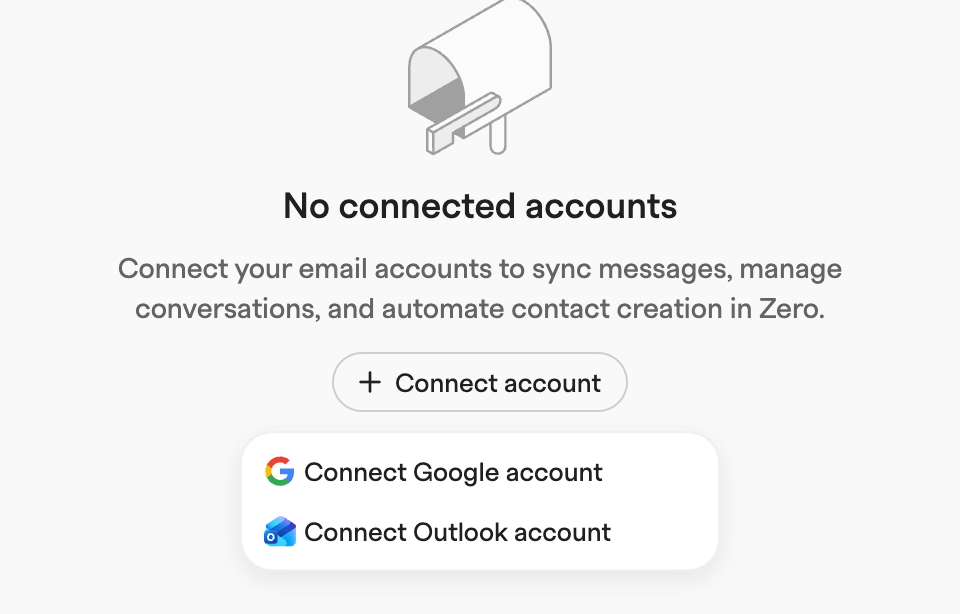
**Settings → Connections → Email & Calendar** → **Connect account**, then **Connect Google account** or **Connect Outlook account**. One connection covers mail and calendar.
{% hint style="info" %}
Before the Google consent screen opens, Zero reminds you to keep every permission box checked. Zero needs all of them to read your inbox and calendar and build your contacts.
{% endhint %}
Each connected account then appears as a card headed by its address, holding a mailbox card and — if you granted calendar access — a calendar card. The mailbox card carries a sync status pill ("Syncing", "Synced 5 minutes ago") and a **Public** or **Private** visibility pill.
## Mailbox settings
### Thread visibility
The default for new threads from this mailbox. Existing threads keep whatever they have, and changing the setting asks whether to apply it backwards too.
* **Public** (default) — the workspace sees message contents, attachments and metadata.
* **Private** — the workspace still sees subject lines, participants, dates and the contacts and companies inferred from your mail, but only you see contents and attachments. Any individual thread can be flipped to Public later.
### Auto-contact creation
How much of your address book becomes CRM contacts:
* **Smart** — the people Zero judges relevant to your business, based on how you interact with them.
* **Add engaged contacts** — anyone you have actually interacted with.
* **Add everyone** — everyone in your mail.
* **Disabled** (default).
**Smart** also opens a **What counts as a contact for you** box, where you can describe in your own words who should and should not be created from this mailbox.
Either way, keep your own outreach domains out of it — see [General & Domains](/settings/domain-settings.md).
### Email signature
Added to emails you send from this mailbox. **Edit** writes one in a rich text editor; **Import from Gmail** / **Import from Outlook** pulls in the one you already use. Two checkboxes decide when it applies: **Include in new emails** and **Include when replying**.
### Default sender address
With verified send-as aliases on the mailbox, this picks which address new emails default to. It only appears when there is more than one verified address.
## Syncing your inbox manually
Syncing is continuous. To force one, open the **...** menu on the mailbox card and pick a **Force sync** range:
* **Last 24 hours**
* **Last 7 days**
* **Last 30 days**
* **Lifetime**
## Managing a mailbox
The same **...** menu offers **Rename**, **Re-authorize mailbox** (redo the OAuth flow, for instance after a password change — the card also shows a **Reconnect** button when Zero has lost access), and **Disconnect mailbox**, which removes your emails from this mailbox. Threads that teammates with active mailboxes are also part of stay in Zero.
---
# Agent Instructions
This documentation is published with GitBook. GitBook is the documentation platform designed so that both humans and AI agents can read, navigate, and reason over technical content effectively. Learn more at gitbook.com.
## Querying This Documentation
If you need additional information that is not directly available in this page, you can query the documentation by asking a question.
Perform an HTTP GET request on the following URL with the `ask` and `goal` query parameters:
```
GET https://docs.zero.inc/settings/mailbox-settings.md?ask=&goal=
```
`ask` is the immediate question: it should be specific, self-contained, and written in natural language.
`goal` is what the user is ultimately trying to achieve, the reason they need the answer. Sharing it helps GitBook give you a better, more relevant answer. A goal is most helpful when it describes the outcome the user wants rather than restating the question. For example, with `ask=how do I create an API token`, a goal like `automate deployments from our CI pipeline` lets GitBook tailor the answer to that use case.
The response will contain a direct answer to the question and relevant excerpts and sources from the documentation.
Use this mechanism when the answer is not explicitly present in the current page, you need clarification or additional context, or you want to retrieve related documentation sections.