> For the complete documentation index, see [llms.txt](https://docs.zero.inc/llms.txt). Markdown versions of documentation pages are available by appending `.md` to page URLs; this page is available as [Markdown](https://docs.zero.inc/settings/members.md).
# Members
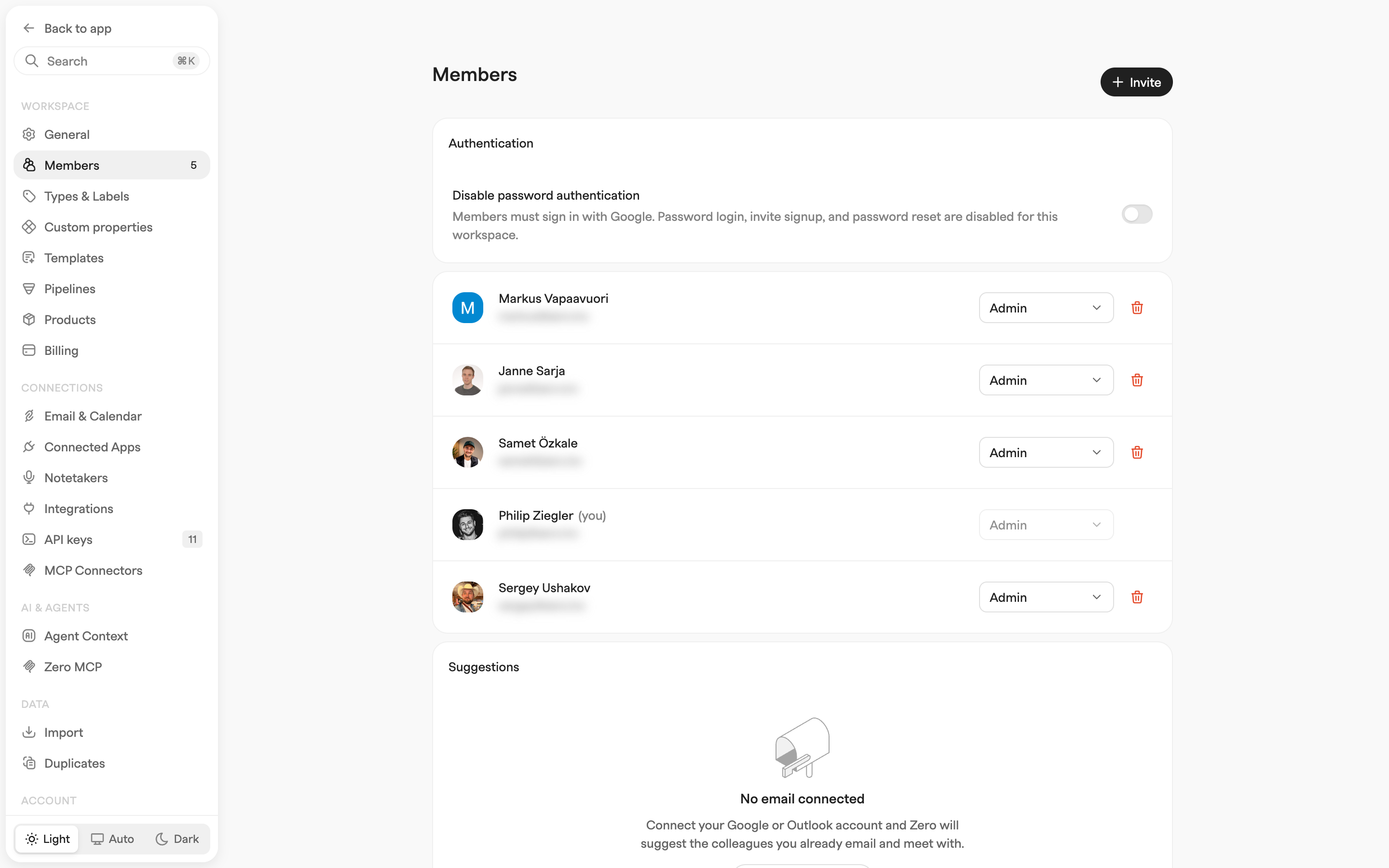
Zero is more useful the more of your team is in it — shared context only works if everyone's email, calendar and notes land in the same place. **Settings → Workspace → Members** (admin only) is where you invite people, set what they can do, and remove them again.
## Inviting a member
Admins only. Click **Invite** in the top-right corner, enter the teammate's email address, pick **Member - Can edit and view** or **Admin - Full access to workspace**, and click **Send invite**.
Someone new to Zero gets an invite email from `invites@zero.inc` with a signup link, and shows under **Pending invites** until they finish. Someone who already has a Zero account joins immediately and is just told they have been added.
Inviting an address that already has a pending invite re-sends the email and extends its expiry rather than creating a second one. Inviting an existing member fails with a notice saying so.
On a paid plan, seats follow your members: every member and pending invite holds one. A seat counter next to the page title shows how many are in use. While a seat is open, inviting costs nothing extra. When they are all taken, sending an invite adds a seat to your subscription, charged as soon as the invite is sent (prorated for the rest of your billing period, even before it is accepted). The invite dialog, and the confirmation for a suggested invite, show the exact amount charged now before you confirm. If your workspace already has more members than paid seats, that invite also adds seats for them, and the dialog says how many. Invites are free during a trial. **Settings → Workspace → Billing** shows used and paid seats and the seat count your plan renews with.
### Suggestions
Below the member list, **Suggestions** proposes the people you have been working with most, drawn from your own connected email and calendar. **Invite** on a row sends a **Member** invite straight away; **x** hides the suggestion. With no account connected, the section asks you to connect one first.
## Pending invites
**Pending invites** lists what has not been accepted, with who sent it and whether it is still live: "Invitation pending (expires at \)" or "Invitation expired".
Links last 7 days. **Resend invite email** sends a fresh one and restarts the clock. You can change a pending invite's role or remove it entirely, exactly as with a real membership.
## Roles
Zero has two workspace roles:
| Role | Access |
| ---------- | ------------------------------------------------------------------------------------------------------------------ |
| **Member** | Can view and edit CRM data. Cannot open the **Workspace** or **Data** settings sections. |
| **Admin** | Full access to the workspace, including all workspace settings, inviting and removing members, and changing roles. |
The role dropdown on a row changes it immediately — except on your own row, where it is disabled. Only admins can invite, change memberships or remove people.
A lock icon on a row means that member has two-factor authentication enabled.
## Removing a member
The trash button (**Remove user**) on a row, confirmed with **Remove member**. You cannot remove yourself here.
Removal revokes their active sessions for this workspace at once and deactivates their personal sync connections in it — mailboxes, calendars, LinkedIn, notetakers and other personal integrations, MCP connectors, Slack — so syncing stops.
What they brought in stays: emails, threads, calendar events and recorded meetings remain in the workspace. Their seat is not refunded: it stays paid and open until your plan renews, so your next invite uses it at no extra cost. On the Pro plan the renewal then bills your current member count; plans from before Pro keep their seat count. Removing someone never raises your bill.
## Authentication
One workspace-wide toggle sits at the top of the page. **Disable password authentication** forces every member to sign in with Google — password login, invite signup and password reset all stop working for this workspace.
---
# Agent Instructions
This documentation is published with GitBook. GitBook is the documentation platform designed so that both humans and AI agents can read, navigate, and reason over technical content effectively. Learn more at gitbook.com.
## Querying This Documentation
If you need additional information that is not directly available in this page, you can query the documentation by asking a question.
Perform an HTTP GET request on the following URL with the `ask` and `goal` query parameters:
```
GET https://docs.zero.inc/settings/members.md?ask=&goal=
```
`ask` is the immediate question: it should be specific, self-contained, and written in natural language.
`goal` is what the user is ultimately trying to achieve, the reason they need the answer. Sharing it helps GitBook give you a better, more relevant answer. A goal is most helpful when it describes the outcome the user wants rather than restating the question. For example, with `ask=how do I create an API token`, a goal like `automate deployments from our CI pipeline` lets GitBook tailor the answer to that use case.
The response will contain a direct answer to the question and relevant excerpts and sources from the documentation.
Use this mechanism when the answer is not explicitly present in the current page, you need clarification or additional context, or you want to retrieve related documentation sections.