> For the complete documentation index, see [llms.txt](https://docs.zero.inc/llms.txt). Markdown versions of documentation pages are available by appending `.md` to page URLs; this page is available as [Markdown](https://docs.zero.inc/settings/merging-duplicates.md).
# Duplicates
Duplicates creep in through imports and agents however careful you are, and the damage is that half a relationship's history ends up on a record nobody opens. Merging fixes that without losing anything — you can do it from workspace settings, straight from a list, or by asking Chat.
## How to find and merge duplicates
{% stepper %}
{% step %}
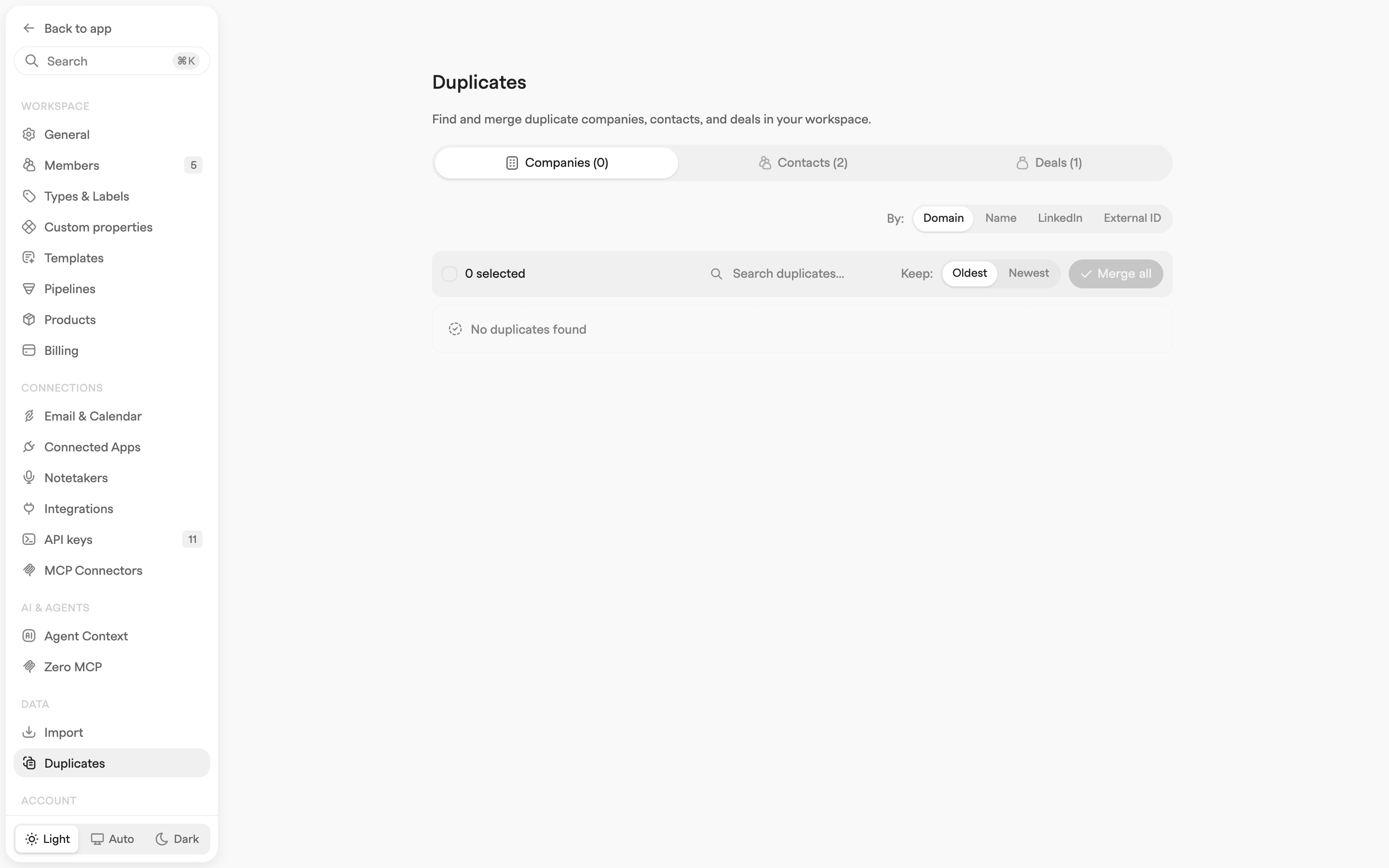
Go to **Settings → Data → Duplicates** (admin only).
{% endstep %}
{% step %}
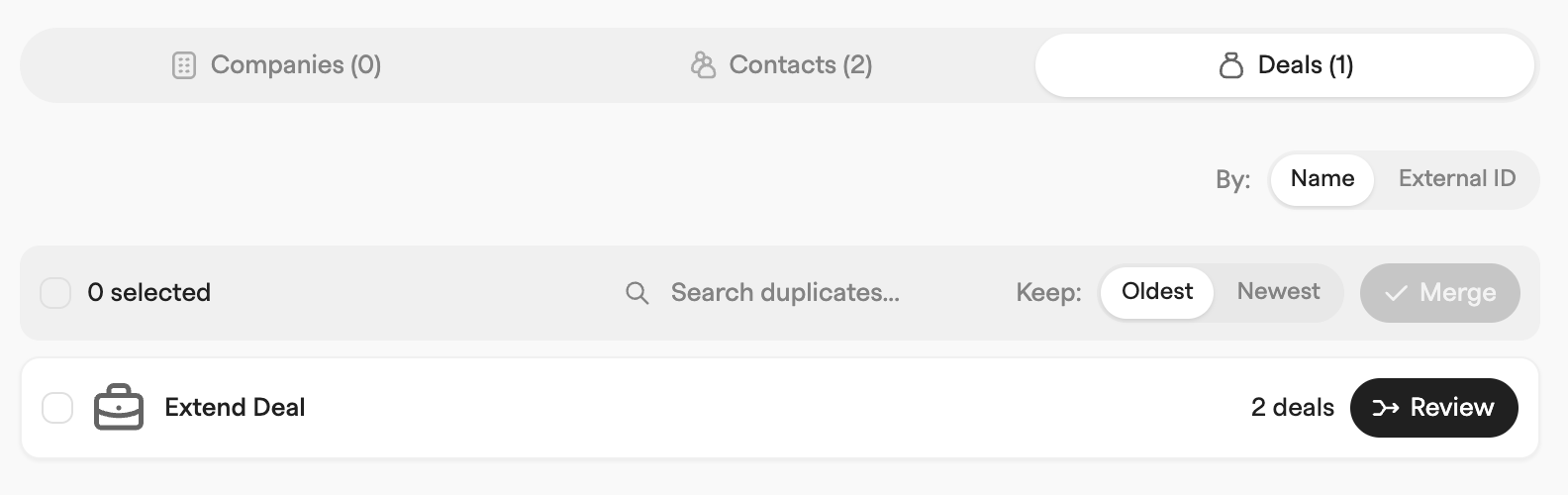
Zero scans the workspace and shows **Companies**, **Contacts** and **Deals** with the number of duplicate groups in each. A group is records sharing the same value for the match key, which you choose with the **By:** switch:
* **Companies** — **Domain** (default), **Name**, **LinkedIn**, or **External ID**
* **Contacts** — **Email** (default), **Name**, **LinkedIn**, or **External ID**
* **Deals** — **Name** (default) or **External ID**
Matching on **Domain** or **Email** looks at every domain a company owns and every address a contact can be reached at, not just the primary — so a company whose secondary domain is another's primary still surfaces. **Search duplicates...** narrows the groups.
{% endstep %}
{% step %}
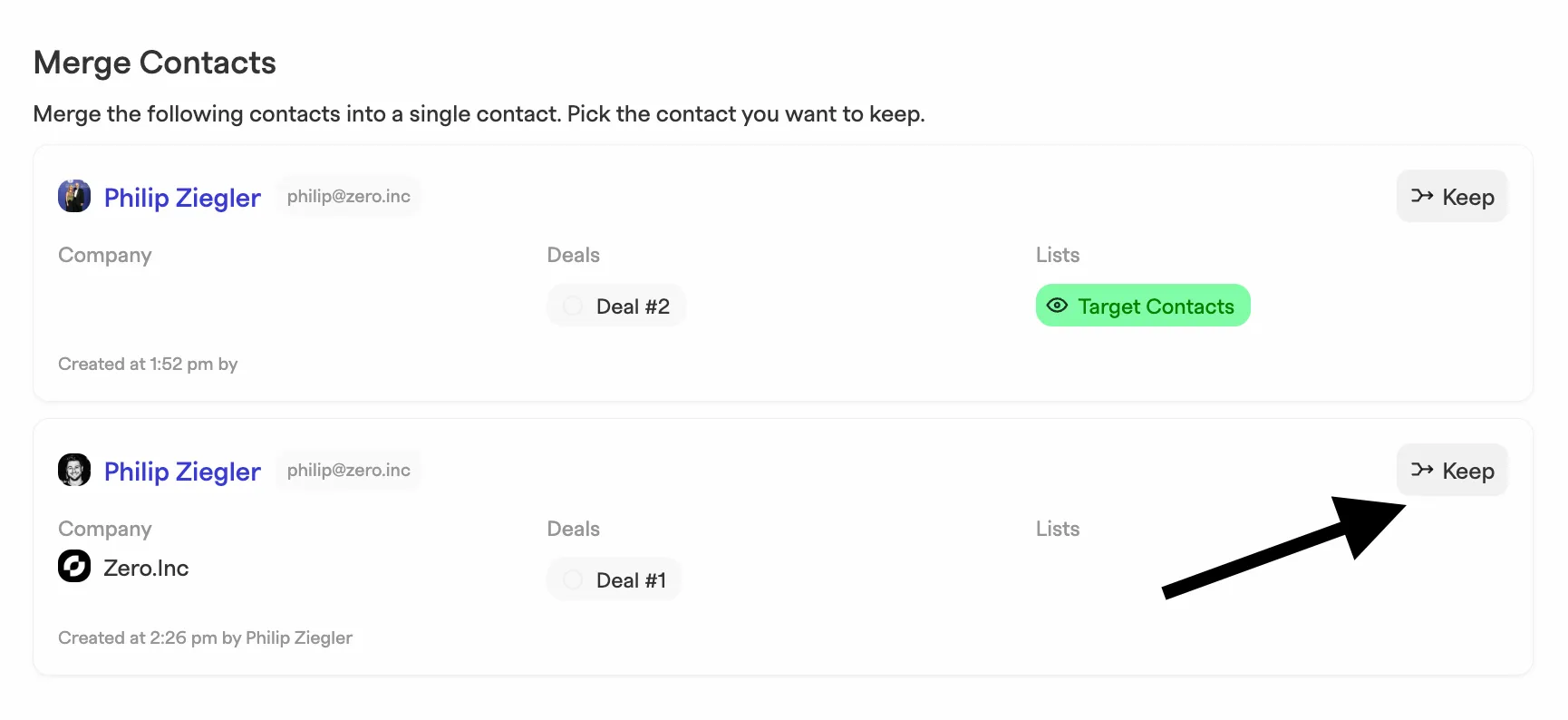
Click **Review** on a group. The merge dialog shows each record with its company, contacts, deals and lists, and when and by whom it was created. Click **Keep** on the one that should be the **main record** — data comes from all of them, but the main record wins any conflict. See [#what-gets-merged](#what-gets-merged "mention").
{% endstep %}
{% step %}
Click **Confirm Merge**.
{% endstep %}
{% step %}
You can review the consolidated records in any list.
{% endstep %}
{% endstepper %}
## Merging from a list or from Chat
When you already know which records are duplicates, skip settings entirely.
* **From a list** — select two or more records of the same type and click **Merge records** in the toolbar at the bottom. Same dialog: pick **Keep**, then **Confirm Merge**.
* **From Chat** — "merge the two Acme companies, keep the one with the website". [Chat](/getting-started/chat.md) finds them, confirms which survives, and merges. The same is available over [MCP](/developers/mcp.md) and through the [Merging Records](/developers/api/merging-records.md).
The result is identical however you start it.
## What gets merged
* Everything is combined into one record.
* Where fields conflict — two different cities in **Location**, say — the **main record** wins, custom properties included. Where the main record is empty, identity fields such as name, company, location, LinkedIn and phone are filled from the duplicates.
* **Owners** and **lists** from all original records are combined, and notes written on the record page are appended together.
* **Company domains** and **contact email addresses** are not discarded: every domain across the merged companies ends up in the company's **All Domains**, and every address across the merged contacts ends up in the contact's **All Emails**. The main record's value stays the primary **Website Domain** / **Email** — the one used for sending.
* Related records are re-linked to the main record instead of being lost:
* **Contacts**: deals, email threads, calendar events, LinkedIn conversations and connections, custom activities, tasks, notes, comments, files, invoices, issues, and analytics events.
* **Companies**: contacts, deals, email threads, calendar events, and other related records.
* **Deals**: email threads, calendar events, custom activities, tasks, notes, comments, and files.
* If any merged contact was unsubscribed from all messaging, the merged contact stays unsubscribed.
* The duplicates are archived and marked as merged into the main record — they are not permanently deleted.
## Bulk merge
For a backlog rather than a handful, use the toolbar above the groups:
1. Tick the checkboxes on individual groups, or use the select-all checkbox.
2. Use the **Keep:** switch to decide which record in each group becomes the main record — **Oldest** (default) or **Newest**.
3. Click **Merge selected** (or **Merge all** when everything is selected).
Anything that fails is flagged with a warning icon for you to review one by one.
---
# Agent Instructions
This documentation is published with GitBook. GitBook is the documentation platform designed so that both humans and AI agents can read, navigate, and reason over technical content effectively. Learn more at gitbook.com.
## Querying This Documentation
If you need additional information that is not directly available in this page, you can query the documentation by asking a question.
Perform an HTTP GET request on the following URL with the `ask` and `goal` query parameters:
```
GET https://docs.zero.inc/settings/merging-duplicates.md?ask=&goal=
```
`ask` is the immediate question: it should be specific, self-contained, and written in natural language.
`goal` is what the user is ultimately trying to achieve, the reason they need the answer. Sharing it helps GitBook give you a better, more relevant answer. A goal is most helpful when it describes the outcome the user wants rather than restating the question. For example, with `ask=how do I create an API token`, a goal like `automate deployments from our CI pipeline` lets GitBook tailor the answer to that use case.
The response will contain a direct answer to the question and relevant excerpts and sources from the documentation.
Use this mechanism when the answer is not explicitly present in the current page, you need clarification or additional context, or you want to retrieve related documentation sections.