> For the complete documentation index, see [llms.txt](https://docs.zero.inc/llms.txt). Markdown versions of documentation pages are available by appending `.md` to page URLs; this page is available as [Markdown](https://docs.zero.inc/settings/pipeline-stages.md).
# Pipelines
Every board, forecast and conversion report in Zero is built on your stages, which means a pipeline that does not match how you actually sell produces numbers that do not mean anything. This page is about getting that right.
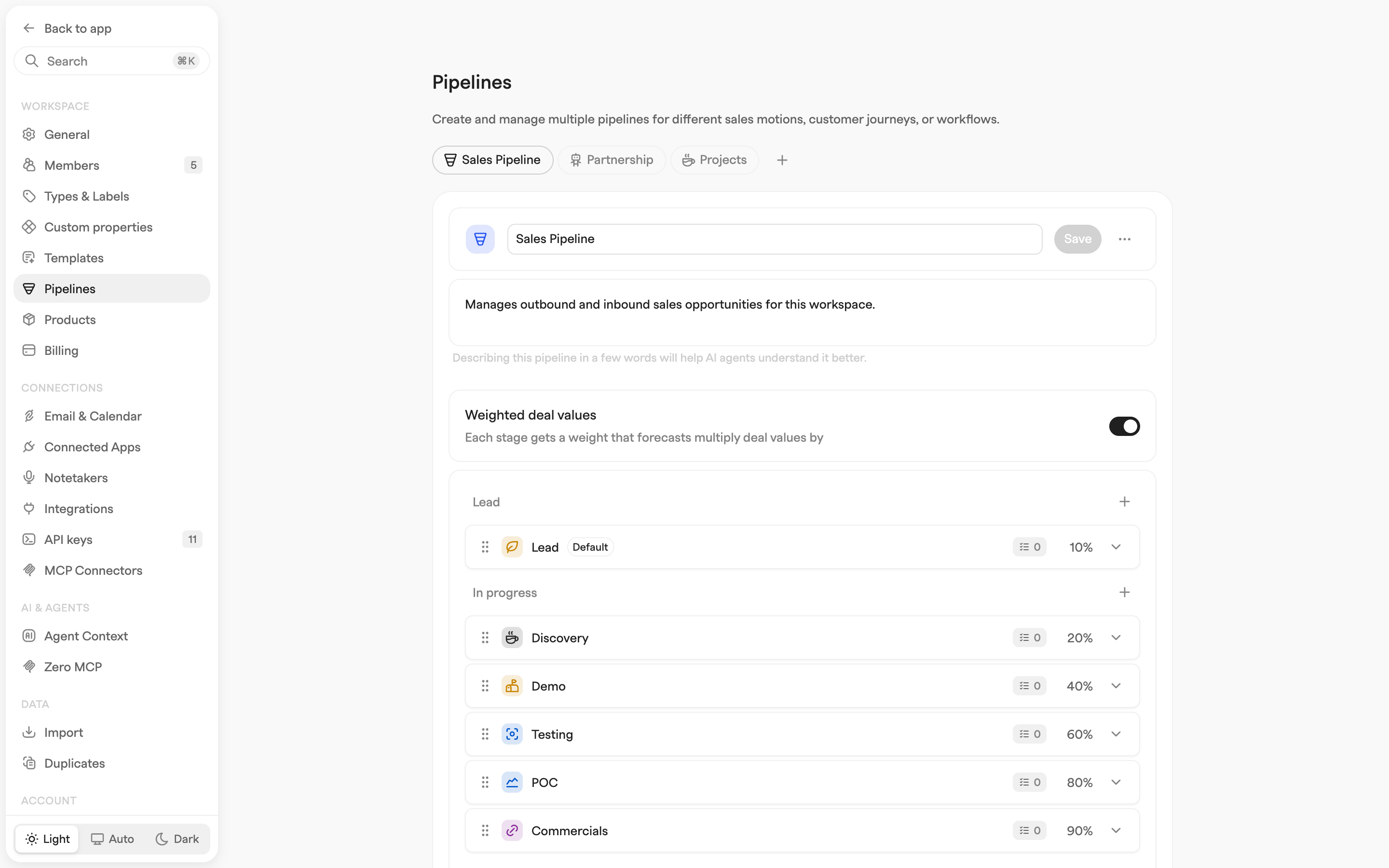
A workspace can hold several pipelines — one per sales motion or customer journey — each with its own stages, default stage and weighted deal values.
## Manage multiple pipelines
**Settings → Workspace → Pipelines** (admin only). Pipelines are tabs across the top, collapsing into a searchable dropdown once there are more than fit.
* **Add pipeline** next to the tabs creates one called **New pipeline** with a default stage set (Lead, Qualification, Demo, Pilot, Closed - Won, Closed - Lost) and Lead as the starting stage.
* **Clone pipeline** and **Remove pipeline** are in the selected pipeline's **⋯** menu. Cloning brings the name, description, icon, color, weighted-deal-values setting and every stage. The last remaining pipeline cannot be deleted.
* Drag the tabs to reorder, and give each pipeline its own name, icon and color so they are distinguishable across the app.
* Write a **Description**. A sentence is enough, and agents read it to understand what the pipeline is for.
Nothing applies until you click **Save**; navigating away with unsaved changes prompts you.
## Designing your stages
Too many stages and you get admin overhead and arguments about where a deal belongs. Too few and the reports tell you nothing. Four to seven is usually the sweet spot.
Two rules worth holding to. **Mirror the buyer's journey**: each stage should be a distinct thing the customer did, not a thing you feel. And **write down the exit criteria**: what has to be true to move from one stage to the next — for "Demo Scheduled" to "Proposal Sent", say, confirmed interest, identified decision-makers, budget discussed.
A pipeline that follows both:
1. **Qualified** — confirmed interest, meets your basic criteria.
2. **Demo Scheduled** — committed to a demo or first presentation.
3. **Proposal Sent** — pricing is with them.
4. **Negotiation** — actively working through terms.
5. **Contract Sent** — out for signature.
6. **Closed Won/Lost** — decided.
## Configuring the stages
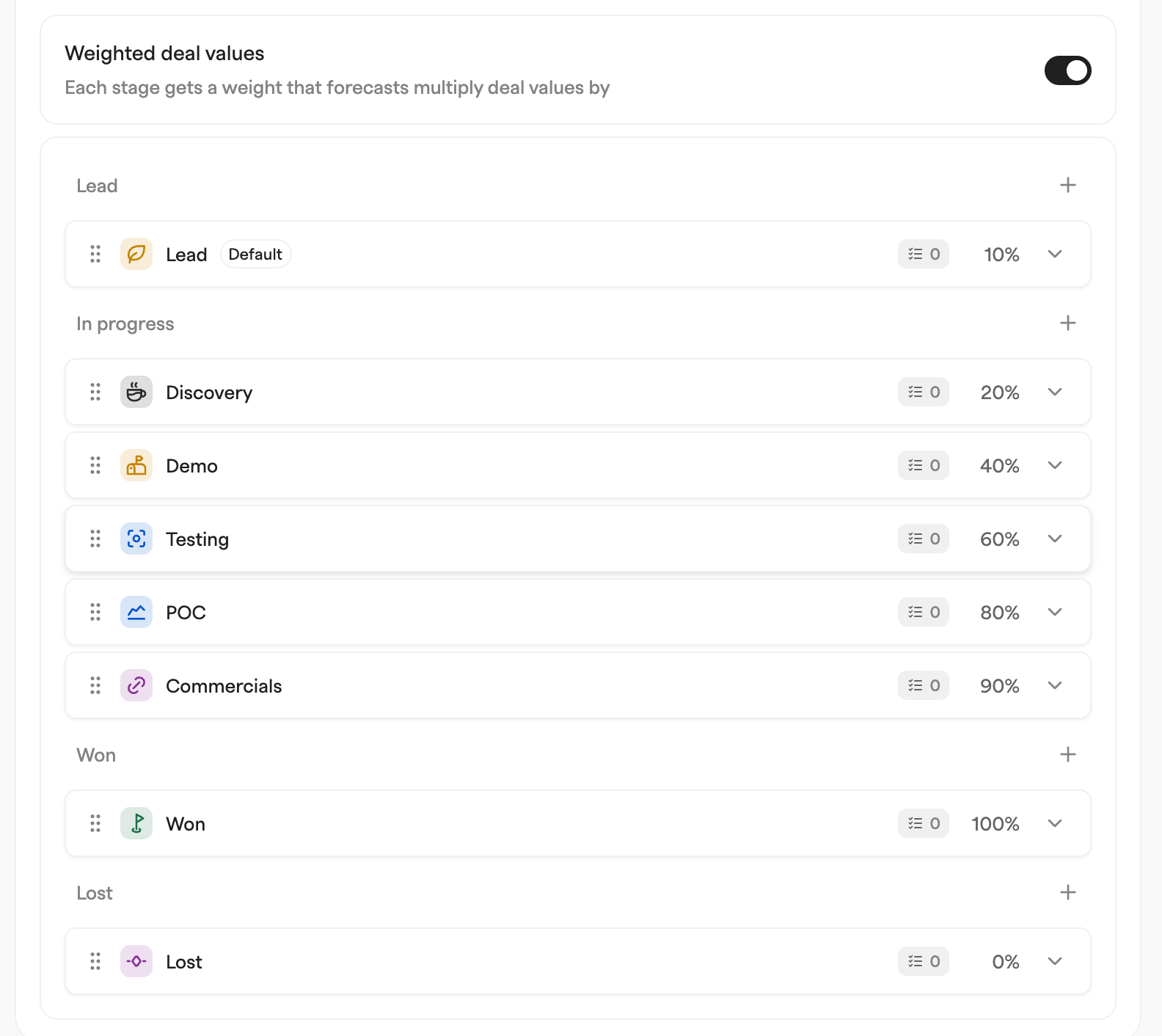
Stages are grouped under four statuses — **Lead**, **In progress**, **Won** and **Lost**. Select a pipeline tab, then rename stages or change their icon and color, add one to a group with the **+** next to its header, and drag by the grip handle to sort. Dragging a stage into a different group changes its status.
Clicking a stage row expands it:
* **Description** — when deals enter this stage. Agents read these too.
* **New deals start in this stage** — makes it the pipeline's default.
* **Weight** — the chance a deal here closes, as a percentage. Only shown with weighted deal values on.
* **Required properties** — deal properties that must be filled at this stage. Moving a deal in prompts for anything missing, which is the mechanism behind those exit criteria.
* **Inherit required properties from earlier stages** — carry the earlier stages' requirements forward too.
The trash button in the expanded row deletes the stage.
## Use Weighted Deal Values
Once you know roughly how often deals convert between your stages, you can forecast from that instead of from gut feel. Weighted deal values are set per pipeline.
1. Turn on **Weighted deal values**. Zero pre-fills a **Weight** per stage — Lead and Lost at 0%, Won at 100%, In progress spread in between. Turning it off clears them again.
2. Adjust each **Weight** to your real probability of closing from that stage. Weighted deal value is deal value times weight.
3. The "Deal value" column in lists then shows the weighted value beside it, marked with a scale icon. "Weighted deal value" and "Confidence" are also available as their own columns.
4. In reporting, "Weighted deal value" is a metric of its own.
---
# Agent Instructions
This documentation is published with GitBook. GitBook is the documentation platform designed so that both humans and AI agents can read, navigate, and reason over technical content effectively. Learn more at gitbook.com.
## Querying This Documentation
If you need additional information that is not directly available in this page, you can query the documentation by asking a question.
Perform an HTTP GET request on the following URL with the `ask` and `goal` query parameters:
```
GET https://docs.zero.inc/settings/pipeline-stages.md?ask=&goal=
```
`ask` is the immediate question: it should be specific, self-contained, and written in natural language.
`goal` is what the user is ultimately trying to achieve, the reason they need the answer. Sharing it helps GitBook give you a better, more relevant answer. A goal is most helpful when it describes the outcome the user wants rather than restating the question. For example, with `ask=how do I create an API token`, a goal like `automate deployments from our CI pipeline` lets GitBook tailor the answer to that use case.
The response will contain a direct answer to the question and relevant excerpts and sources from the documentation.
Use this mechanism when the answer is not explicitly present in the current page, you need clarification or additional context, or you want to retrieve related documentation sections.