> For the complete documentation index, see [llms.txt](https://docs.zero.inc/llms.txt). Markdown versions of documentation pages are available by appending `.md` to page URLs; this page is available as [Markdown](https://docs.zero.inc/settings/security.md).
# Security
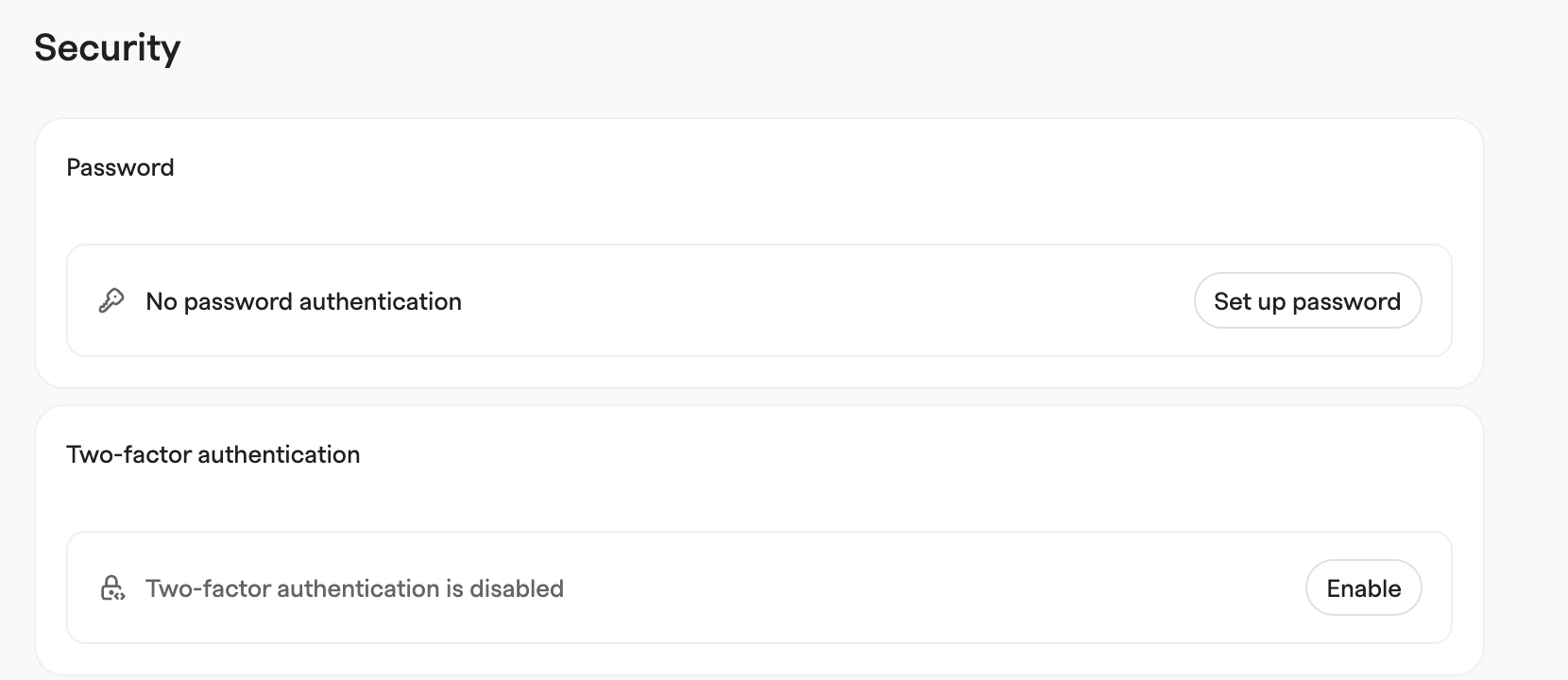
Go to **Settings → Account → Security** to manage your account password, two-factor authentication, and active sessions.
## Password
The **Password** section shows whether password authentication is enabled for your account and, if so, how long ago the password was last changed.
* **Set up password** — appears when your account has no password (for example, you signed up with Google). Enter a new password of at least 8 characters; a strength indicator helps you pick a strong one.
* **Change password** — appears when password authentication is enabled. Enter your current password and a new password (min 8 characters). Check **Sign out all other sessions** to sign out every other device, extension, and API session at the same time.
* **Disable** — appears only when password authentication is enabled and your account is linked to a Google account. Enter your current password to confirm; afterwards you can only sign in using your Google account.
{% hint style="info" %}
Workspace admins can disable password authentication for the entire workspace with the **Disable password authentication** toggle in **Settings → Workspace → Members**. Members must then sign in with Google — password login, invite signup, and password reset are disabled for that workspace.
{% endhint %}
## Two-factor authentication
Zero supports two-factor authentication (2FA) with one-time codes from an authenticator app. Turn it on or off in the **Two-factor authentication** section of **Settings → Account → Security**.
* **Enable** — scan the QR code with your authenticator app, then enter the six-digit code it shows and click **Confirm**.
* **Disable** — enter your current authenticator code to confirm.
## Active sessions
The **Active sessions** table lists every API key that is currently active with your credentials — your logged-in devices, browser extensions, personal API keys, and so on. For each session you see its **Type**, **Created at**, **Expires at**, and **IP & Location**; your current session is highlighted.
Click the sign-out button on any session to revoke it. Signing out your current session logs you out of Zero immediately.
---
# Agent Instructions
This documentation is published with GitBook. GitBook is the documentation platform designed so that both humans and AI agents can read, navigate, and reason over technical content effectively. Learn more at gitbook.com.
## Querying This Documentation
If you need additional information that is not directly available in this page, you can query the documentation by asking a question.
Perform an HTTP GET request on the following URL with the `ask` and `goal` query parameters:
```
GET https://docs.zero.inc/settings/security.md?ask=&goal=
```
`ask` is the immediate question: it should be specific, self-contained, and written in natural language.
`goal` is what the user is ultimately trying to achieve, the reason they need the answer. Sharing it helps GitBook give you a better, more relevant answer. A goal is most helpful when it describes the outcome the user wants rather than restating the question. For example, with `ask=how do I create an API token`, a goal like `automate deployments from our CI pipeline` lets GitBook tailor the answer to that use case.
The response will contain a direct answer to the question and relevant excerpts and sources from the documentation.
Use this mechanism when the answer is not explicitly present in the current page, you need clarification or additional context, or you want to retrieve related documentation sections.