> For the complete documentation index, see [llms.txt](https://docs.zero.inc/llms.txt). Markdown versions of documentation pages are available by appending `.md` to page URLs; this page is available as [Markdown](https://docs.zero.inc/settings/types-and-labels.md).
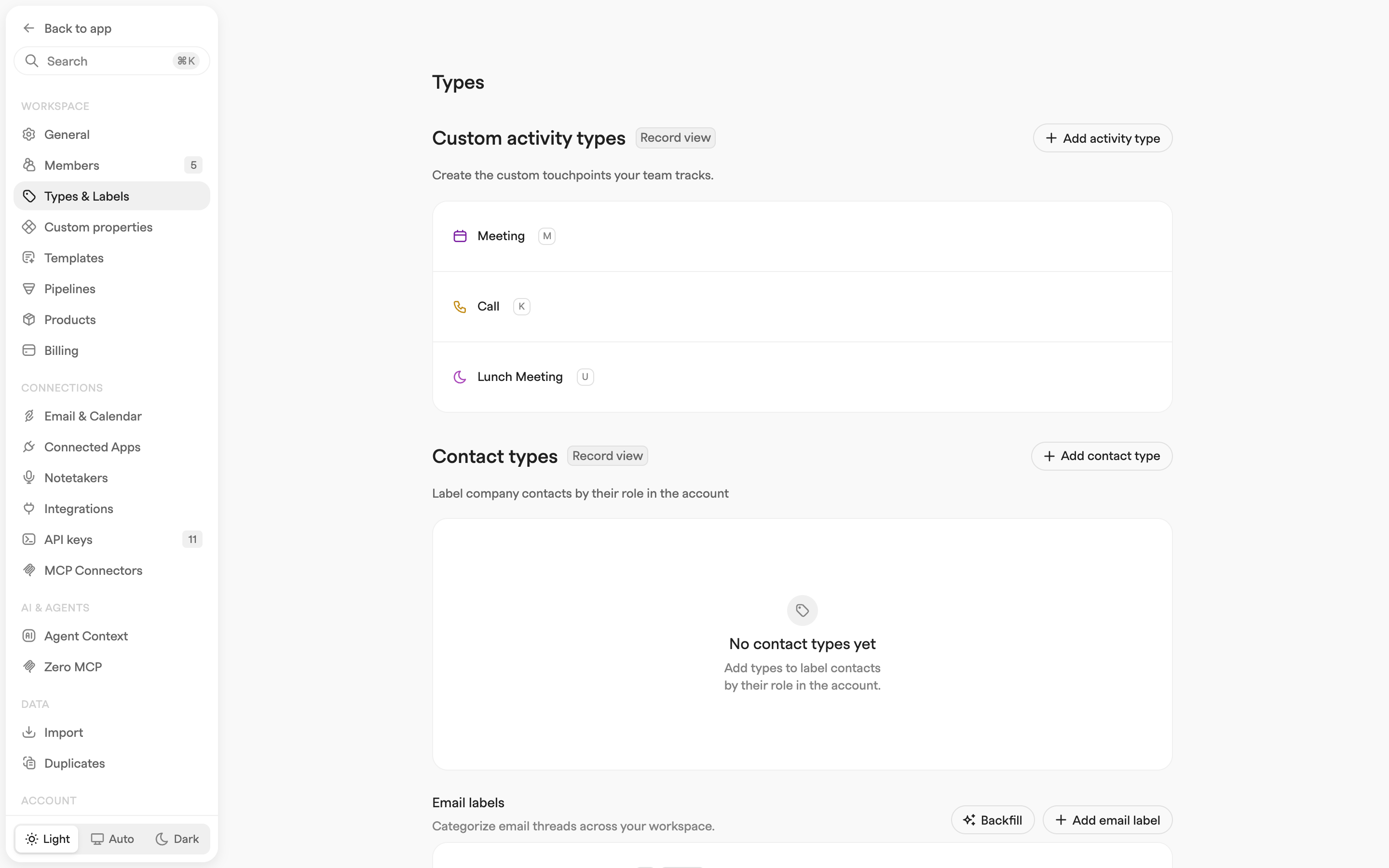
# Types & Labels
Categories are only useful if everyone uses the same ones. **Settings → Workspace → Types & Labels** (admin only) is where you define how your workspace classifies people, emails and meetings, once, for everybody.
## Contact types
Contact types label a company's people by their role in the account — **Economic buyer**, **Champion** — so anyone opening the record knows who they are talking to.
Once one exists, a tag button appears on each contact card in the **Contacts** section of a company record. Click it to pick a type, or **Clear contact type** to remove it.
* **Add** — click **Add contact type** and type the name in the new row.
* **Rename** — click the name and edit it in place. Changes save automatically.
* **Delete** — hover the row, click the trash button, and confirm. The type is removed from all company records.
## Email labels
**Add email label** opens the editor: pick an icon and color, name it, and then decide three things.
* **Let AI apply this label to incoming emails** — describe when it should apply and Zero labels threads for you. This is the setting that makes labels worth having, since nobody labels email by hand for long.
* **Visibility** — **Default** (follows the mailbox setting), **Public** or **Private**.
* **CRM Intelligence** — **Include**, **Exclude** or **No preference**, controlling whether labeled conversations get analyzed.
In the Inbox, the **Labels** filter in **Filter messages** narrows to one or more of them.
Hover a row for the pencil (**Edit details**) or the trash button, and drag the handle at its left to reorder.
### Backfilling past emails
As soon as one label uses AI, a **Backfill** button appears in the section header and applies your AI labels to mail you have already received — **Last 24 hours**, **Last 7 days**, **Last 30 days** or **Last 90 days**.
## Meeting labels
The same thing for meetings: **Add meeting label**, name it, optionally let Zero apply it from a description, and **Backfill** across past meetings. To label one by hand, open it and use **Add meeting label** next to the date.
## Custom activity types
**Custom activity types** at the top of this page are the touchpoints your team logs by hand — calls, demos, site visits. See [Custom Activities](/tracking-context/custom-activities.md).
---
# Agent Instructions
This documentation is published with GitBook. GitBook is the documentation platform designed so that both humans and AI agents can read, navigate, and reason over technical content effectively. Learn more at gitbook.com.
## Querying This Documentation
If you need additional information that is not directly available in this page, you can query the documentation by asking a question.
Perform an HTTP GET request on the following URL with the `ask` and `goal` query parameters:
```
GET https://docs.zero.inc/settings/types-and-labels.md?ask=&goal=
```
`ask` is the immediate question: it should be specific, self-contained, and written in natural language.
`goal` is what the user is ultimately trying to achieve, the reason they need the answer. Sharing it helps GitBook give you a better, more relevant answer. A goal is most helpful when it describes the outcome the user wants rather than restating the question. For example, with `ask=how do I create an API token`, a goal like `automate deployments from our CI pipeline` lets GitBook tailor the answer to that use case.
The response will contain a direct answer to the question and relevant excerpts and sources from the documentation.
Use this mechanism when the answer is not explicitly present in the current page, you need clarification or additional context, or you want to retrieve related documentation sections.