> For the complete documentation index, see [llms.txt](https://docs.zero.inc/llms.txt). Markdown versions of documentation pages are available by appending `.md` to page URLs; this page is available as [Markdown](https://docs.zero.inc/tracking-context/custom-activities.md).
# Custom Activities
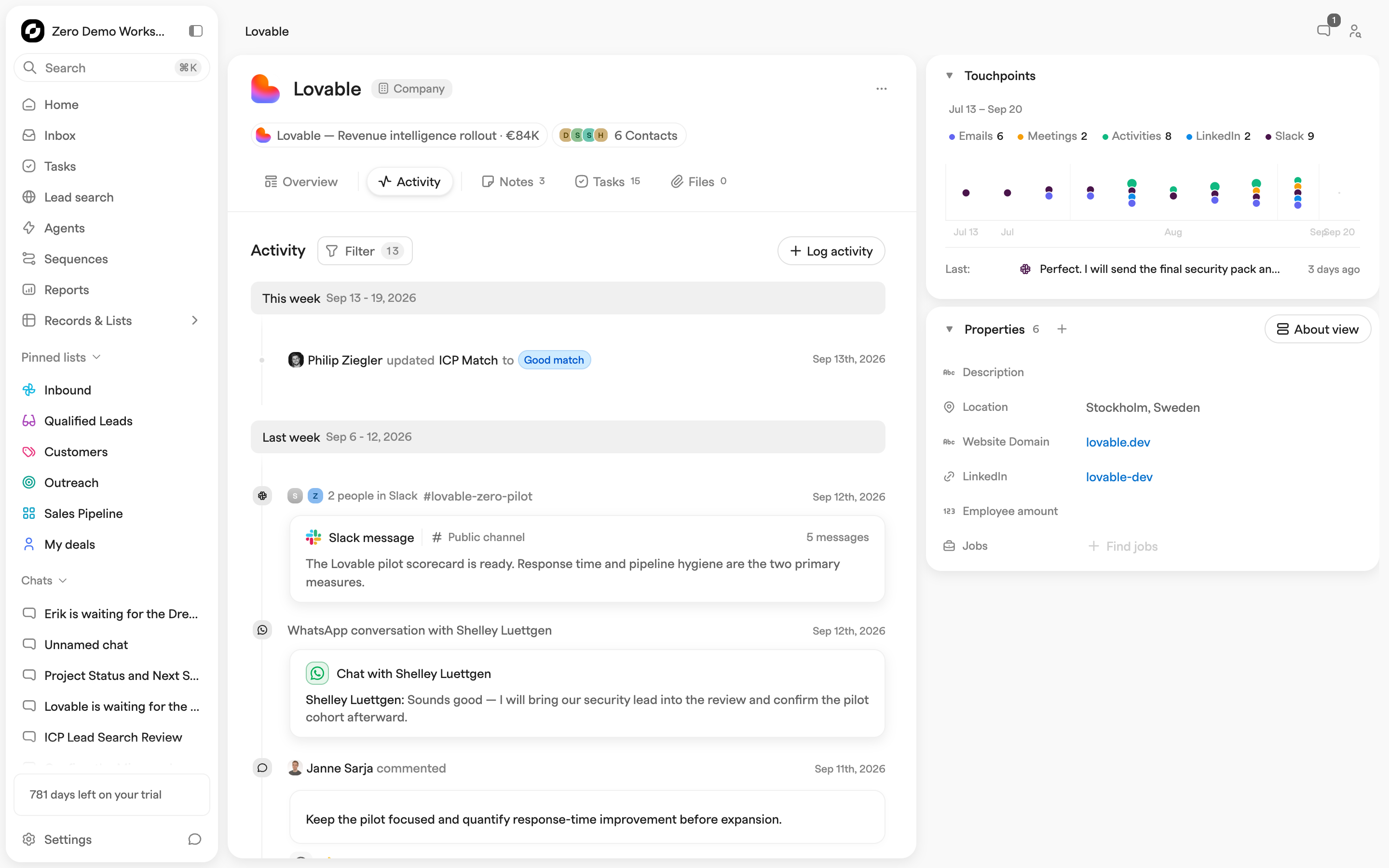
Email and meetings sync themselves, but plenty of what matters never touches a calendar: the call, the lunch, the site visit, the demo. Custom activities let you define those types once and log them from any record in a keystroke, so the timeline reflects the whole relationship rather than just the parts that happened online.
Because the types are shared, everyone logs the same things the same way — which is what makes the data worth reporting on later.
## Setting Up Activity Types
Types are workspace-wide, and only admins can create, edit or delete them.
{% stepper %}
{% step %}
### Open Activity Type Settings
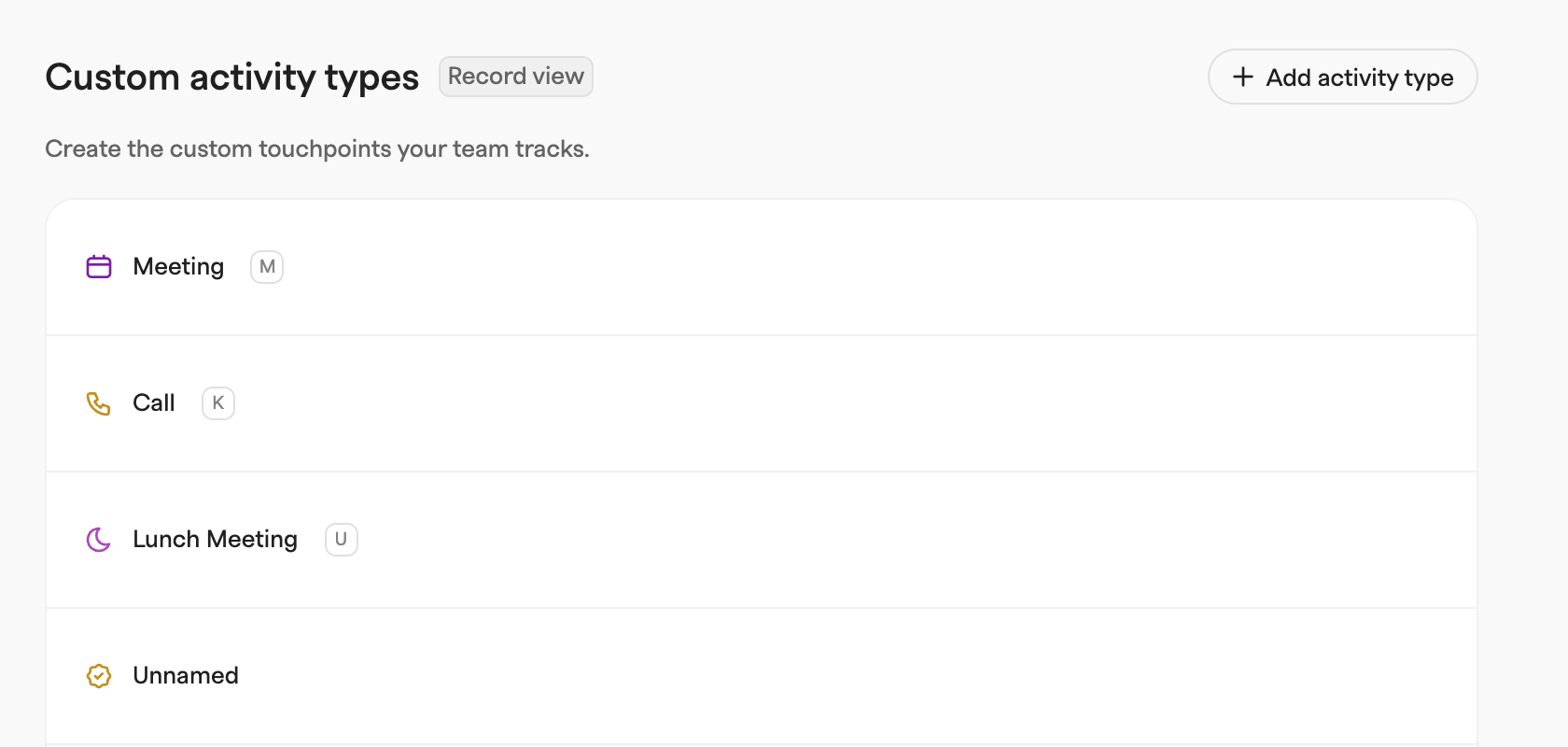
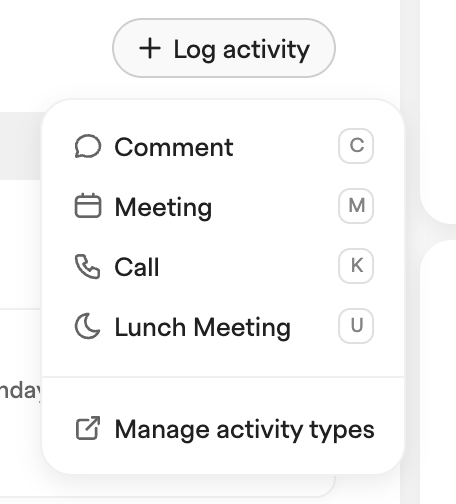
**Settings → Workspace → Types & Labels**; **Custom activity types** is at the top. From any record, **Manage activity types** in the **Log activity** dropdown gets you there too.
{% endstep %}
{% step %}
### Add a New Activity Type
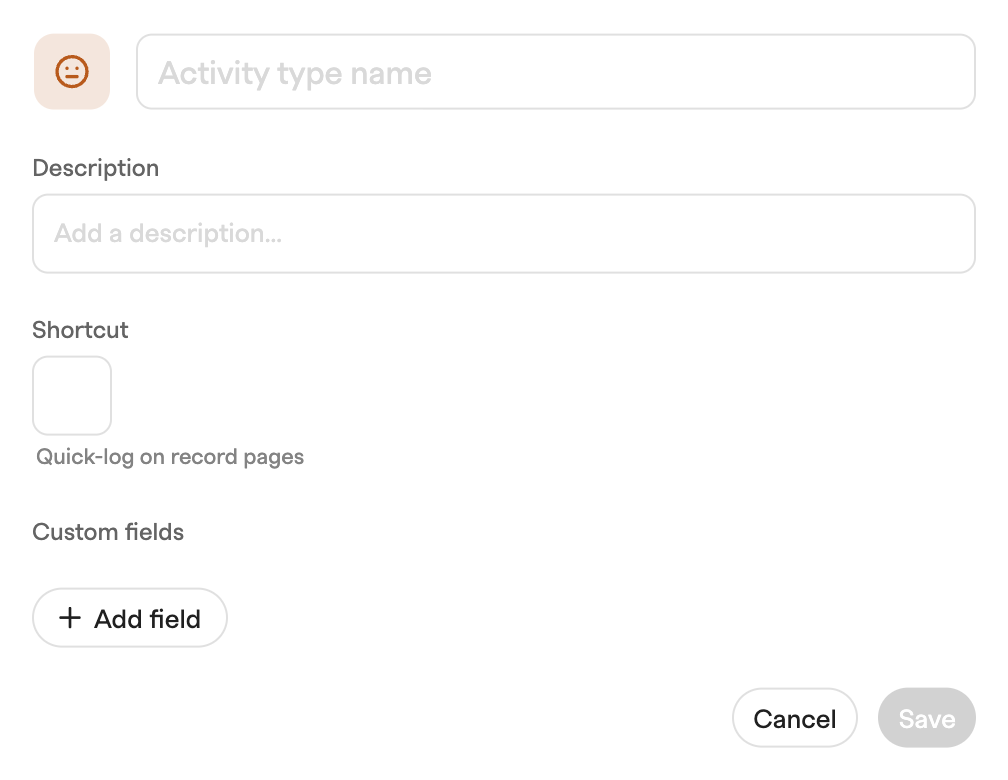
**Add activity type**, then set:
* **Name** — what appears in the activity menu: "Call", "Lunch", "Site Visit".
* **Icon and color** — so it is recognizable in the feed.
* **Description** — optional, for what the type is for.
* **Shortcut** — a single letter that logs this type from any record page. It has to be unique, and `B`, `C`, `D`, `L`, `P`, `T` and `Z` are reserved for Zero's own actions.
* **Custom fields** — structured fields to fill in each time (below).
{% endstep %}
{% step %}
### Add Custom Fields (Optional)
Free-form notes are hard to report on; structured fields are not. **Add field** attaches one to the type — a "Call outcome" select, a "Deal value discussed" currency field — and it then appears in that type's logging form.
Field types: Plain Text, Rich Text, Number, Percentage, Yes/No, Link, Currency, Email address, Phone number, Single Select, Multi Select, Single User, Multiple Users, Date, Time, Location, Rating. Select and Multi Select take your own list of options.
{% endstep %}
{% step %}
### Save and Start Logging
**Save**, and the type appears in the **Log activity** dropdown on every record, for everyone, straight away.
{% endstep %}
{% endstepper %}
## Logging an Activity
From any record: **Log activity** in the **Activity** feed and pick the type, or just press its shortcut (which works anywhere on the page unless you are typing in a field). Fill in a title, free-form notes, the type's custom fields, when it happened (defaults to now), and who took part — teammates and contacts — then **Log \**.
It lands in the timeline with its icon, label and time. The command menu (`Cmd+K`) has a **Log \** quick action for every type too.
To edit or delete one, open it from the feed: the composer has **Save changes** and **Delete**.
## Managing Activity Types
Edit or remove types from **Settings → Workspace → Types & Labels**, or **Manage activity types** at the bottom of the **Log activity** dropdown. Hover a type for its edit and delete buttons. Changes are workspace-wide and immediate.
## Agents and API Access
* **Agents** — the **Log activity** action writes one, and changes to custom activities can trigger agents.
* **MCP** — `add_custom_activity` and `edit_custom_activity`. Both accept a `custom` object keyed by the activity type’s field IDs. Call `get_workspace_metadata` with `sections: ["customActivityTypes"]` to get type IDs, `customFields[].id`, and select `options[].key` values. Edits update only the supplied custom fields, preserving other values. Every activity needs at least one linked company, contact or deal. See [Zero's MCP server](/developers/mcp.md).
* **REST API** — `/api/customActivities`, with the type catalog at `/api/customActivityTypes`.
---
# Agent Instructions
This documentation is published with GitBook. GitBook is the documentation platform designed so that both humans and AI agents can read, navigate, and reason over technical content effectively. Learn more at gitbook.com.
## Querying This Documentation
If you need additional information that is not directly available in this page, you can query the documentation by asking a question.
Perform an HTTP GET request on the following URL with the `ask` and `goal` query parameters:
```
GET https://docs.zero.inc/tracking-context/custom-activities.md?ask=&goal=
```
`ask` is the immediate question: it should be specific, self-contained, and written in natural language.
`goal` is what the user is ultimately trying to achieve, the reason they need the answer. Sharing it helps GitBook give you a better, more relevant answer. A goal is most helpful when it describes the outcome the user wants rather than restating the question. For example, with `ask=how do I create an API token`, a goal like `automate deployments from our CI pipeline` lets GitBook tailor the answer to that use case.
The response will contain a direct answer to the question and relevant excerpts and sources from the documentation.
Use this mechanism when the answer is not explicitly present in the current page, you need clarification or additional context, or you want to retrieve related documentation sections.