> For the complete documentation index, see [llms.txt](https://docs.zero.inc/llms.txt). Markdown versions of documentation pages are available by appending `.md` to page URLs; this page is available as [Markdown](https://docs.zero.inc/tracking-context/notes.md).
# Notes
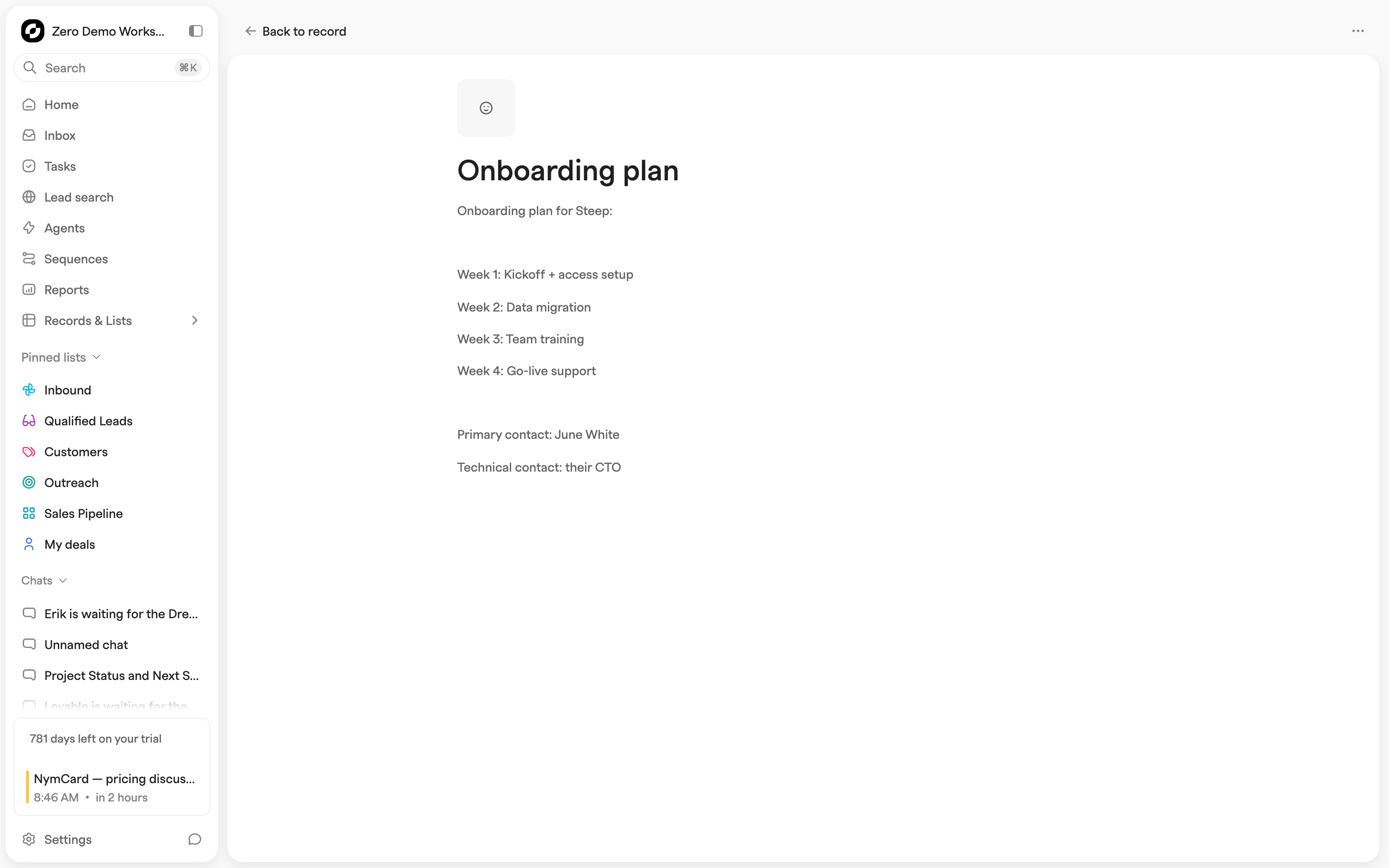
Some things don't belong in a property or a task: a call debrief, background research, the reasoning behind a decision. Notes are rich-text documents attached to a company, contact or deal — an emoji, a title and a body, readable and editable by everyone in the workspace.
They are not **meeting notes**, which live on calendar events and are usually written by a connected [Notetakers](/settings/call-recorders.md).
## Where to find notes
The **Notes** tab on any record, with a count in its header. Inside, two sub-tabs keep the types apart: **Notes** for those linked to this record (each card showing emoji, linked record, an "Edited …" timestamp, title and first line) and **Meeting notes** for calendar events involving this record that have notes, sorted by meeting time.
**Order by** sorts on **Updated at** or **Created at**, either direction.
## Creating a note
**Add note** or **New note** in the Notes tab opens a side drawer, already linked to the record you are on, with a 🗒️ emoji you can change. Set a title (untitled ones are listed as "Untitled note"), write the body, and it saves as you type — there is no save button.
The chevrons move to the previous or next note on the record, **Open in full page** switches to the full-screen editor, and the trash button deletes after a confirmation.
## The note editor
Type `/` for headings, lists and other blocks — and for your note templates, which are managed under **Settings → Workspace → Templates** in the **Meeting notes** group. Drag files in to attach them, and mention contacts and companies inline.
The full-page editor adds a **Back to record** button and an **Actions** menu with **Delete note**.
## Linked records
A note can link to a company, a contact and a deal at once. Each link shows as a clickable pill on the card and in the drawer header. A note linked to nothing appears nowhere in the app, so always keep at least one link.
## Notes from agents and chat
* **Agents** — the **Add a note** action (under "Manage activities") writes a note on a record you choose, with macros from earlier steps available in its content. Later steps can reach it as "Created Note". See [Agents](/features/agents.md).
* **Chat** can find, create, edit and remove notes. See [Chat](/getting-started/chat.md).
## Notes over MCP and the API
Assistants connected over [MCP](/developers/mcp.md) get the note tools:
* `find_notes` — search notes by title, linked company/contact/deal, or creation date.
* `add_note` — create a note. Requires a title, markdown content, and a link to at least one company, contact, or deal.
* `edit_note` — update a note's title, emoji, content, or linked records.
* `remove_note` / `remove_notes` — delete one or several notes by ID.
Notes are also available through the REST API under the **Notes** tag — see [API](/developers/api.md).
## Imported notes
Imports from HubSpot, Attio, Pipedrive and Affinity bring existing notes with them, linked to the matching records. See [Data Import](/getting-started/data-import.md).
---
# Agent Instructions
This documentation is published with GitBook. GitBook is the documentation platform designed so that both humans and AI agents can read, navigate, and reason over technical content effectively. Learn more at gitbook.com.
## Querying This Documentation
If you need additional information that is not directly available in this page, you can query the documentation by asking a question.
Perform an HTTP GET request on the following URL with the `ask` and `goal` query parameters:
```
GET https://docs.zero.inc/tracking-context/notes.md?ask=&goal=
```
`ask` is the immediate question: it should be specific, self-contained, and written in natural language.
`goal` is what the user is ultimately trying to achieve, the reason they need the answer. Sharing it helps GitBook give you a better, more relevant answer. A goal is most helpful when it describes the outcome the user wants rather than restating the question. For example, with `ask=how do I create an API token`, a goal like `automate deployments from our CI pipeline` lets GitBook tailor the answer to that use case.
The response will contain a direct answer to the question and relevant excerpts and sources from the documentation.
Use this mechanism when the answer is not explicitly present in the current page, you need clarification or additional context, or you want to retrieve related documentation sections.