> For the complete documentation index, see [llms.txt](https://docs.zero.inc/llms.txt). Markdown versions of documentation pages are available by appending `.md` to page URLs; this page is available as [Markdown](https://docs.zero.inc/tracking-context/record-view.md).
# Record view
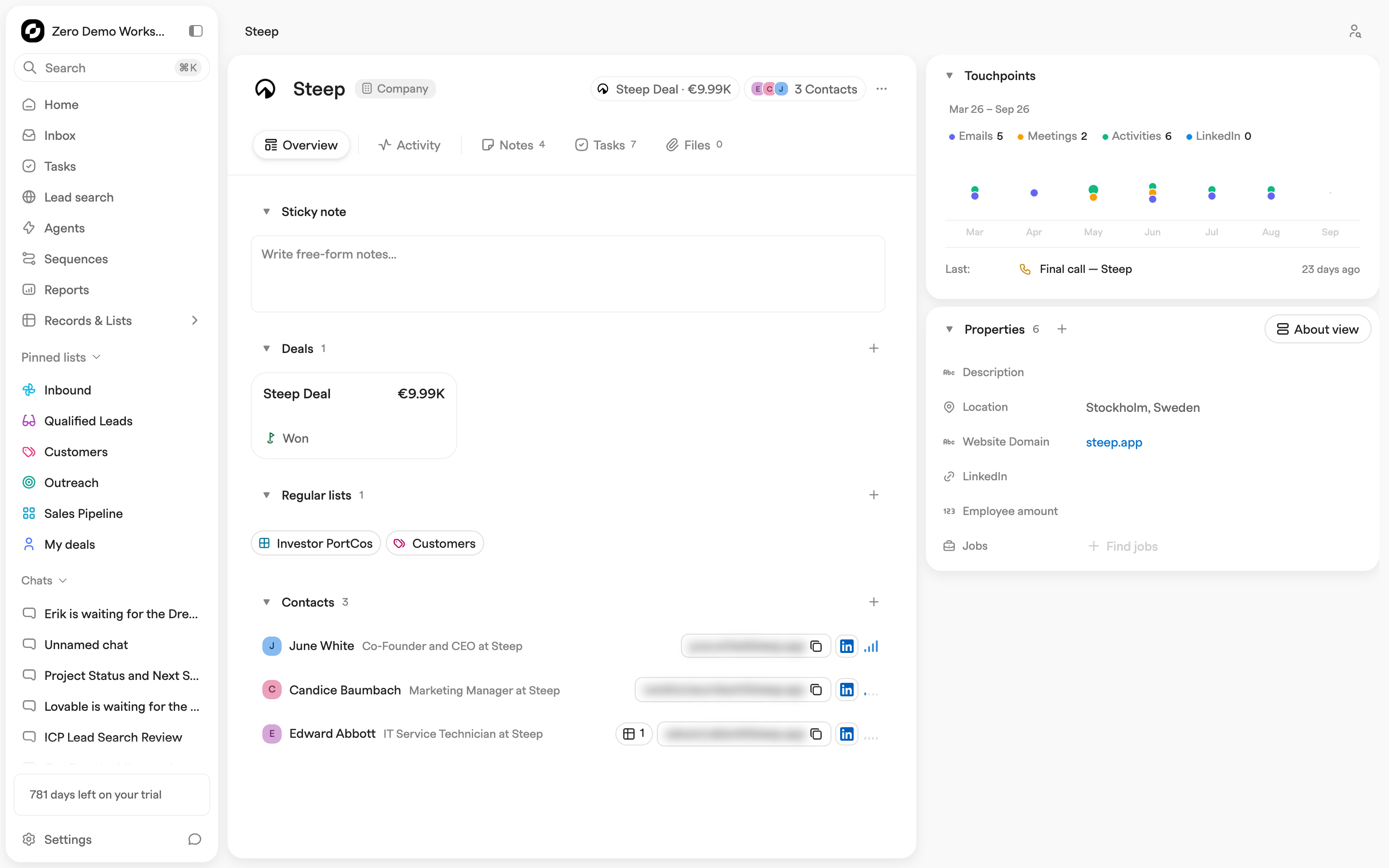
A record page is where everything Zero knows about one company, person or deal comes together. Open one from a list, from search, or from a link in chat: `/{workspace}/records/{companies|contacts|deals}/{id}`.
Three parts — a header, a row of tabs, and the properties panel on the right — and most of the layout is yours to arrange.
## Header
The name is editable inline, next to the logo or avatar (click it to upload your own). After it come a type badge and pills for the most relevant related records — a contact's company and deals, a deal's contacts. Where there is more than one, the pill becomes a dropdown listing them with their stage, value or job title.
The **⋯** menu offers **Add deal**, **Add to list**, and **Add contact** on a company; **Add to deal**, **Add to list**, and **Unlink from company** on a contact; **Add to list** and **Add contact to deal** on a deal; and **Delete record** on all three.
A deal missing properties its stage requires shows an **Incomplete** badge; clicking it opens **Missing required properties** so you can fill them in without leaving. Which properties a stage requires is set in [Pipelines](/settings/pipeline-stages.md).
Top right:
* **Send message** (shortcut `E`) on contacts and deals opens the message composer.
* **Record chats** lists the chat conversations that were started from this record.
* **Trigger agent manually** runs one of your [agents](/features/agents.md) against this record.
* **Run enrichment** refreshes the enriched properties for the record.
## Tabs
* **Overview** — the related records and, if the record has one, its **Sticky note**.
* **Activity** — the chronological feed of everything that happened on the record. See [Activity feed](/tracking-context/activity-feed.md).
* **Notes**, **Tasks**, and **Files** — each shows a count of the items attached to the record. The **Notes** tab splits into **Notes** and **Meeting notes**. See [Notes](/tracking-context/notes.md), [Tasks](/features/tasks.md), and [Files](/tracking-context/files.md).
Overview is built from collapsible sections, and which appear depends on the record type:
| Section | Where it appears | What it holds |
| ----------------- | ------------------- | ------------------------------------------------------------- |
| **Quotes** | Deals | The deal's quotes, with **+** to add one |
| **Company** | Contacts | The contact's company, with a button to add or change it |
| **Deals** | Companies, contacts | The record's deals |
| **Contacts** | Companies, deals | The record's contacts, each with its own activity indicator |
| **Regular lists** | All three | The lists the record is in; click to add or remove |
| **Sequences** | Contacts | The sequences the contact is enrolled in |
| **Funding** | Companies | Funding rounds from the company profile; collapsed by default |
Click a section title to open or close it. Section and tab order are fixed.
## Properties panel
Two sections on the right.
**Touchpoints** charts the record's activity over time, with a legend for **Emails**, **Meetings**, **Activities**, **LinkedIn** and **Slack** — drag across it to zoom into a period, and use the arrows to step through. It is the quickest way to see when a relationship was busy and when it went quiet.
**Properties** is the editable list of standard and custom properties, all editable in place and copyable.
On a deal whose view has required properties turned on, a **Required for next stage · \** block sits below the list flagging what the current stage still leaves empty. It sits outside the view, so reordering or hiding properties never touches it.
## Adjusting the layout
### The panel itself
Drag the panel's left edge to resize it; the width is remembered. When the page gets narrow — with the chat pane open, say — the panel moves below the record rather than beside it. **Touchpoints** and **Properties** each collapse by clicking their title, and stay collapsed next time.
### Which properties are shown
* **Add property** — the **+** button above the list opens a searchable list of every available property, standard and custom. Tick the ones you want.
* **Reorder** — drag a property by its name to move it up or down.
* **Hide property** — the eye icon on a property row removes it from the panel.
* **Resize the labels** — drag the divider between a property's name and its value to give long names more room.
### Saved property selections
The menu at the top right of **Properties** holds the saved property selections for this record type — companies, contacts and deals each have their own set. Selections are labelled **Private** (yours alone) or **Default** (what everyone starts from), and the copy and pencil buttons duplicate or edit one. You can edit your own; admins can edit anyone's.
When you add, reorder or hide a property, **Unsaved changes** and the save controls appear at the bottom of the **Properties** panel:
* For your own private selection, **Save for me** updates it.
* For a shared selection you can edit, **Save changes** opens two choices: **For everyone** updates the shared property list; **Only for me** opens a dialog to save a private copy, leaving others' properties unchanged.
* For a shared selection you cannot edit, **Save for me** opens the private-copy dialog.
* For properties that have not been saved as a selection, **Save properties** offers **Only for me** or **For everyone**, then opens the naming dialog. A shared selection becomes available to everyone; it changes their default only if an admin turns on the default setting.
* **Discard** restores the saved properties.
**Save shown properties** and **New property selection** in the menu also open a dialog for:
* **Name for this property selection**.
* **Let everyone use this selection** — off makes it private to you.
* **Show by default for everyone** — admins only, and only on a shared selection. This is what teammates get when they have not picked a selection themselves; setting a new default clears the old one.
* **Show required properties** — deals only. Adds the **Required for next stage** block described above.
The same dialog picks and reorders the selection's properties. When editing a saved selection, the delete button removes the selection while keeping the properties and their values.
{% hint style="info" %}
Layout choices are per record type. A view saved on deals does not change what you see on companies or contacts.
{% endhint %}
## The sticky note
**Sticky note** is a rich-text property like any other: add it from **Add property**, write in it from the properties panel. Once it has content it also appears at the top of **Overview**, editable there, with `@`-mentions for contacts and companies — a good place for the one thing everyone should read before touching the account.
---
# Agent Instructions
This documentation is published with GitBook. GitBook is the documentation platform designed so that both humans and AI agents can read, navigate, and reason over technical content effectively. Learn more at gitbook.com.
## Querying This Documentation
If you need additional information that is not directly available in this page, you can query the documentation by asking a question.
Perform an HTTP GET request on the following URL with the `ask` and `goal` query parameters:
```
GET https://docs.zero.inc/tracking-context/record-view.md?ask=&goal=
```
`ask` is the immediate question: it should be specific, self-contained, and written in natural language.
`goal` is what the user is ultimately trying to achieve, the reason they need the answer. Sharing it helps GitBook give you a better, more relevant answer. A goal is most helpful when it describes the outcome the user wants rather than restating the question. For example, with `ask=how do I create an API token`, a goal like `automate deployments from our CI pipeline` lets GitBook tailor the answer to that use case.
The response will contain a direct answer to the question and relevant excerpts and sources from the documentation.
Use this mechanism when the answer is not explicitly present in the current page, you need clarification or additional context, or you want to retrieve related documentation sections.